
Transaction History
Purpose of This Page
The Transaction History page allows you to view, filter, and analyze all transactions associated with a Customer Account.
Use this page to:
- Locate specific transactions
- Review activity over time
- Export transaction data for reporting or reconciliation
How to Access
- Navigate to the Client Access Portal (CAP).
- From the top navigation, select Account then Transaction History.
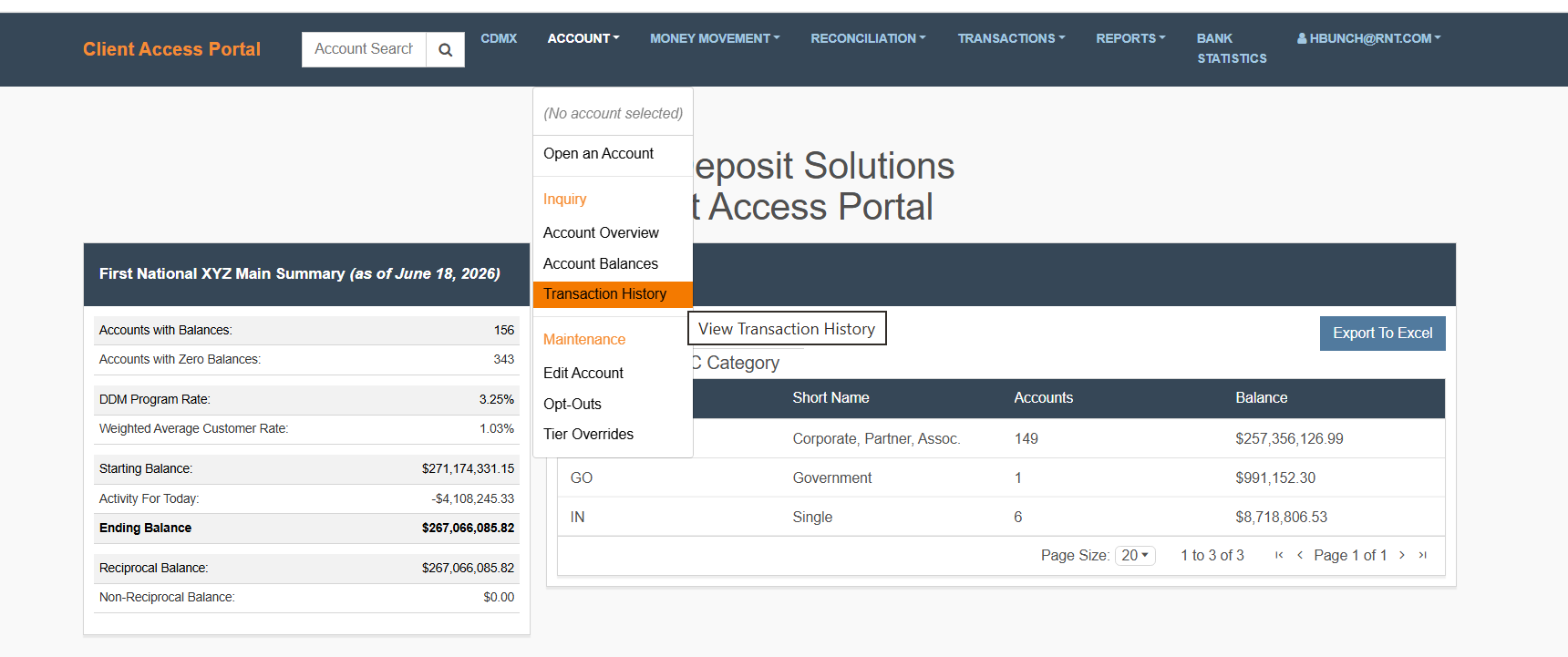
Get Transaction Data
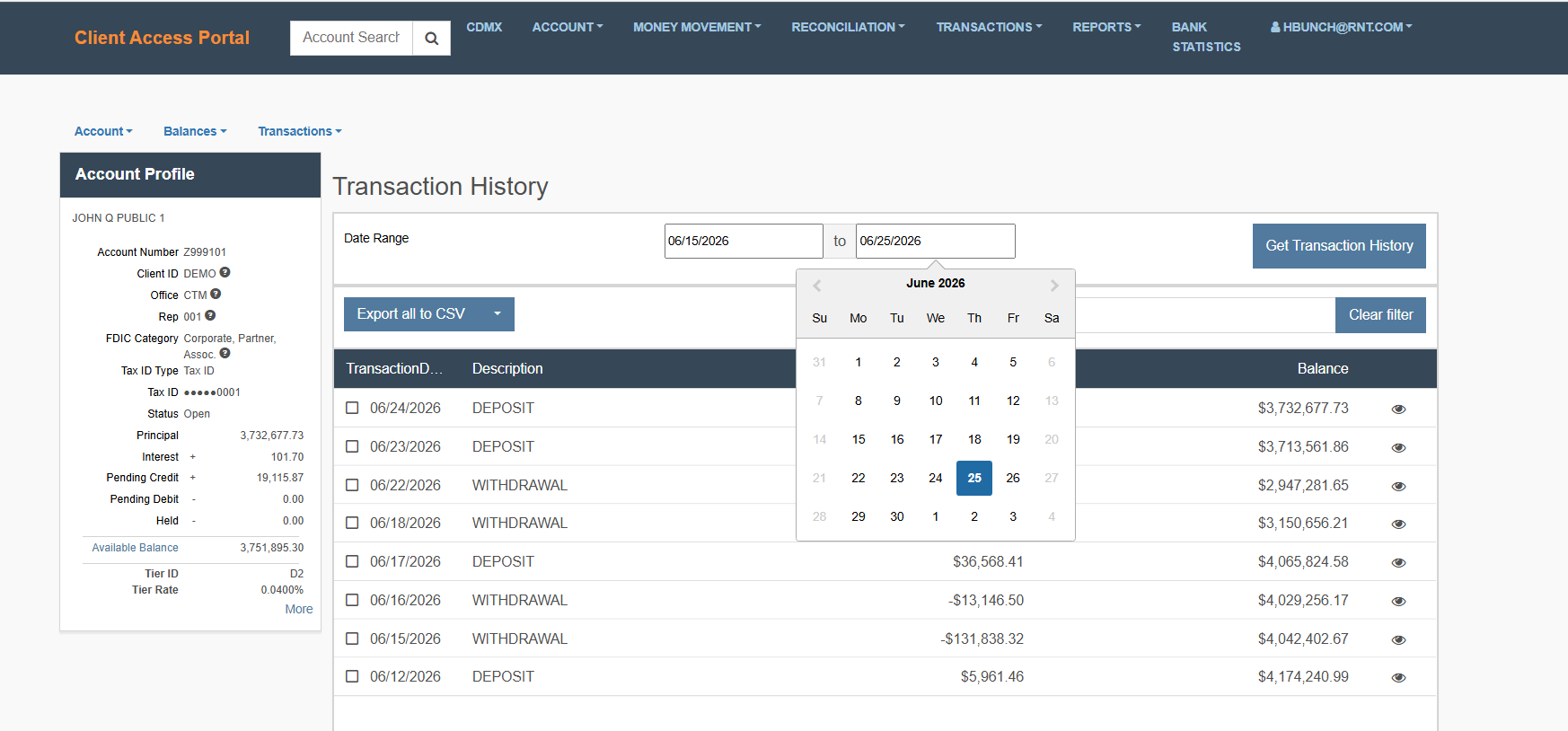
This section allows you to load and display transactions based on your selected criteria.
What You Need to Do
- Select a Value Date range using the date picker.
- Click Get Transaction History.
- Review the results displayed in the table.
Helpful Tips
- Start with a broader date range, then refine if needed.
- If no results appear, expand your date range.
Sort & Filter Transaction Data
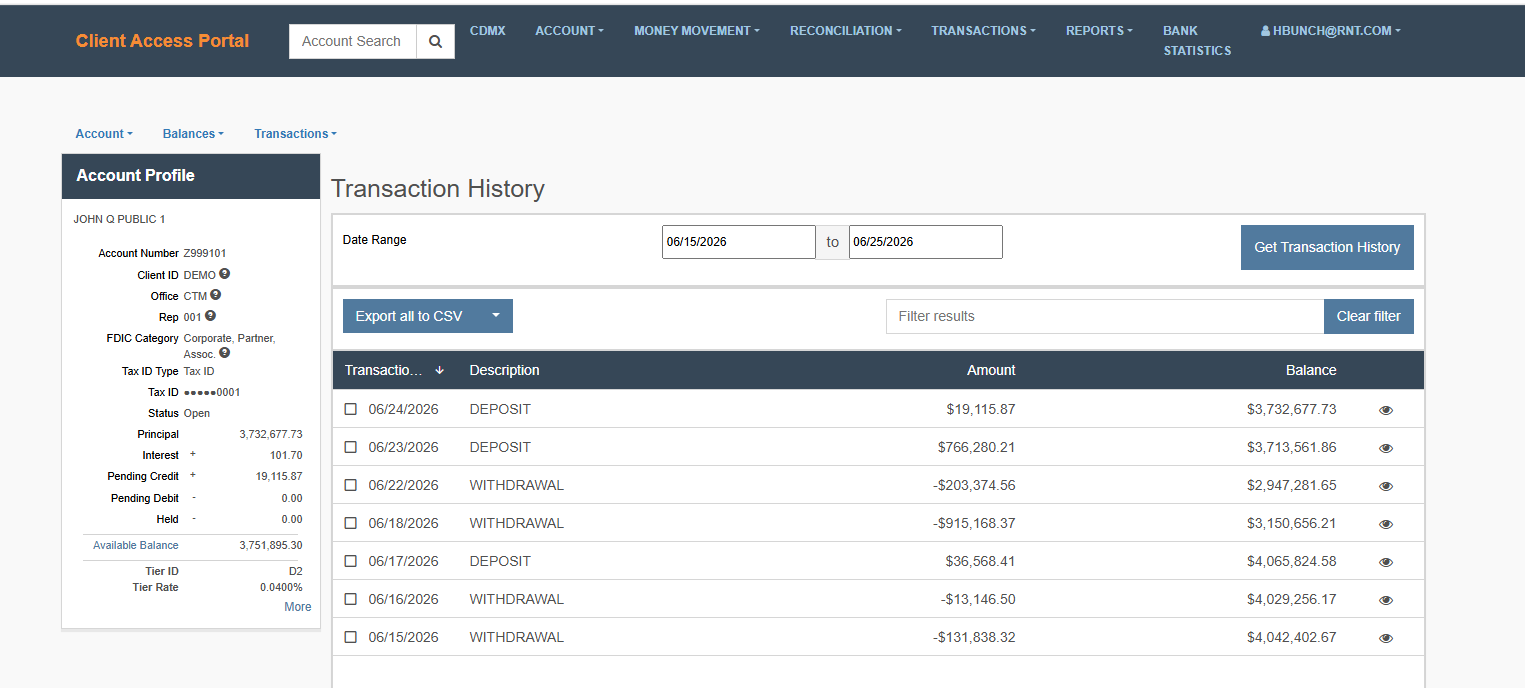
Sorting and filtering help you quickly locate and analyze the transactions most relevant to your task.
Sort By Column
What You Need to Do
- Click a column header (e.g., Date, Amount)
- Click again to reverse the sort order
When to Use
- Identify the largest or smallest transactions
- Review most recent or oldest activity
Export Transaction Data to CSV
This section allows you to export transaction data for use outside the system (e.g., Excel or reporting tools).
Export All to CSV
What You Need to Do
- Click Export All to CSV
When to Use
- You need the full dataset currently loaded in the table
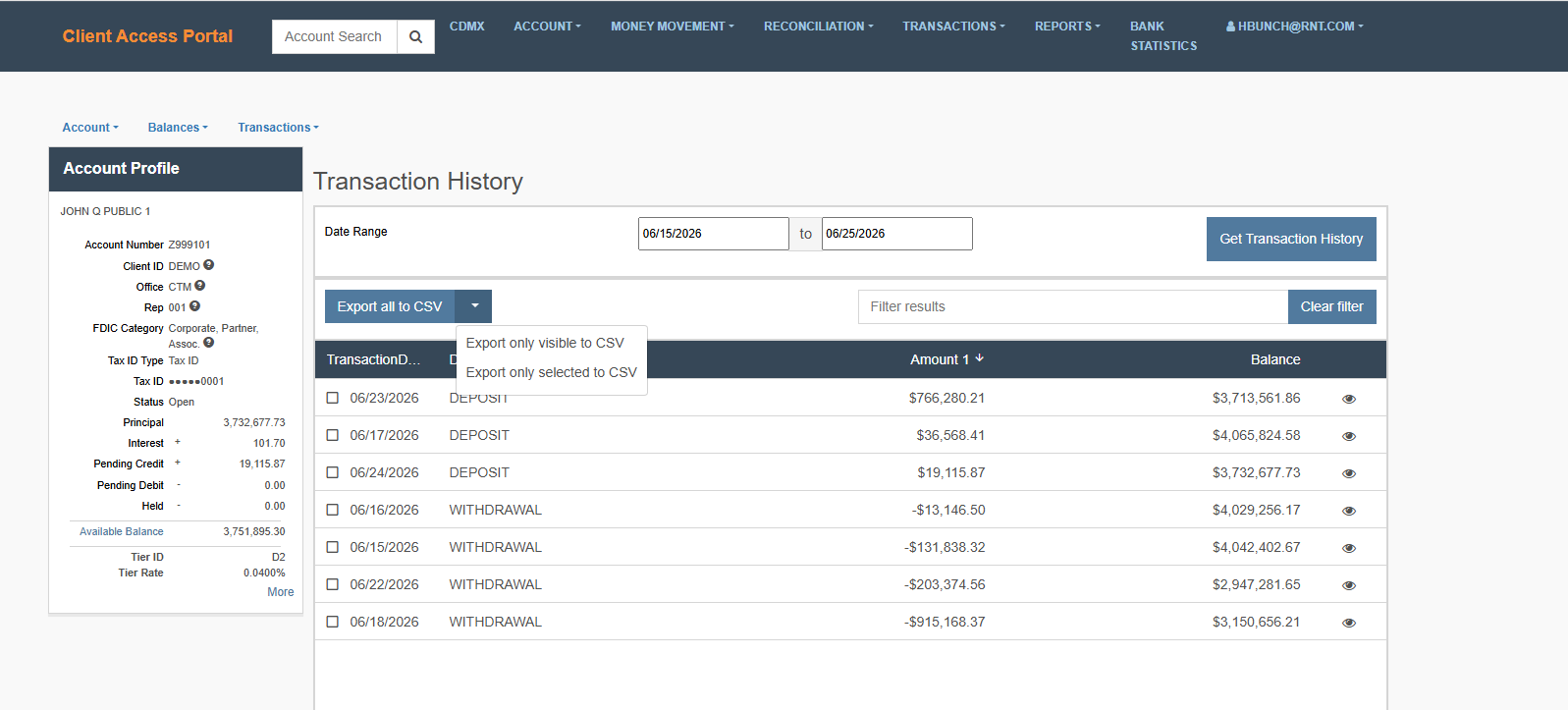
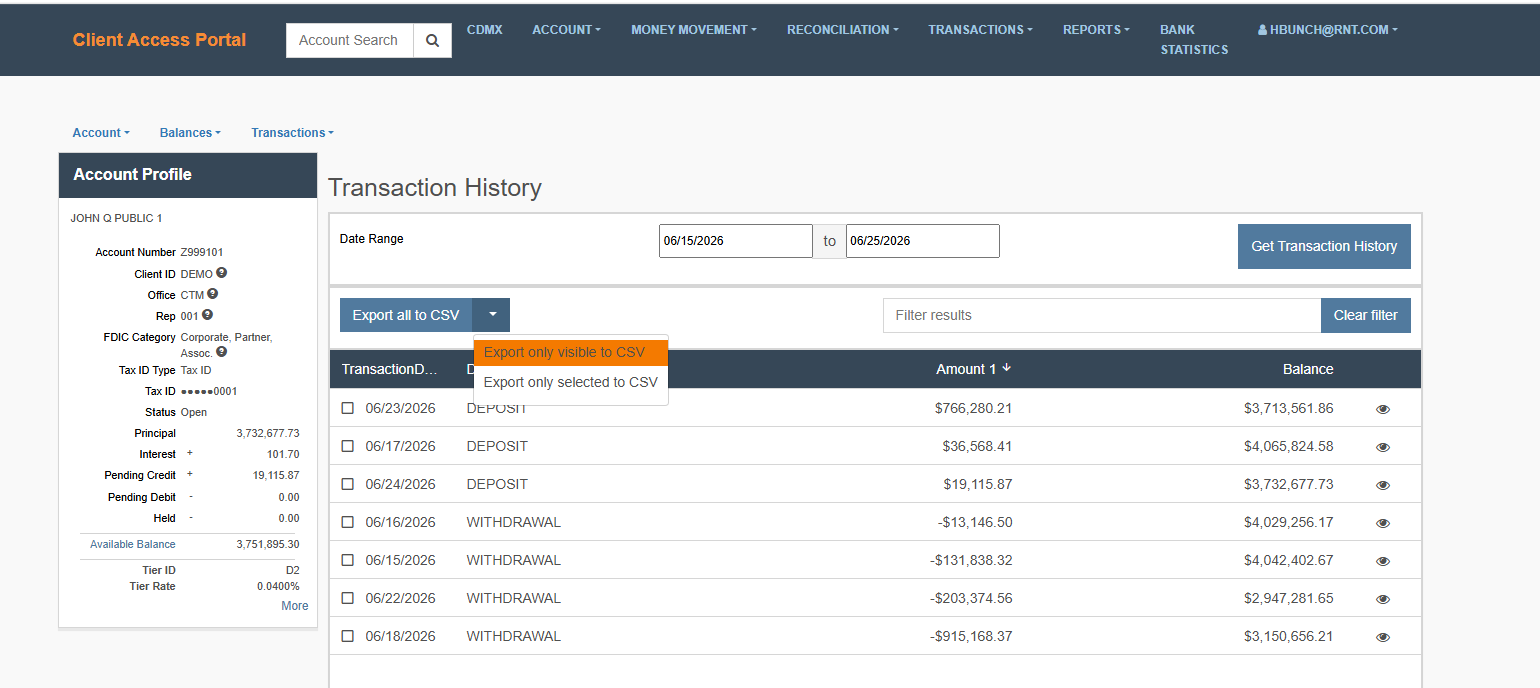
Export Only Visible to CSV
What You Need to Do
- Click the arrow next to Export All to CSV and select Export Only Visible to CSV.
When to Use
- You want to export only the rows currently displayed on screen
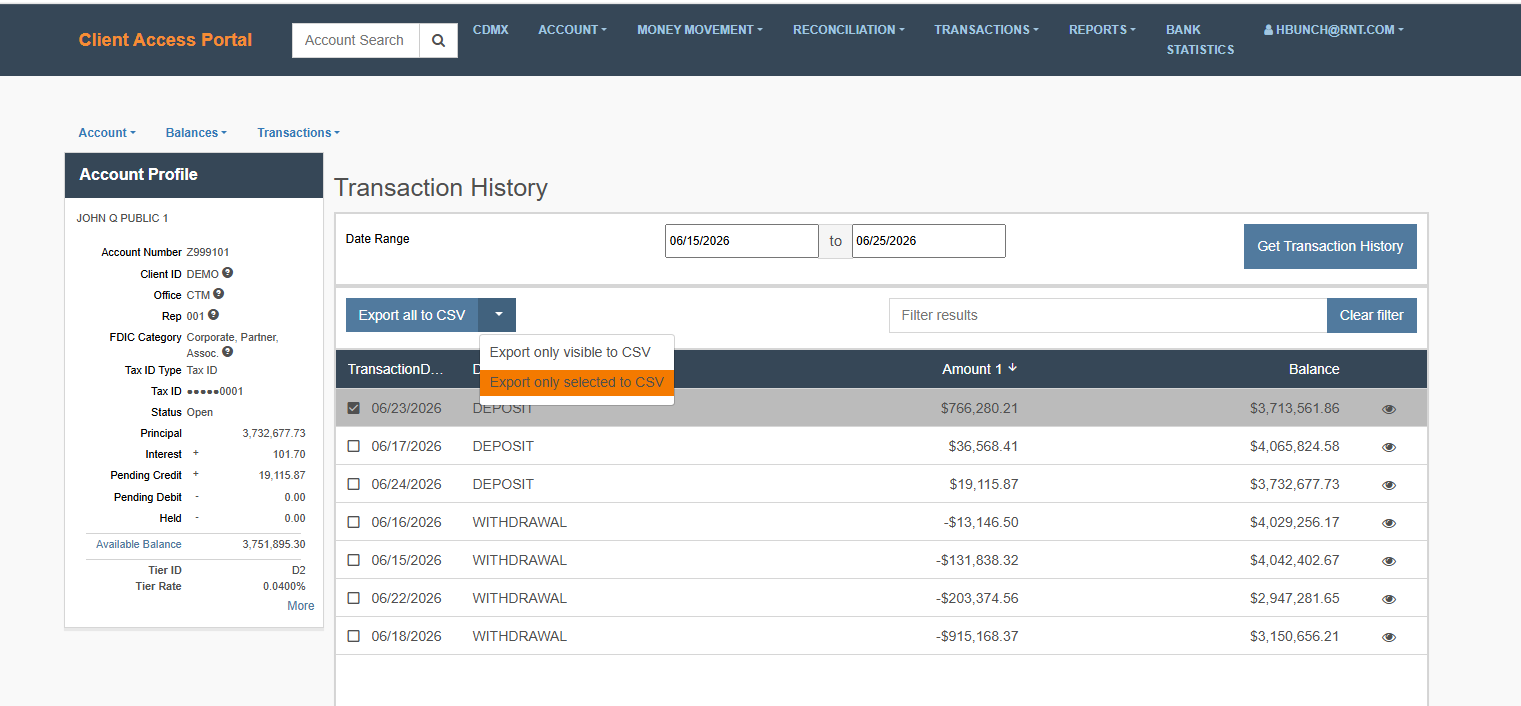
Export Only Selected to CSV
What You Need to Do
- Click the arrow next to Export All to CSV and select Export Only Selected to CSV.
When to Use
- You need a specific subset of transactions
Helpful Tips
- Apply filters before exporting to limit results
- Exporting smaller datasets improves usability in Excel
View Transaction Details
This section allows you to view detailed information for an individual transaction.
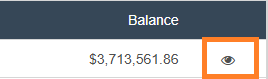
What You Need to Do
-
Click the detail icon (eye) next to the Balance.
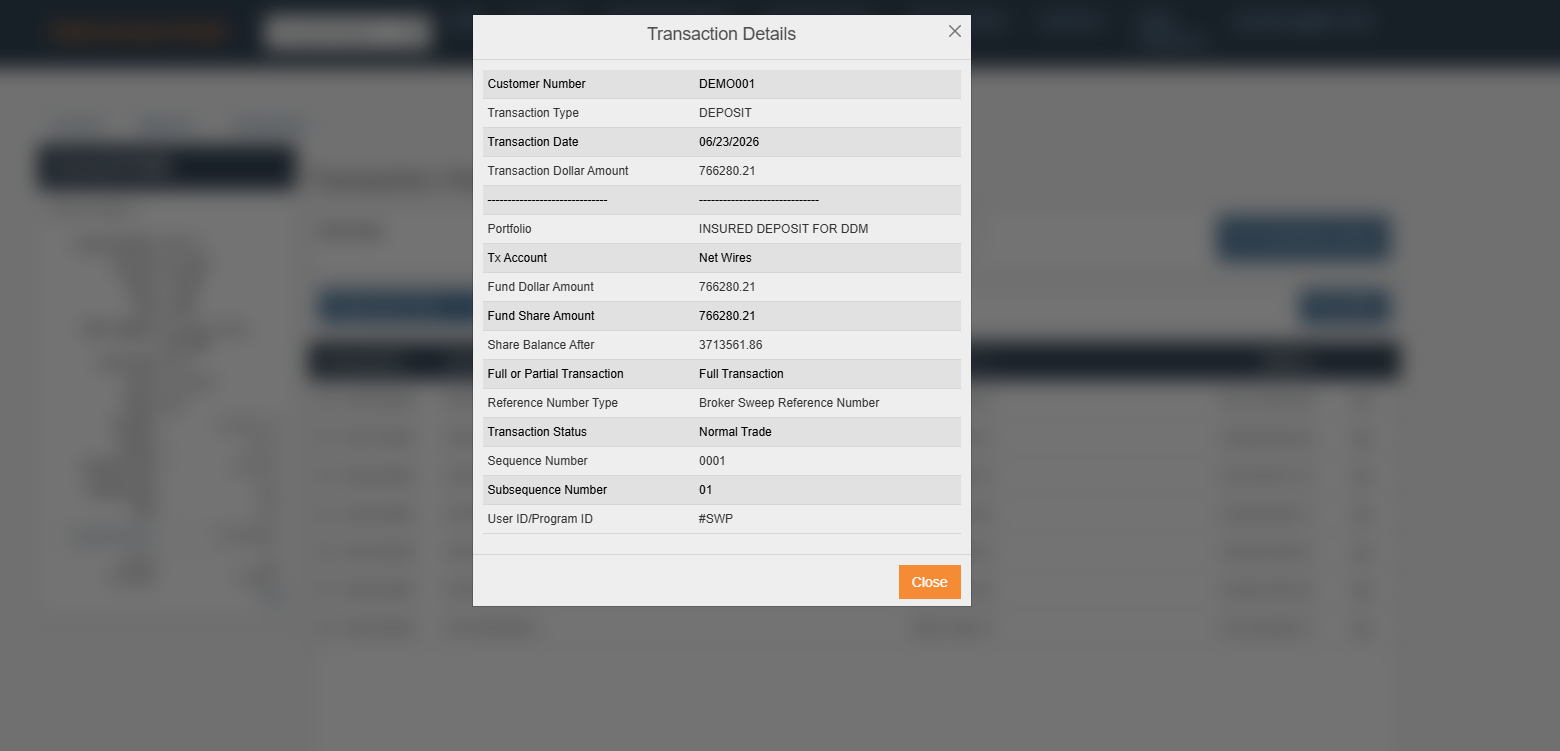
What You Will See
The Transaction Details window includes:
- Transaction type
- Status Amount
- Account information
- Relevant dates (e.g., value date, settlement date)
- Reference details
When to Use
- Investigating a specific transaction
- Validating transaction details
- Reviewing information not visible in the table
Quick Reference Common Tasks
- Find a transaction → Set date range and click Get Transaction History
- Review recent activity → Sort by Date (descending)
- Identify large transactions → Sort by Amount
- Export data → Apply filters, then select an export option
- View details → Click the detail icon (eye) next to Balances.
Updated 21 days ago
Did this page help you?