
Transaction Approval
Dual Control Logic
The Client Access Portal (CAP) allows for an optional "Maker-Checker" protocol for transaction entry. This systemic safeguard, if the Client chooses to elect using it, ensures that the individual entering the data is not the same individual approving the entry.
-
The Maker: The user who initiates the transaction (Single or Multiple).
-
The Checker: An authorized user with "Approver" permissions who did not initiate the specific transaction.
-
Systemic Block: The maker can never attempt to approve transactions they have entered. However, if another user modifies those transactions, the original maker can then approve the edited transaction.
Approval Procedure
-
Navigate to the Client Access Portal (CAP).
-
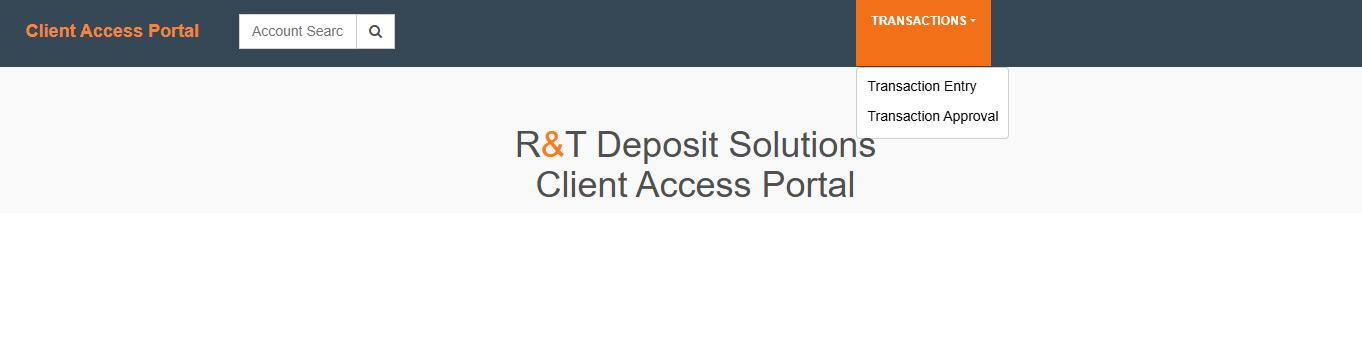
Select Transaction Approval from the primary navigation.
-
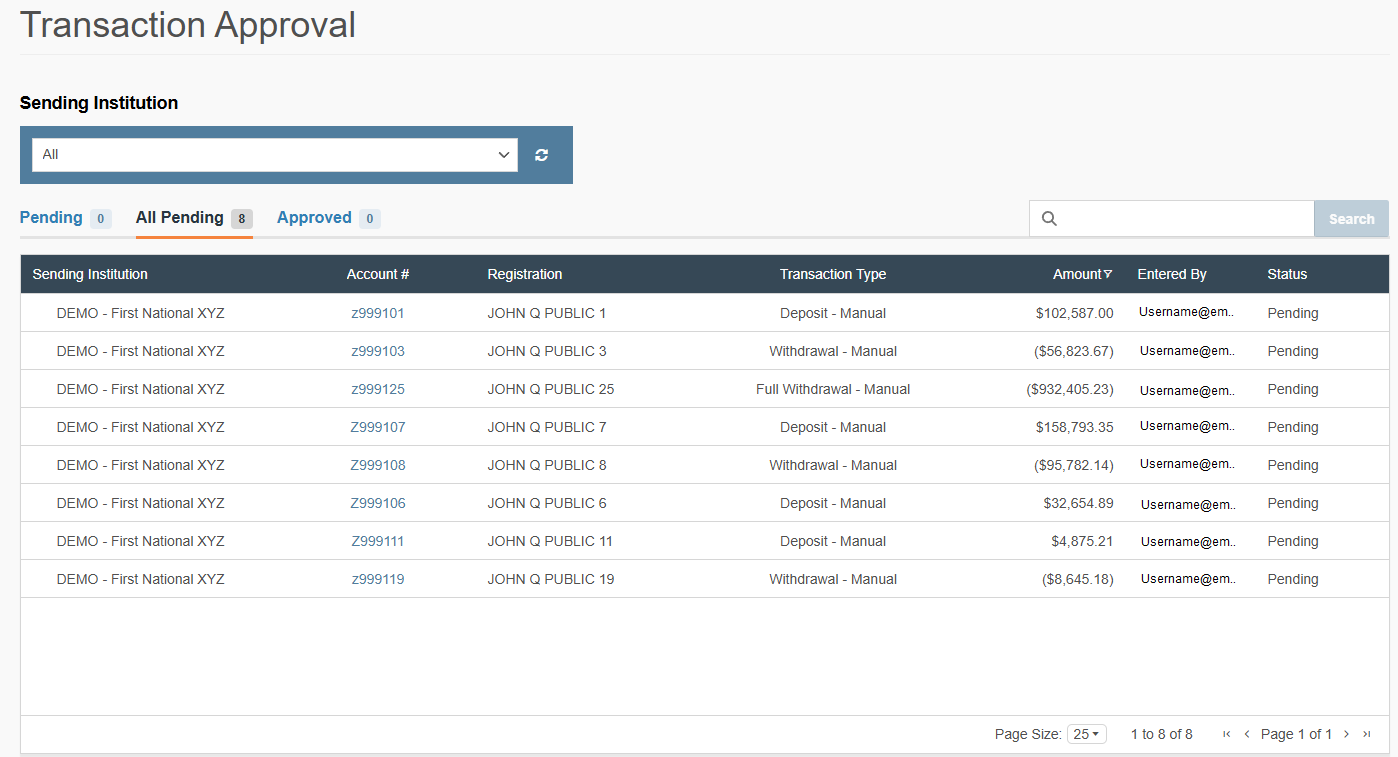
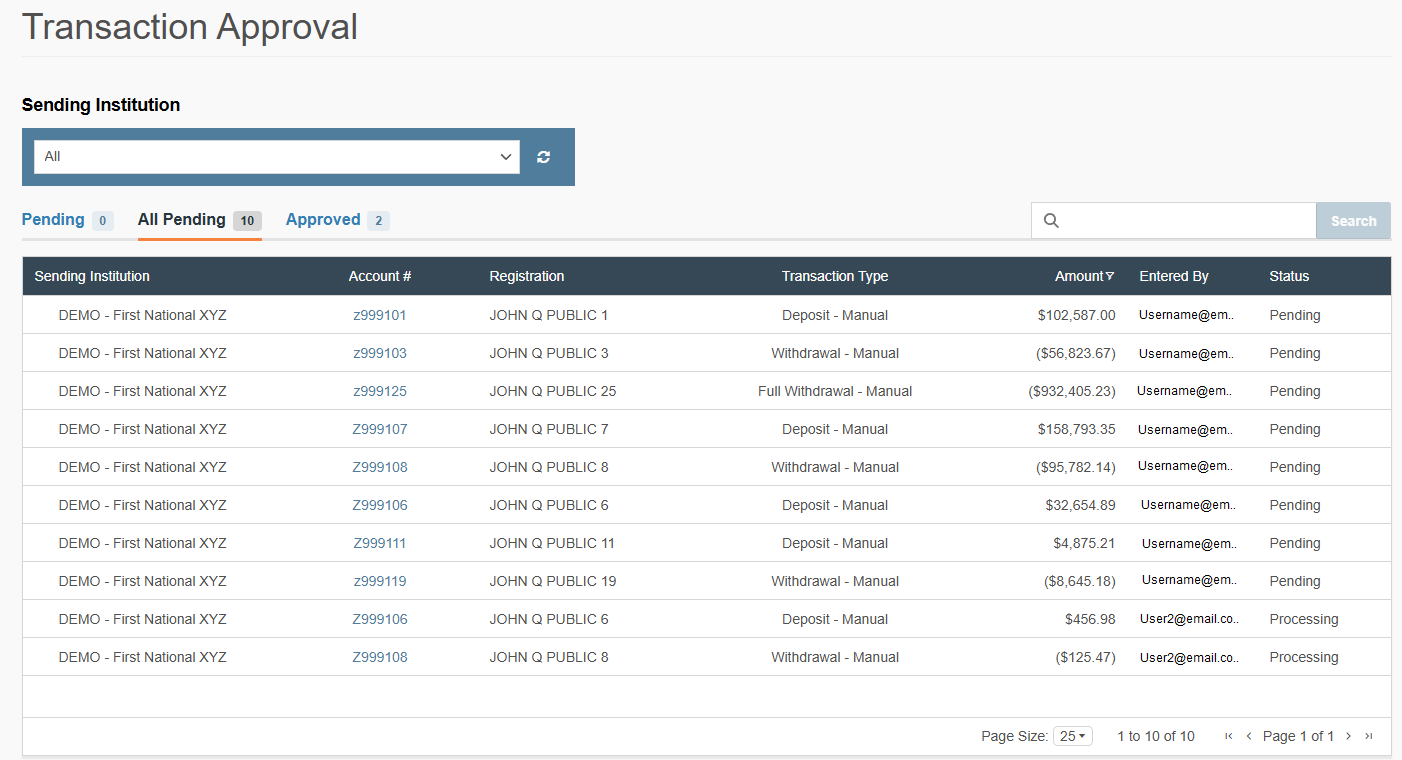
Filter/Identify Transactions: Use the Pending tab to see transactions available for your approval, or the All Pending tab to view the full firm-wide queue, including transactions you have entered.
-
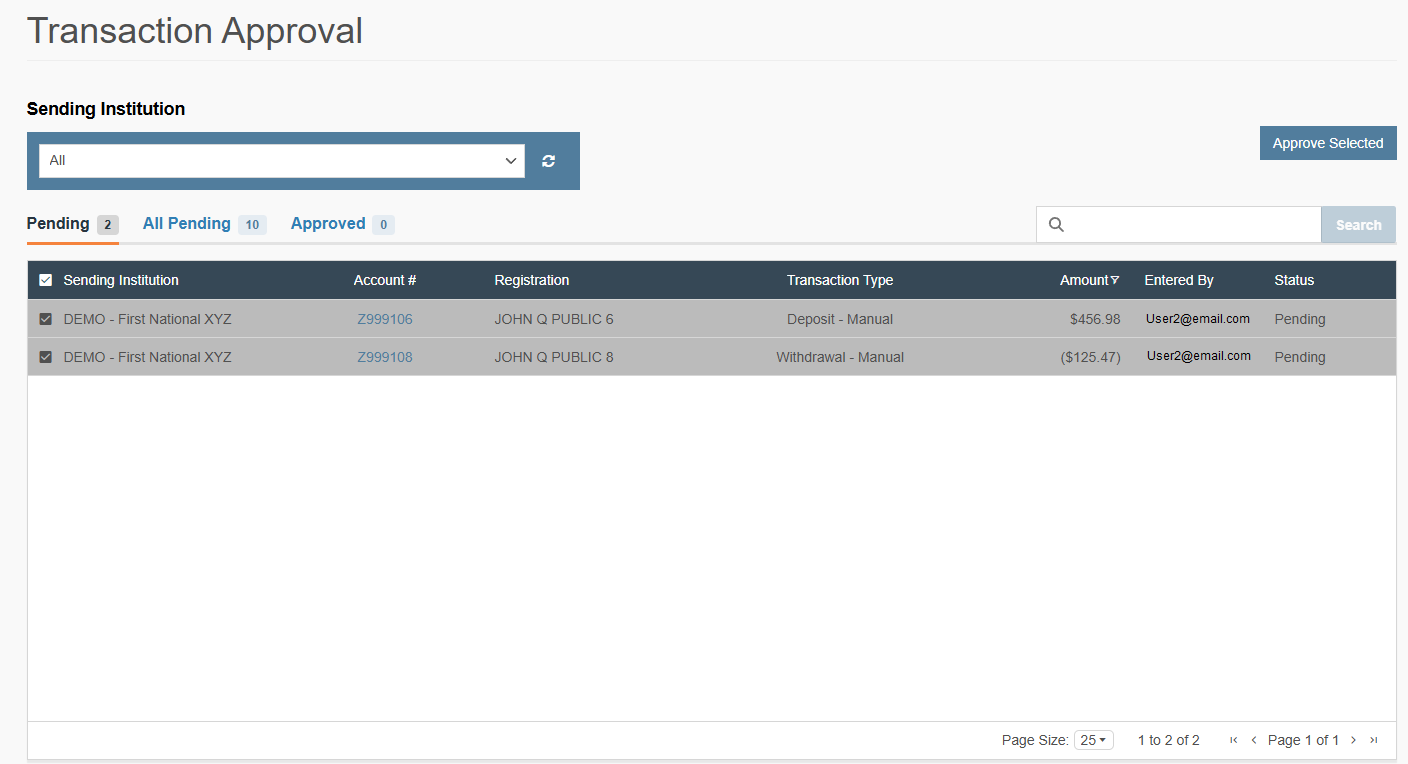
Select Transactions:
-
Individually: Click the checkbox next to specific account numbers.
-
Range: Use
Shift + Clickto select a specific block of transactions. -
Bulk: Use the Select All checkbox at the top of the grid.
-
-
Execute Approval: Click Approve Selected.
-
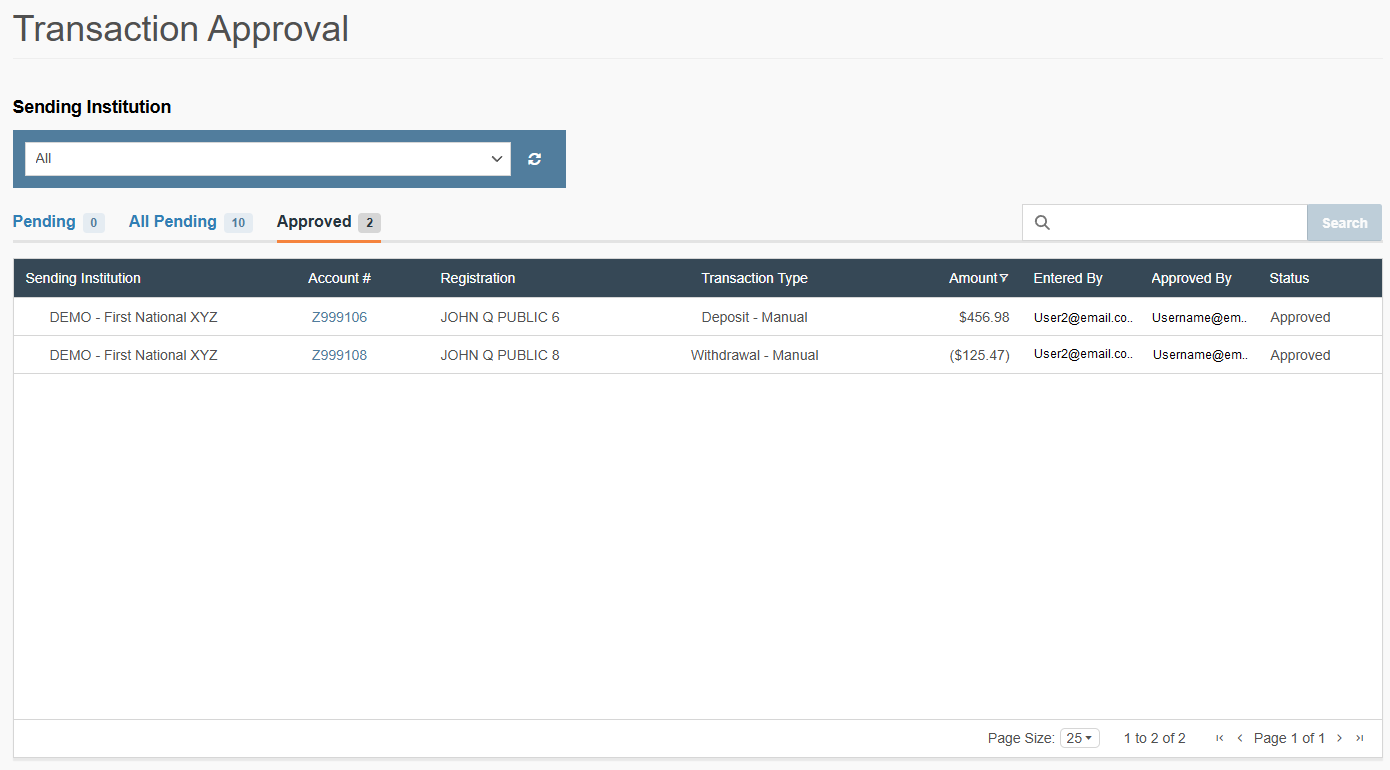
Confirm: On the modal that appears, verify the total transaction count and dollar amount, then click Yes.
-
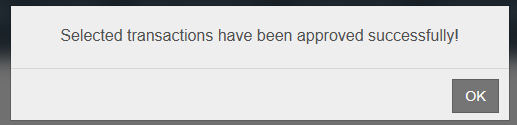
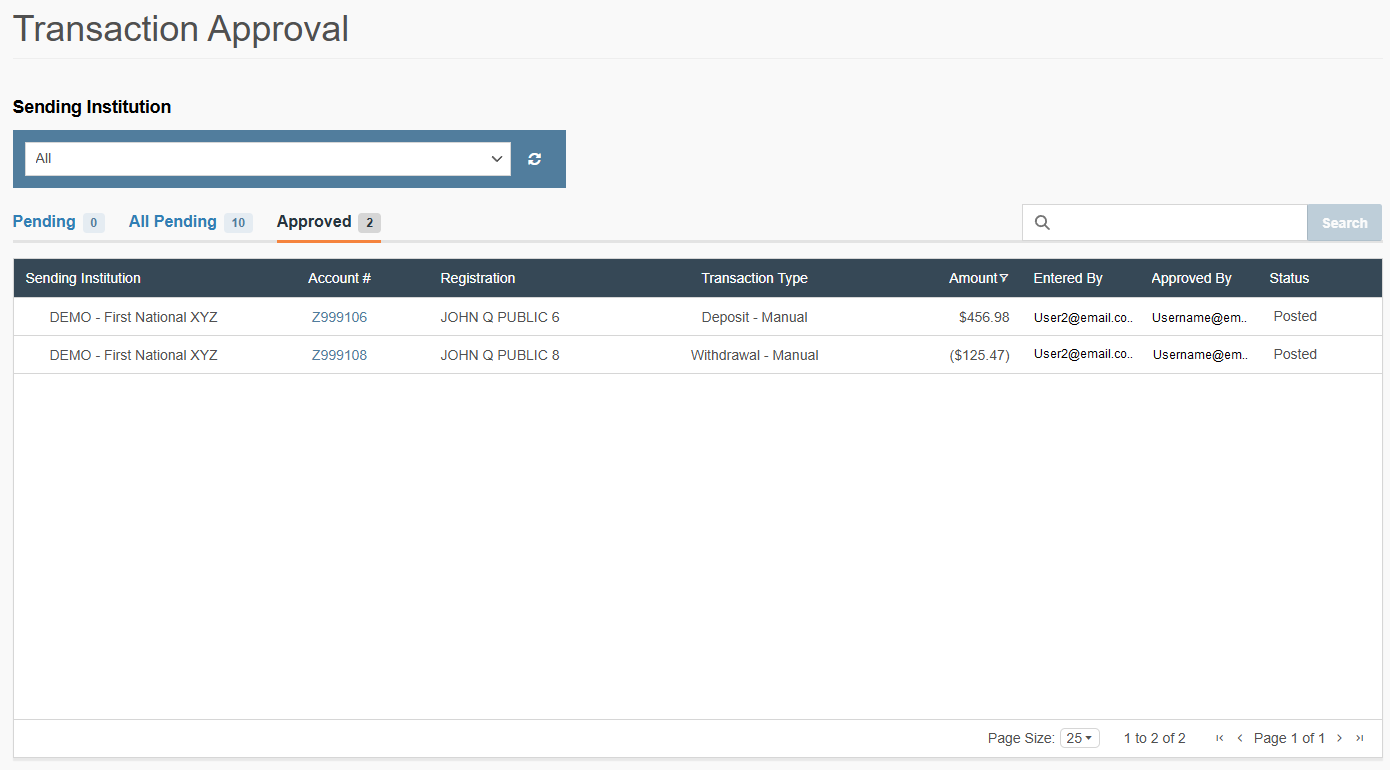
Verify: Allow 1–2 minutes for the system to process the backend tables; the transactions will then move to the Approved tab.
Modification/Correction Procedure
If a transaction in the Approved tab contains an error:
Note: Modified transactions require a QC/Approval, if applicable.
-
Assess the Error Type:
-
Dollar Amount Error: You can modify this without deleting the entry.
-
Transaction Type Error: You cannot modify the type (e.g., Deposit vs. Withdrawal); you must delete and repost. See Delete a Transaction Entry for how to delete the transaction.
-
-
Edit Amount:
a. Click Edit on the transaction row within the Approved tab.
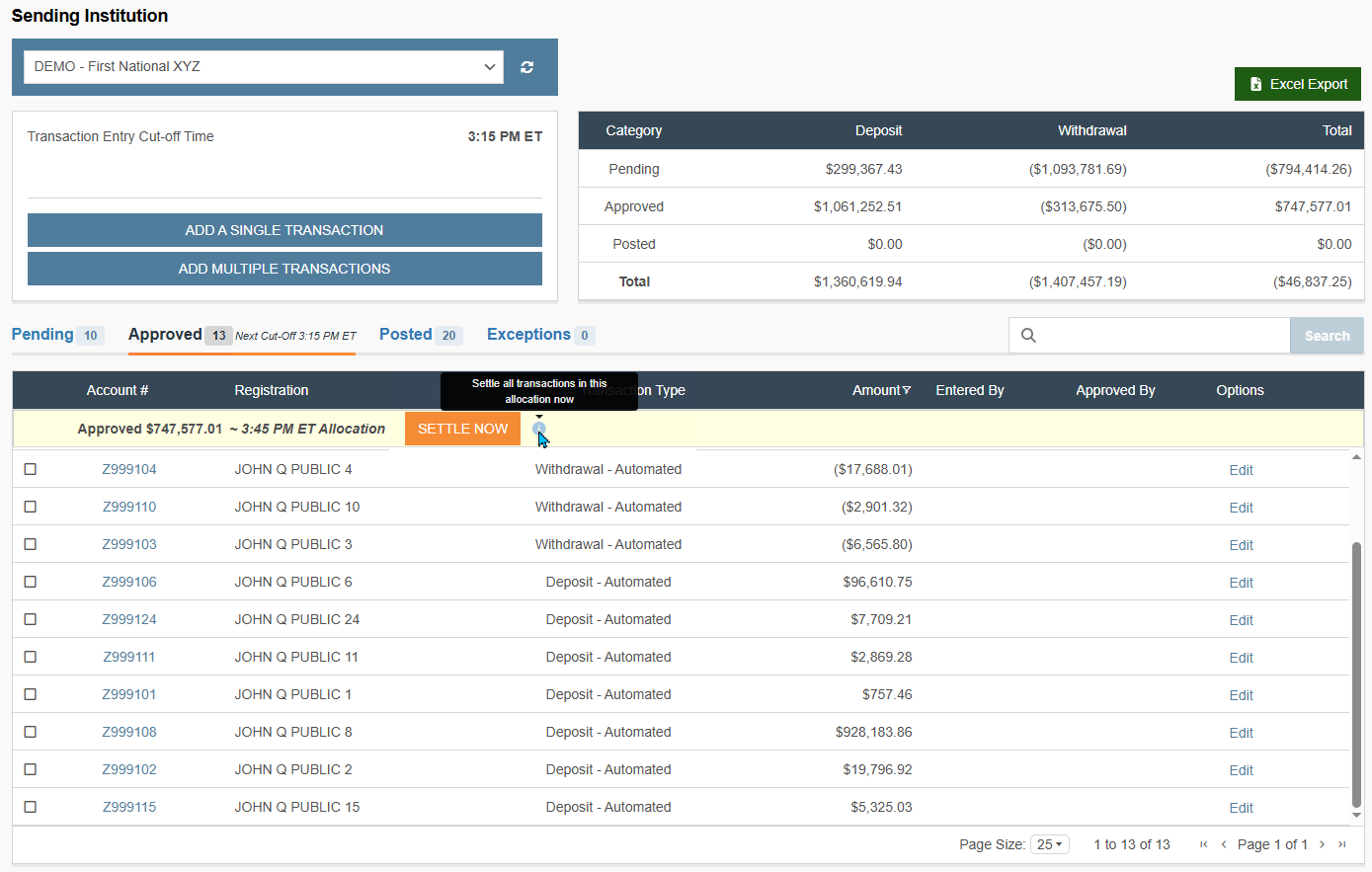

b. Update the dollar amount in the Amount field.
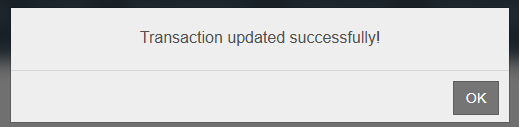
c. Click Save.
-
Delete Transaction:
- If the transaction type is incorrect or the entry is no longer needed, see Delete a Transaction Entry for how to delete the transaction.
Allocation & Posting Workflow
Once approved, transactions follow the system's automated cycle:
Tip: Before an allocation run, verify that your institution's batch totals match the Approved row in the Daily Activity Summary.
Monitor Cut-off Times
Ensure all approval/QC is completed by first or second allocation. See Critical Cut-Off Times.
Post-Allocation Review (Posted Tab)
Once the allocation runs, transactions move from the Approved tab to the Posted tab.
The Posted tab organizes transactions into distinct, chronological sections based on their specific allocation window:
-
Intra-day Reconciliation: If a firm enters multiple batches throughout the day, the system separates these amounts by allocation rather than grouping them into a single list.
-
Lifecycle Visibility: This tiered structure allows users to immediately identify which transactions have been finalized by the system and which remain in a Pending or Approved status awaiting the next run.
What's Next
Finalizing the approval workflow is the last step before the system locks the batch for settlement. To move toward finality, follow the path below:
-
Generate Net Settlement: Generate the Net Settlement Report via the Settle Now functionality to finalize your current allocation.
-
Verify Cumulative Totals: Confirm that all approved/QC’d transactions are correctly reflected in the Approved row of the Daily Activity Summary.
-
Audit Automated Activity: If your institution uses automated file transmission, review how those entries bypass the manual approval queue in Automated Transactions.
Updated 21 days ago