
Net Settlement Report Generation
The Settle Now feature is the final validation step that confirms your daily activity and generates a net settlement report for review.
Before You Begin
Before initiating a net settlement report, ensure the following conditions are met:
-
Approved/QC Completion: All manual transactions in the Pending tab have been approved and moved to the Approved tab.
-
Automated Transactions Verification: Automated transactions have been transmitted and verified for accuracy within the Approved tab.
-
Exception Resolution: The Exceptions tab has been reviewed, and any critical rejections have been addressed or re-entered.
Workflow Impact and "Lock" Behavior
Clicking Settle Now signals to the system that your current batch is finalized. This triggers the following behaviors:
Allocation Locking
You are locked into the current allocation window. Any subsequent transactions entered will be deferred to the following allocation cycle.
Edit Restrictions
You can no longer modify the dollar amount of transactions in the current batch.
Deletion
You retain the ability to delete a transaction up until the actual allocation kickoff. If a deletion occurs after a settlement report has been generated, the system will automatically generate an updated settlement report.
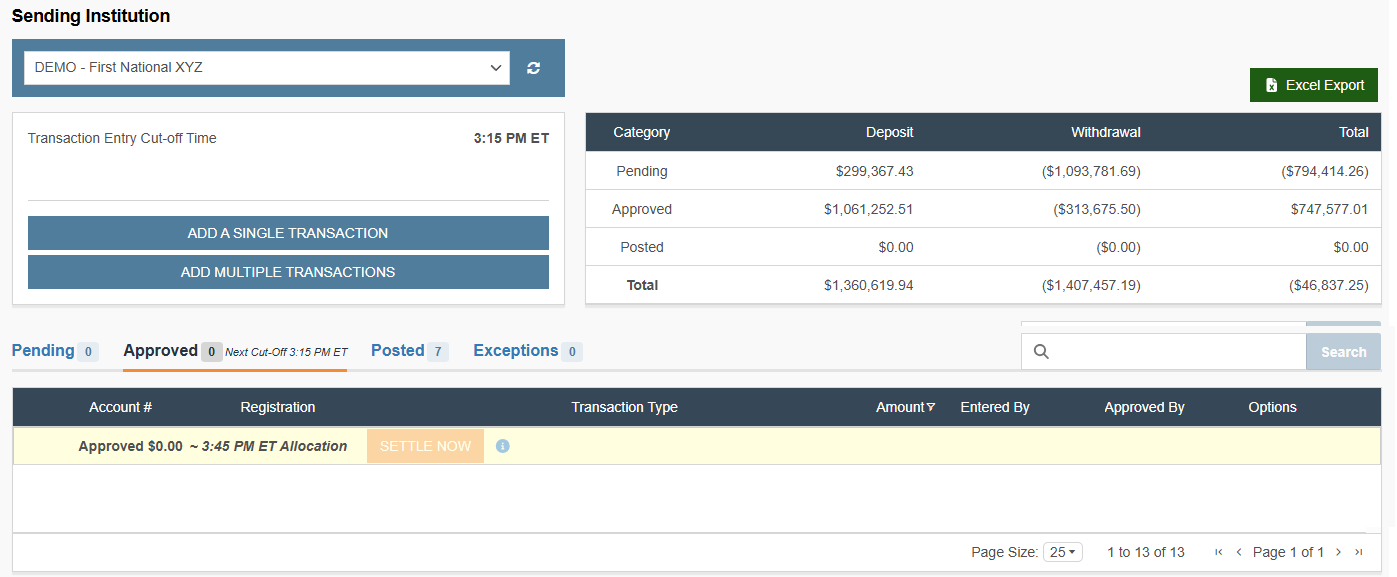
Generate Net Settlement Report
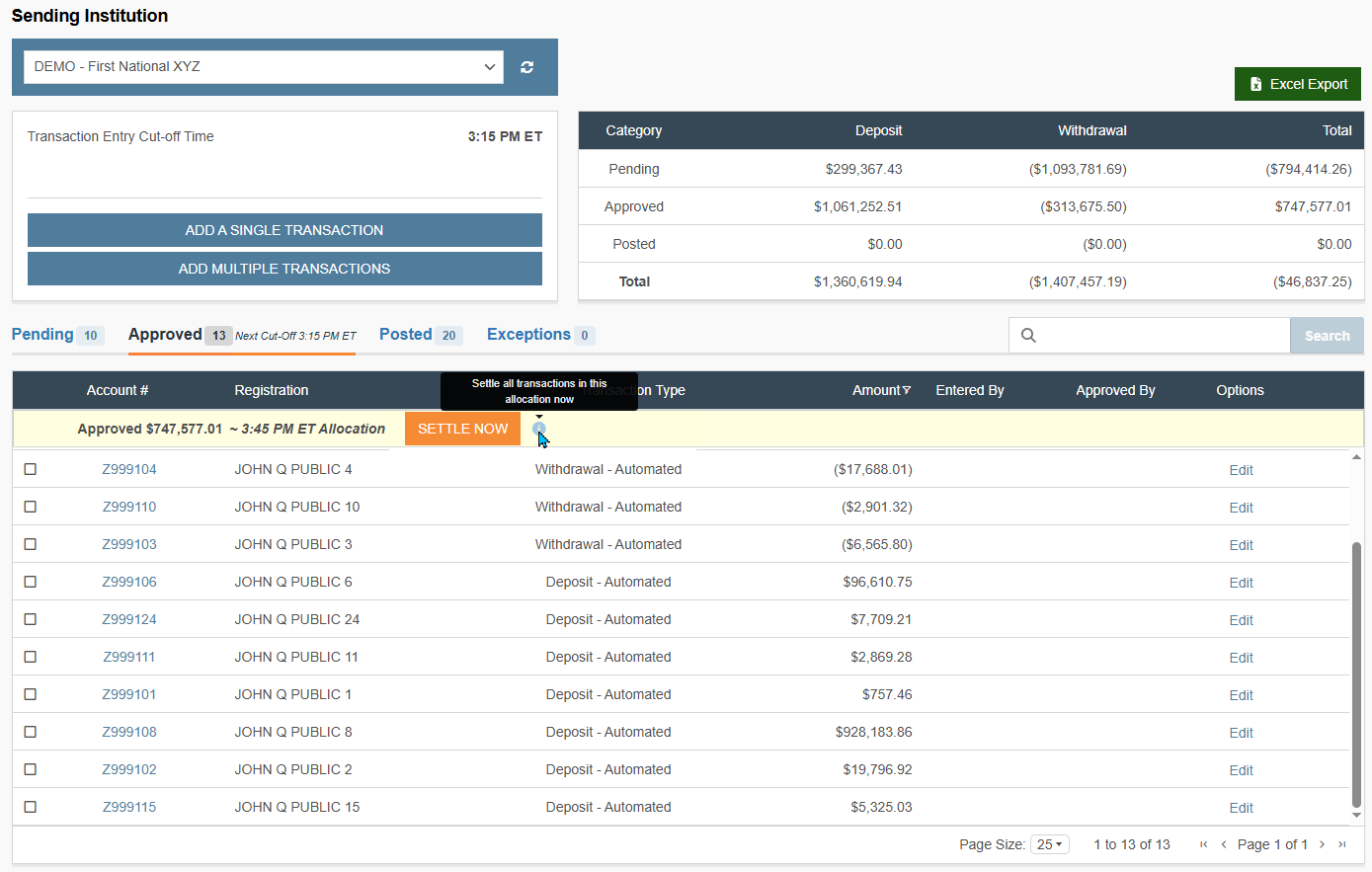
Generation
Clicking Settle Now triggers the generation of the net settlement report (expect the report to be available usually within 10 minutes).
Content
The report reflects only Approved transactions.
Distribution
This report is emailed to the established contacts at your institution and made available within CAP.
Cut-off Times and Automation
The system provides a 30-minute "buffer" between the user cut-off and the system allocation to allow for internal R&T review.
System Fail-safe
Note: Approved transactions will be captured when the system executes the settlement command.
Post-Allocation Errors: If an error is discovered after the first or second allocation has run, the transaction is posted and cannot be deleted. Clients must book offsetting transactions to correct the balance.
What's Next
Finalizing a net settlement completes the active entry phase of your daily workflow. To track the progress of these transactions through final settlement:
-
Verify Aggregate Totals: Return to the Daily Activity Summary to confirm that your settled amounts have moved into the Approved row.
-
Monitor Posting: Once the allocation window (12:30 PM or 3:15 PM ET) closes, check the Posted tab to view your finalized records. For a breakdown of how these records are grouped, see the Transaction Status & Workflow Lifecycle.
-
Troubleshoot Rejections: If your net settlement totals do not match your expectations, review the Exceptions tab to identify any rejected automated entries.
Updated 20 days ago