
Navigation
Overview
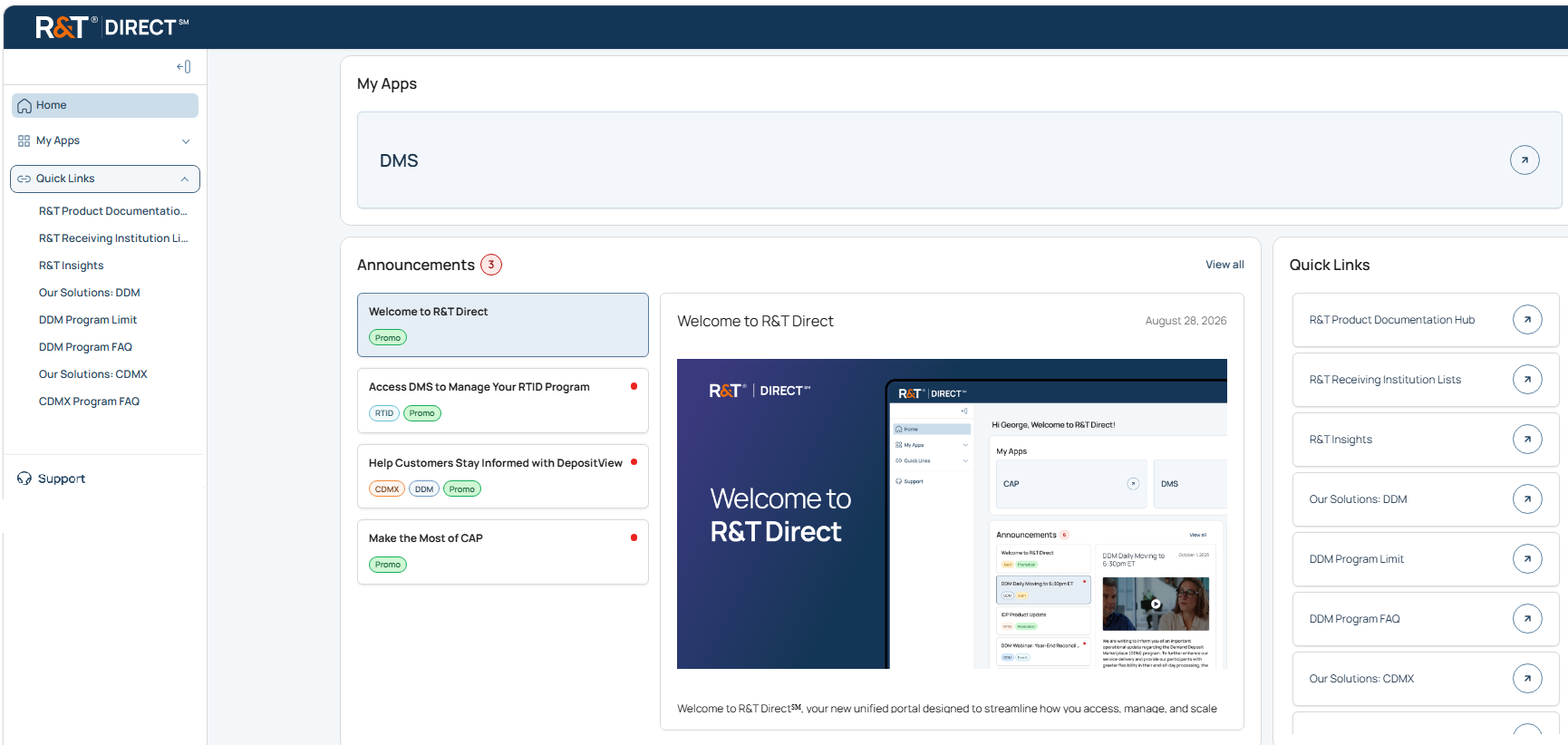
The R&T Direct℠ navigation system provides access to the primary areas of the application and account-related actions.
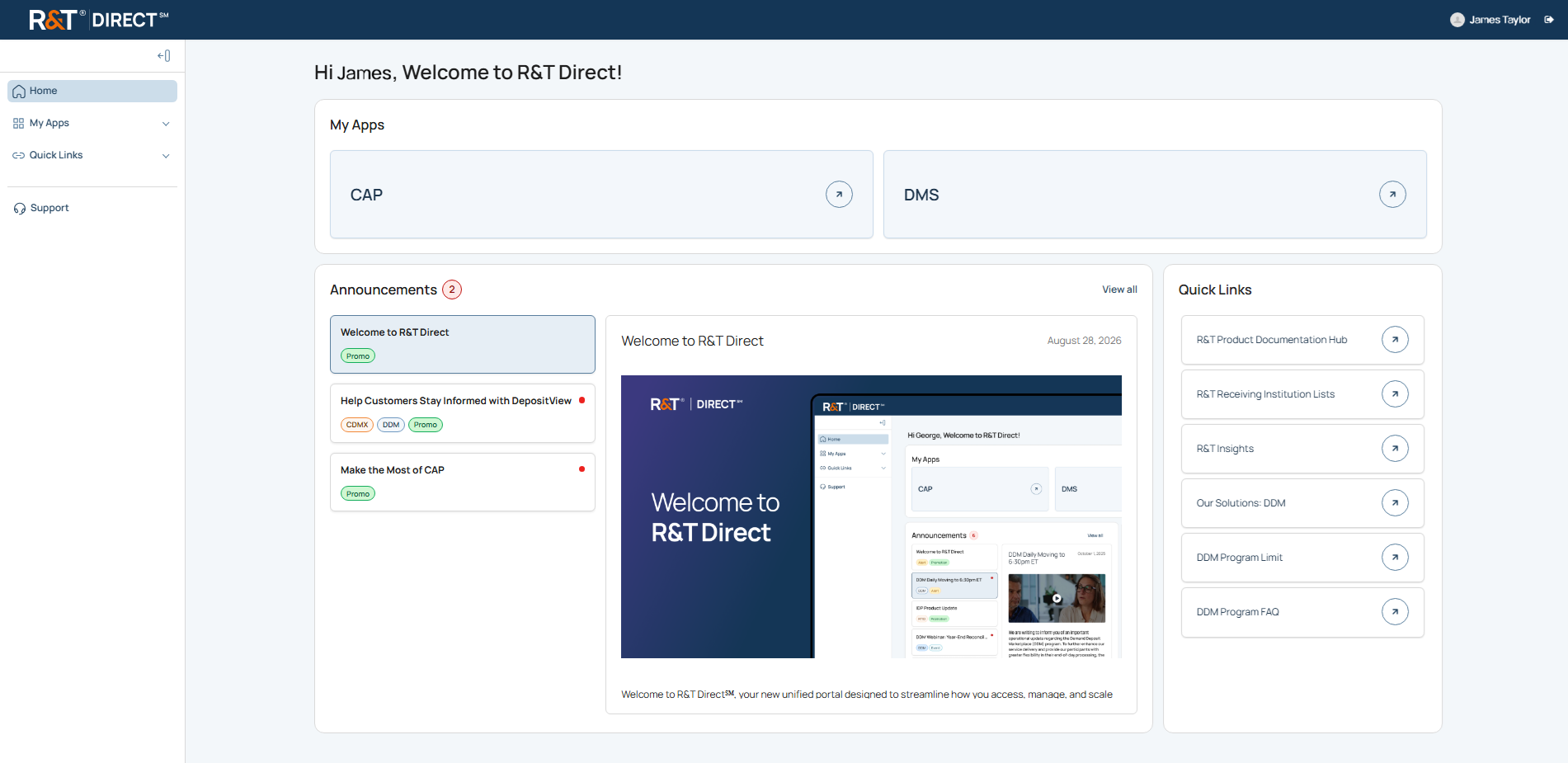
R&T Direct includes two navigation components:
- User Menu provides access to Logout.
- Left Side Navigation provides access to Home, My Apps, Quick Links, and Support.
The Left Side Navigation contains links and expandable navigation groups that provide access to applications, resources, and support features.
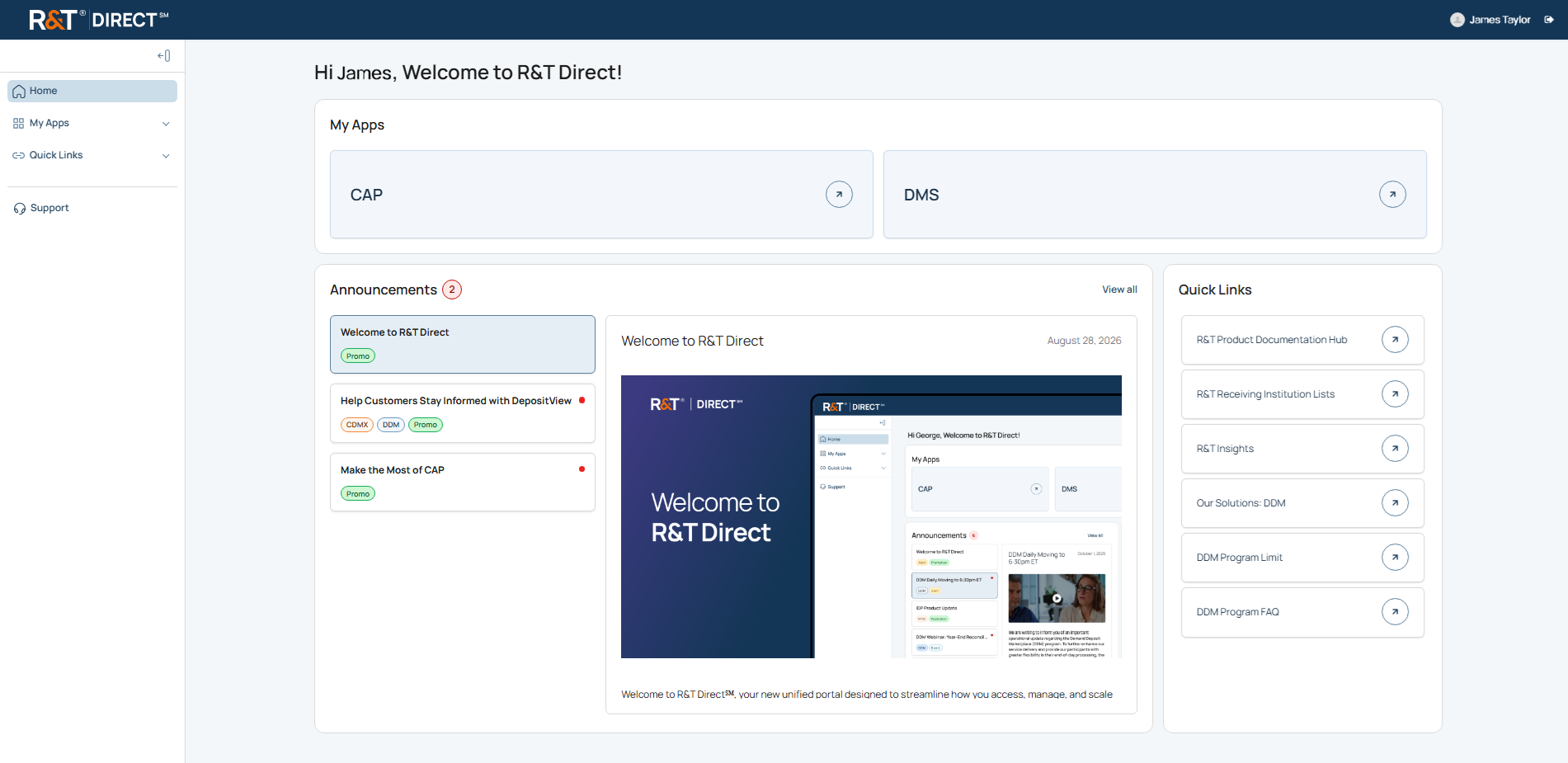
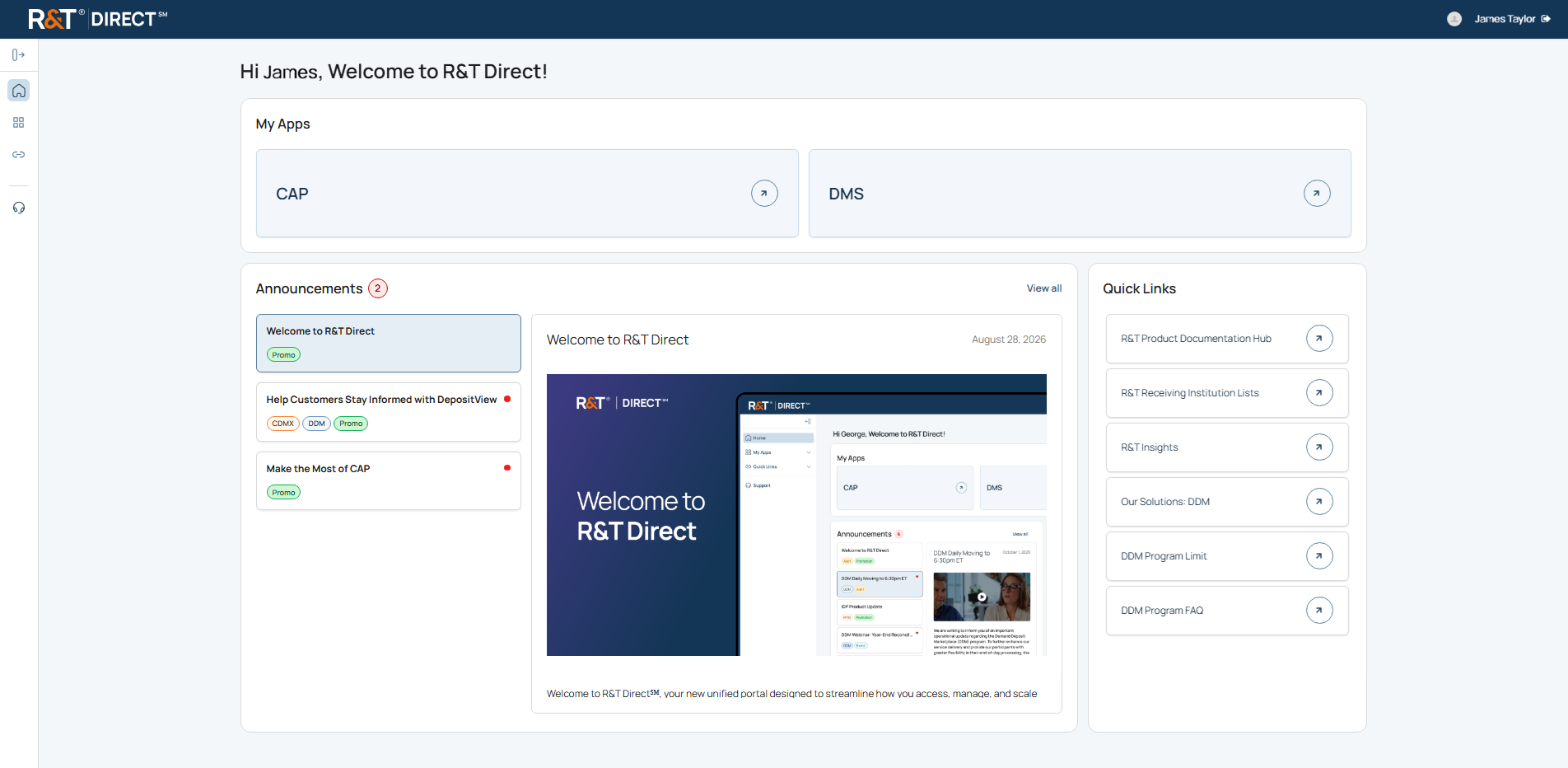
The Left Side Navigation remains available throughout the application and can be expanded or collapsed using the Navigation Shutter to maximize available screen space.
User Menu
The User Menu is located in the Global Navigation Header next to your name.
Use the User Menu to sign out of R&T Direct.
What You Need to Do
- Select the User Menu icon located next to your name in the Global Navigation Header to sign out of R&T Direct.
Result
You are signed out of R&T Direct and returned to the sign-in page.
Expand/Collapse Navigation
The Expand/Collapse button expands and collapses the Left Side Navigation panel.
What You Need to Do
- Expand or collapse the Left Side Navigation panel by clicking the Expand/Collapse button
Result
The Left Side Navigation panel expands or collapses.
Home
Home displays the R&T Direct landing page and provides access to My Apps, Announcements, and Quick Links.
My Apps
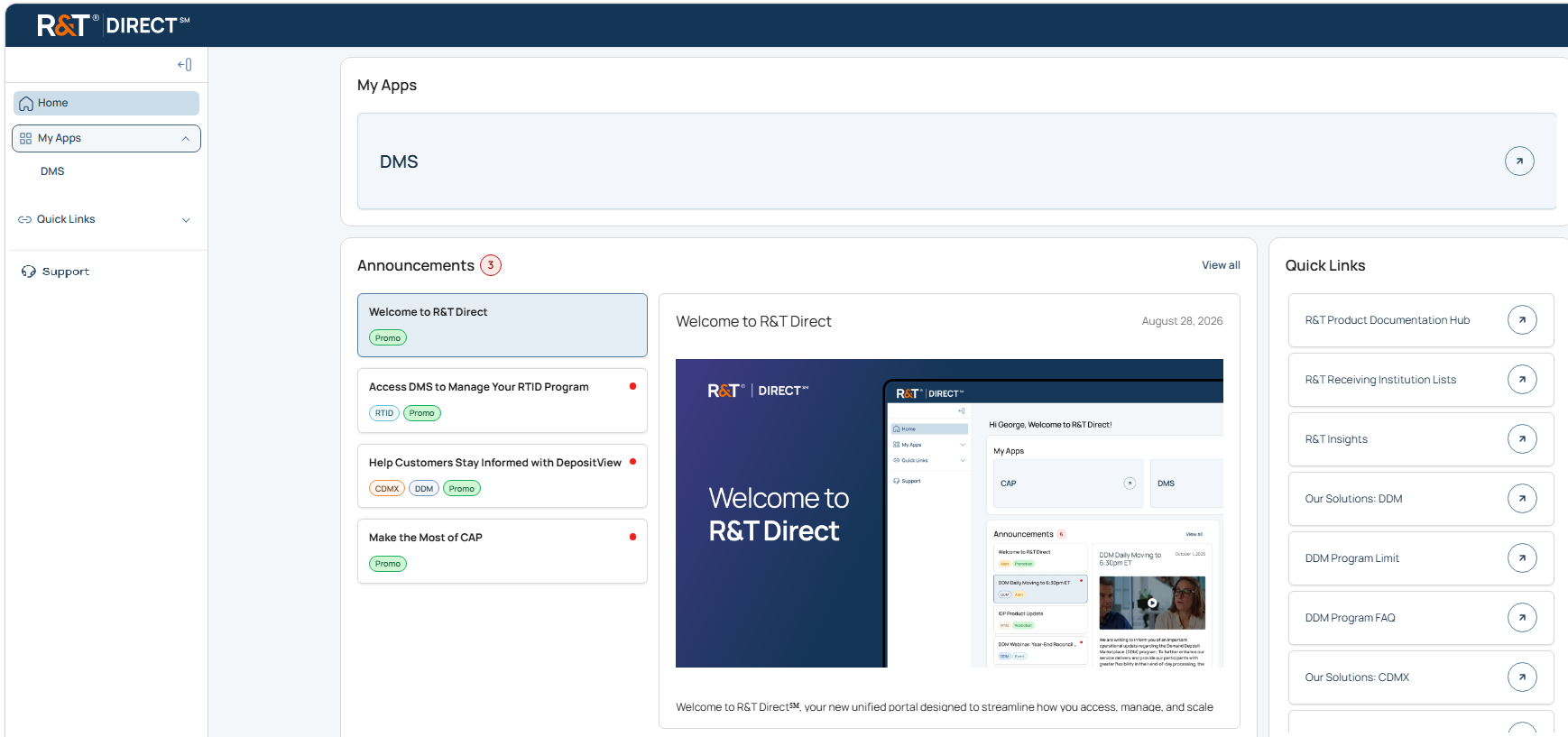
The My Apps navigation item provides access to applications authorized for your account.
What You Need to Know
Applications displayed under My Apps may vary based on your organization's authorized access and assigned permissions.
Only applications authorized for your account are displayed.
Quick Links
The Quick Links navigation item provides access to commonly used resources within the R&T ecosystem.
What You Need to Know
Available Quick Links may vary based on the resources assigned to your account.
Quick Links provide direct access to frequently used resources without having to navigate through other applications.
Support
The Support navigation item provides access to support case management features, including Case History and Create Support Case.
What You Need to Know
Support provides a centralized location for creating support requests, reviewing case history, and monitoring request status.
What's Next
Now that you understand how to move between areas of R&T Direct, continue to Home to learn about the R&T Direct landing page and the features available after sign-in.
Updated 20 days ago