
Complete Sign-In
Once your account has been activated and your verification method has been configured, use the following steps each time you sign in to an R&T application.
-
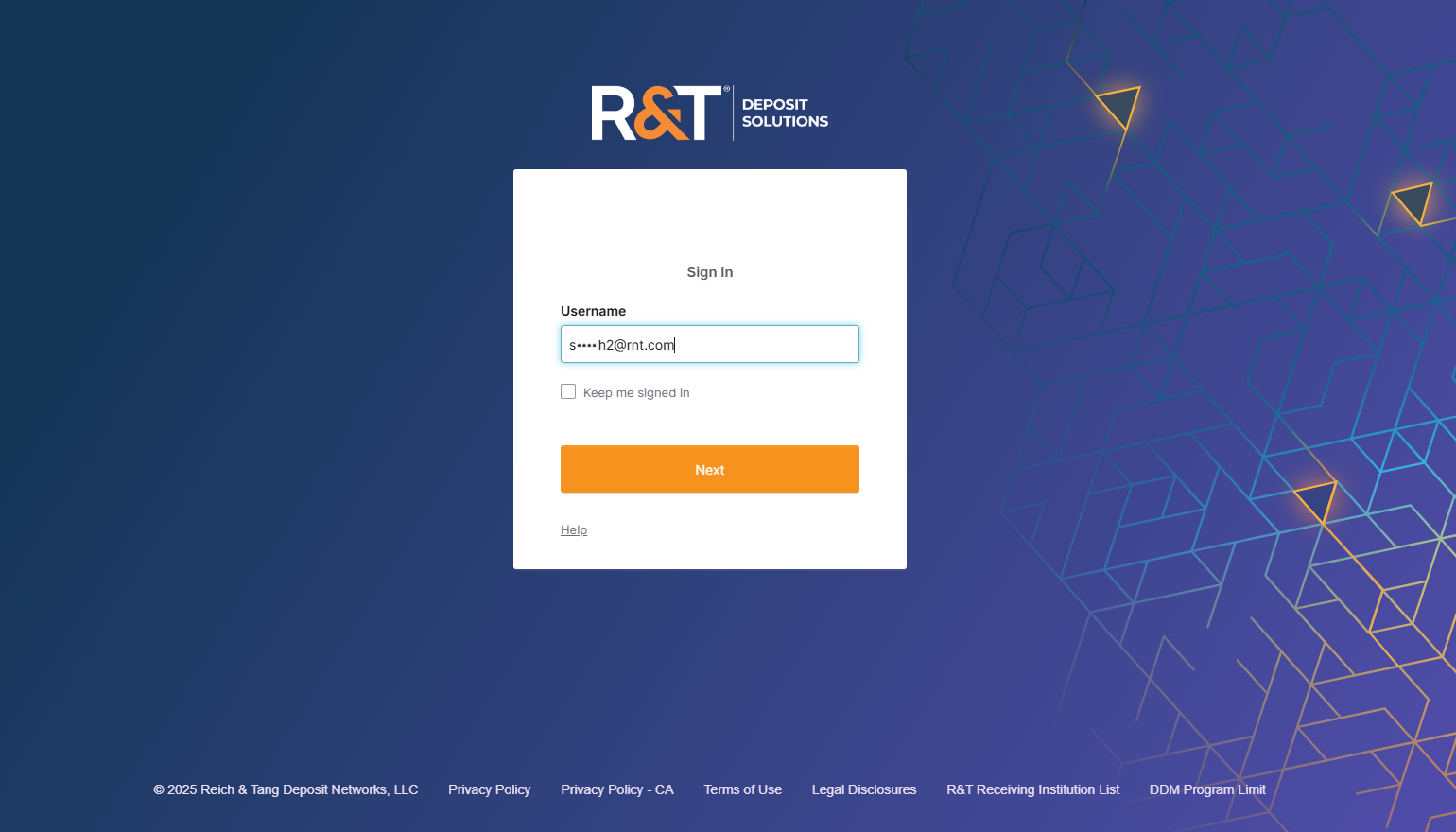
Enter your Username.
-
Select Next.
-
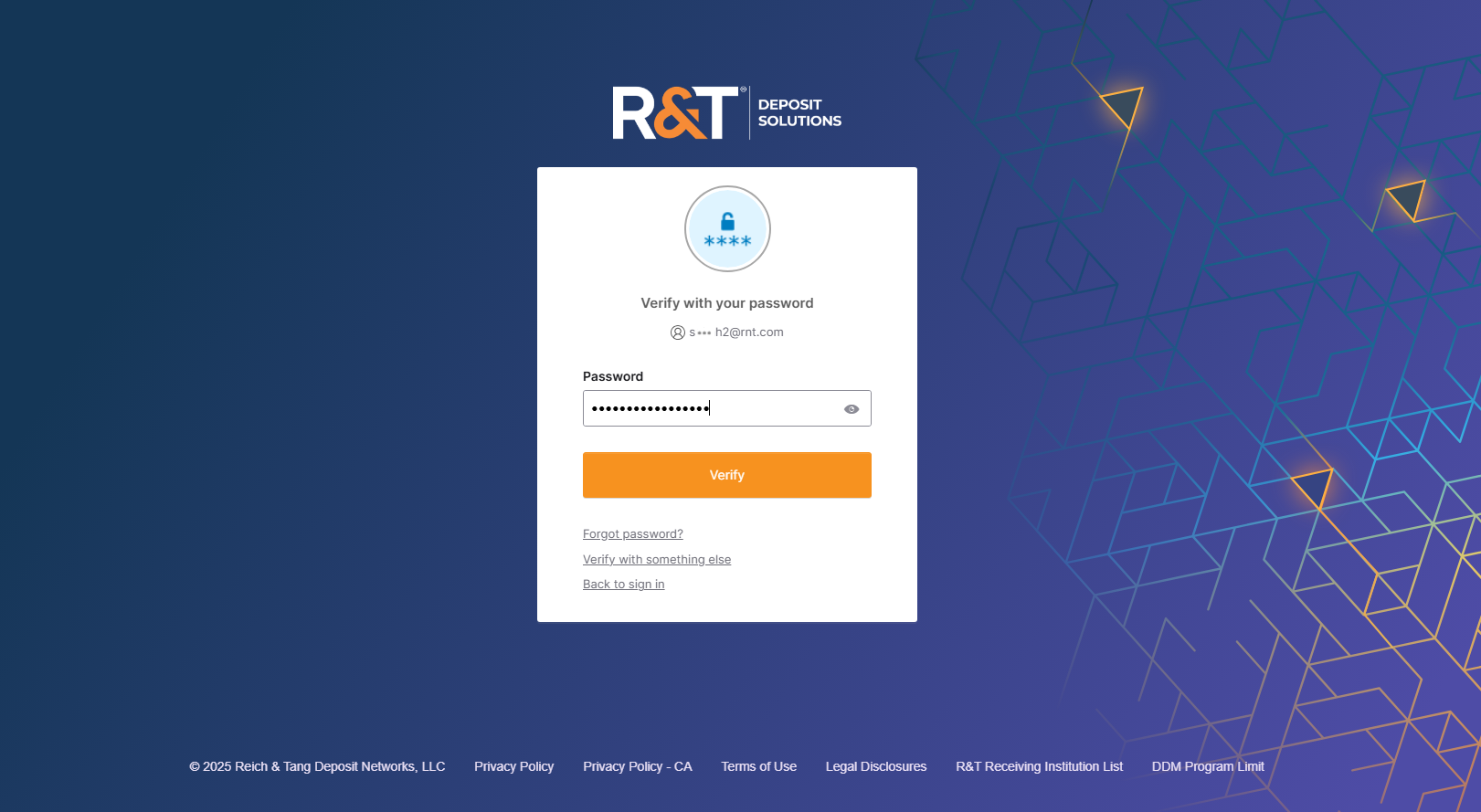
Enter your Password.
-
Select Verify.
-
Select your verification method if prompted.
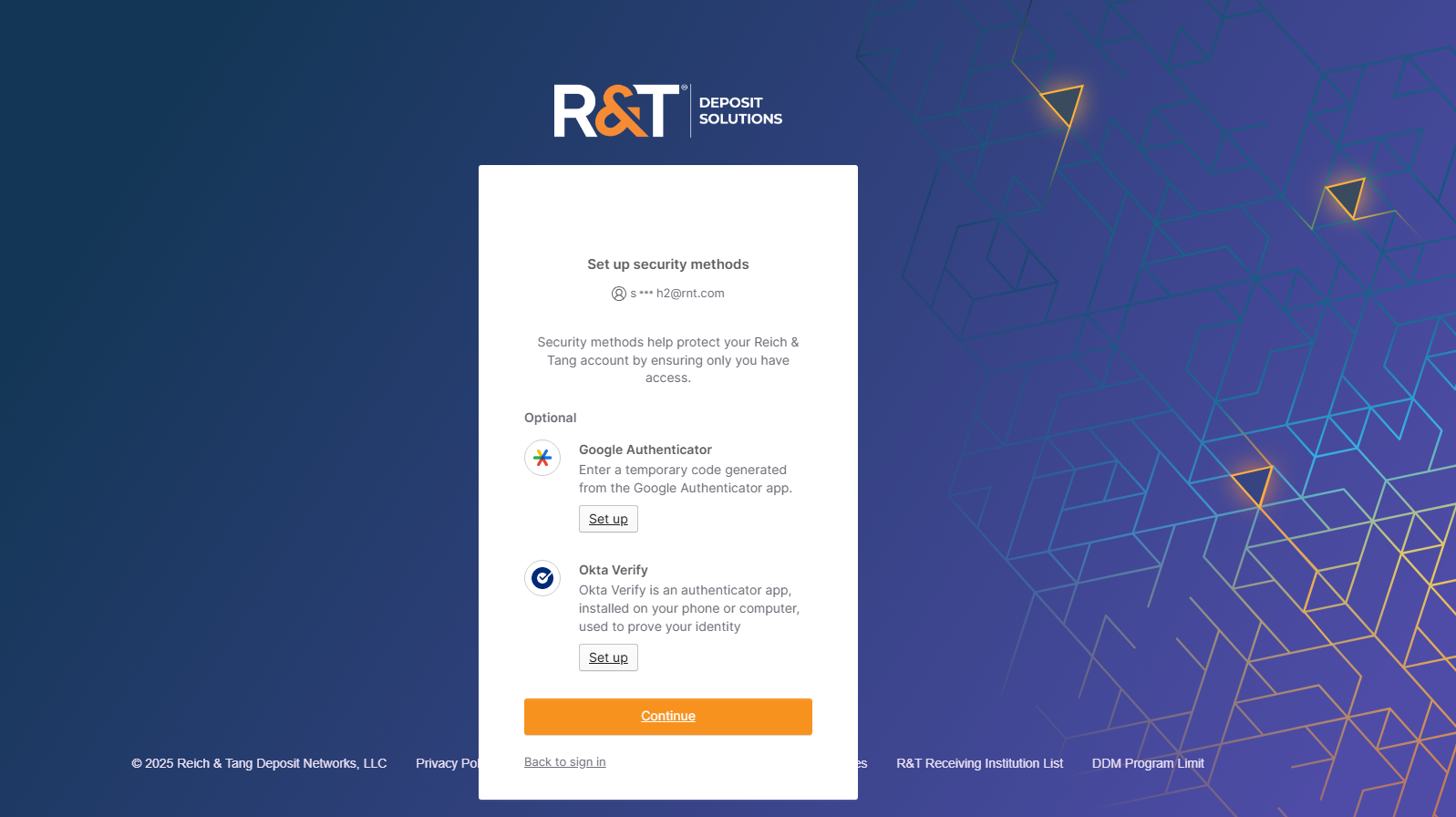
Complete the verification process using your selected authentication method.
Continue to Authenticator App or Email Verification for instructions.
Authenticator App
If you are using Okta Verify or Google Authenticator, complete verification using your selected authentication method.
Okta Verify
- Open the Okta Verify app on your mobile device.
- On the verification screen, choose one of the following options:
-
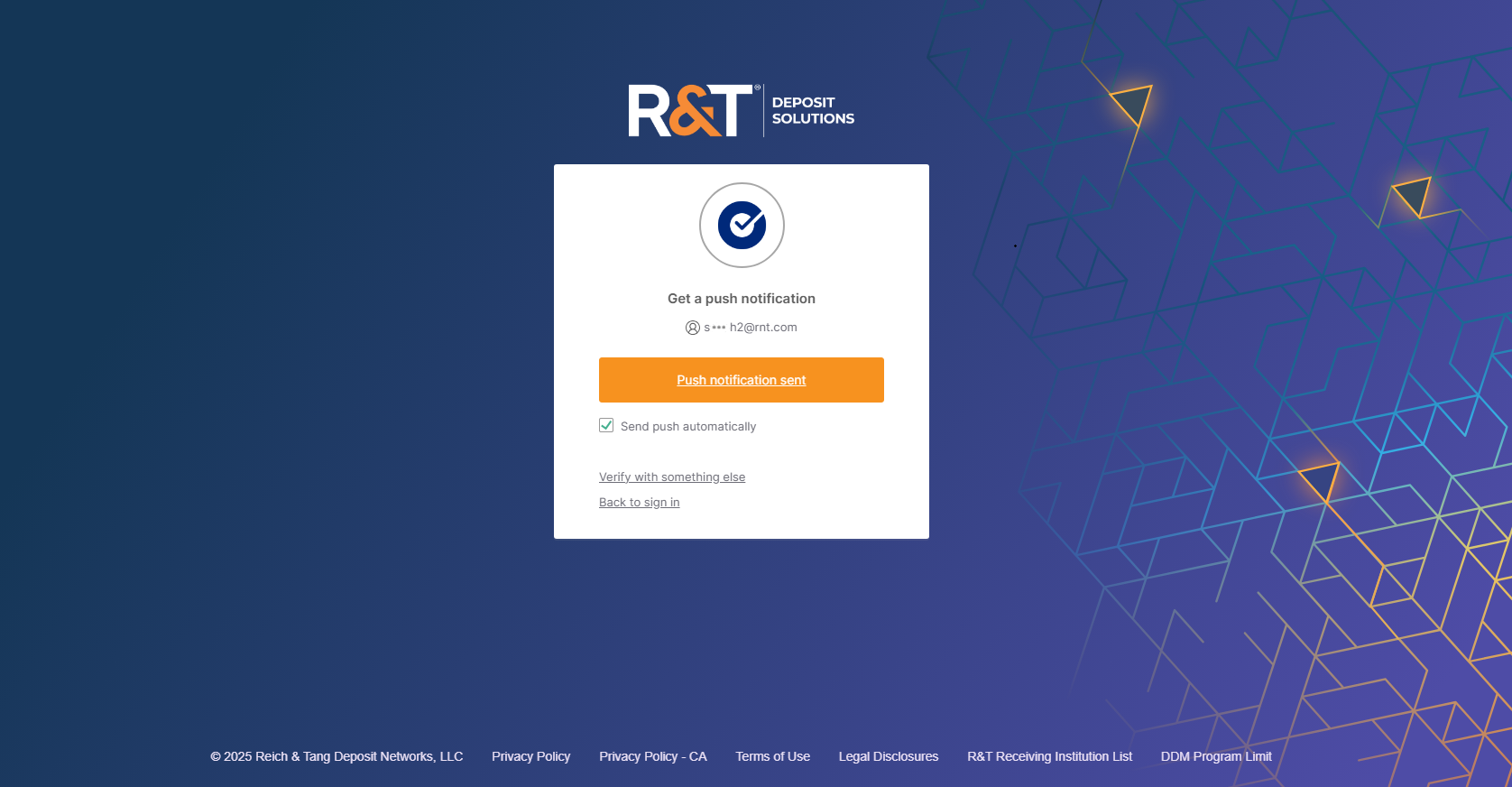
Push notification: Approve the sign-in request in the Okta Verify app.

-
One-time code: Obtain the verification code from the Okta Verify app and enter it on the sign-in screen.
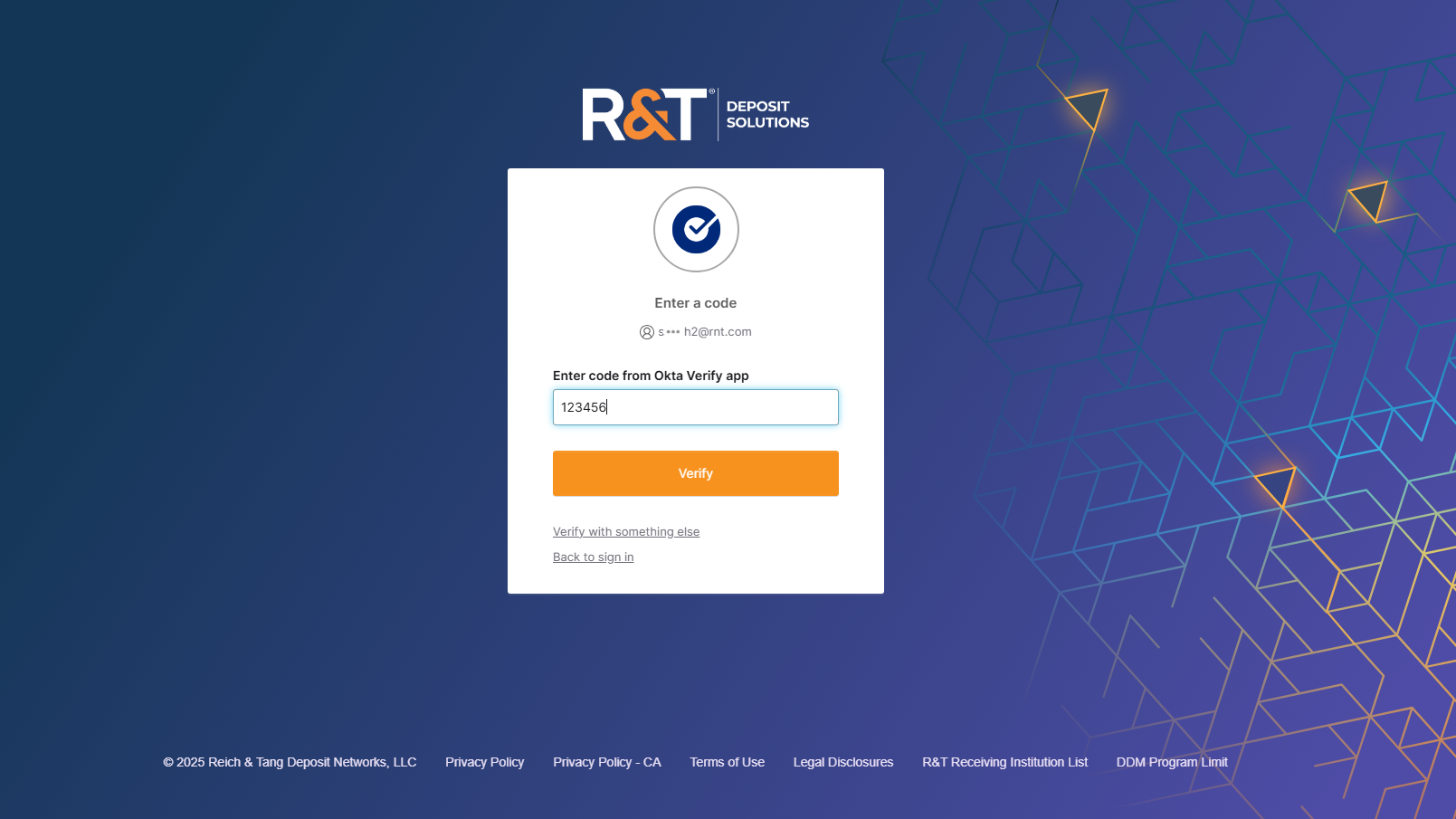
- Complete the verification process.
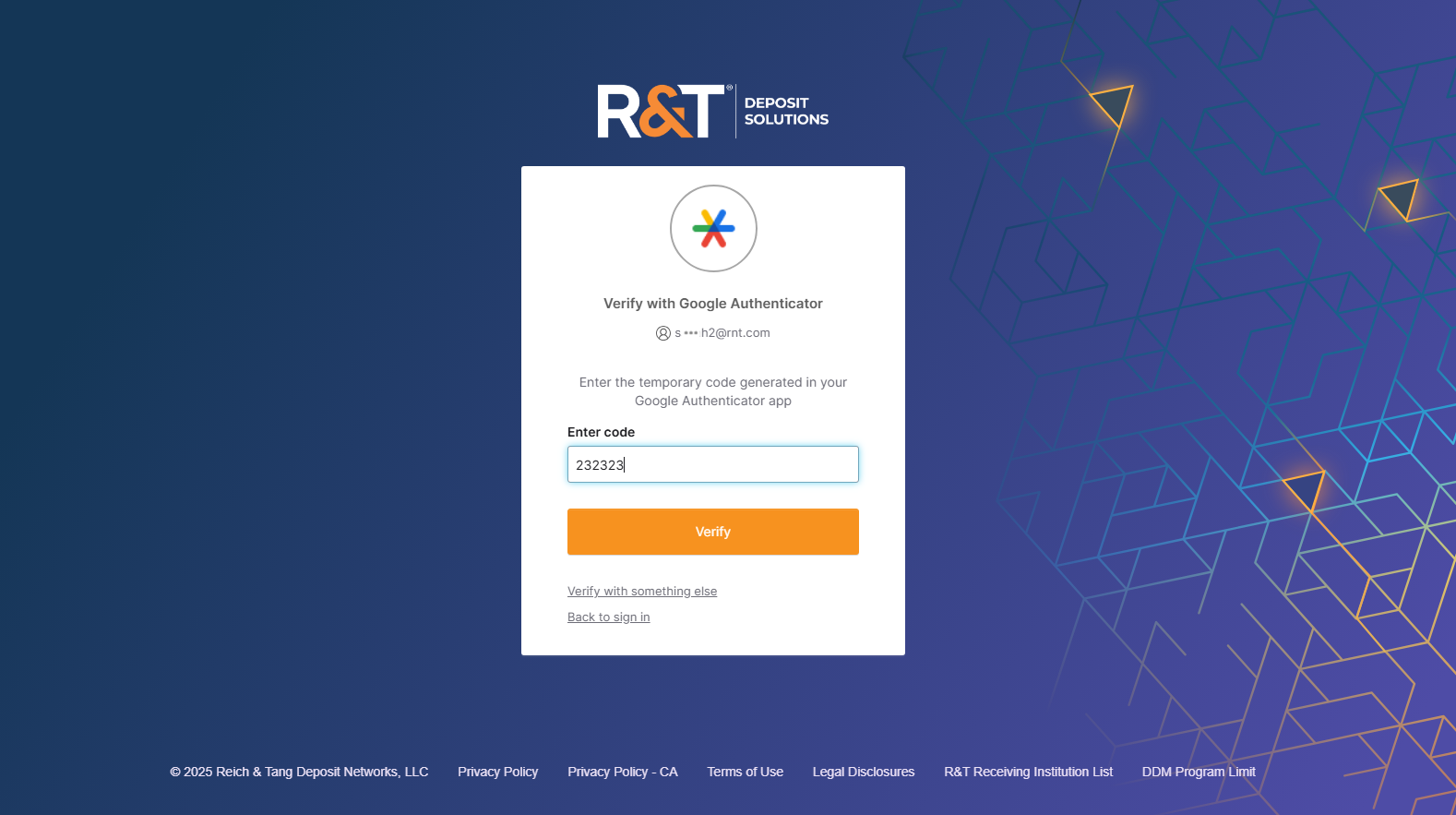
Google Authenticator
-
Open the Google Authenticator app on your mobile device.
-
Locate the verification code associated with your account.
-
Enter the verification code on the sign-in screen.
-
Select Verify.
Email Verification
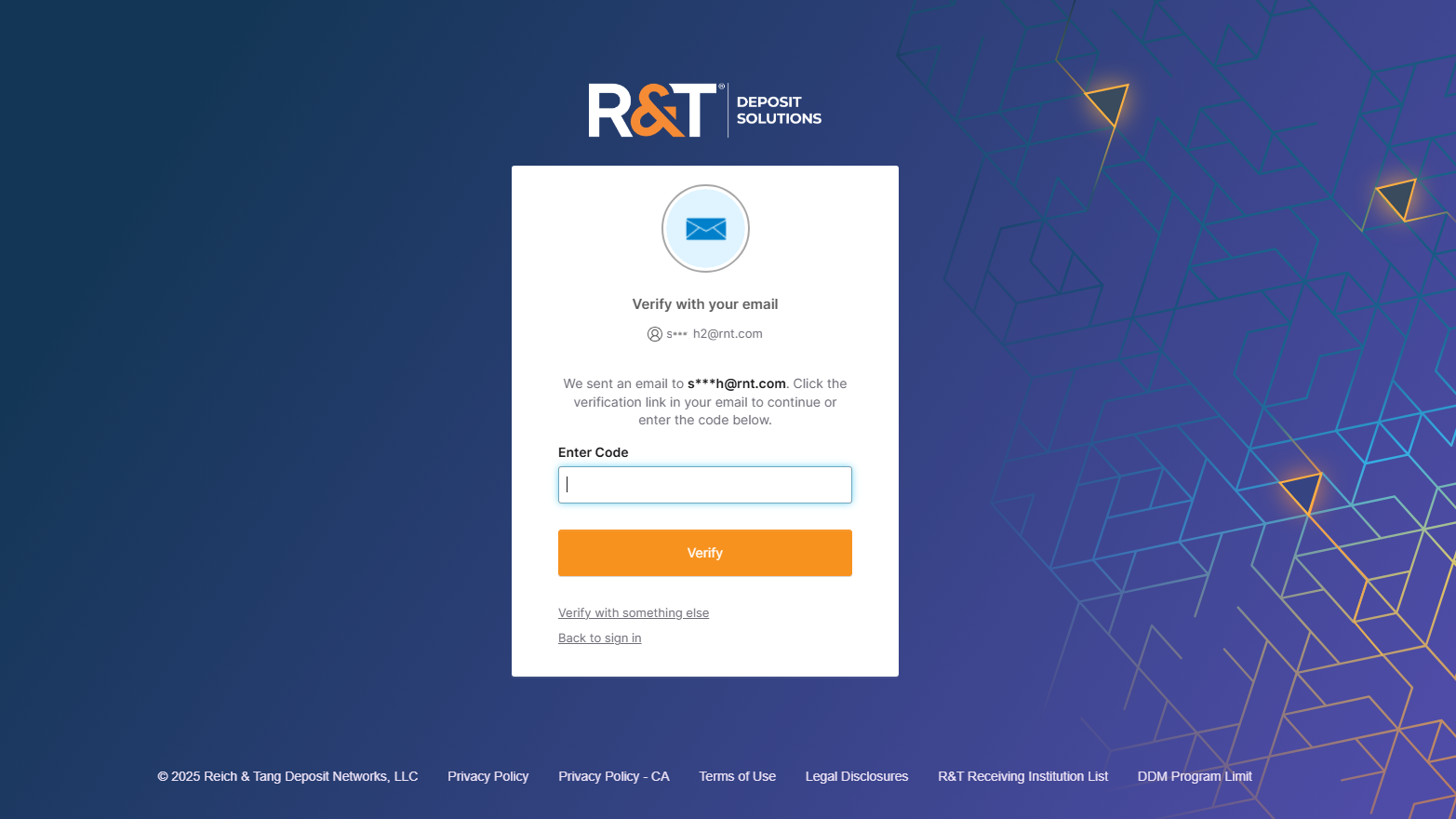
If you are using email verification:
-
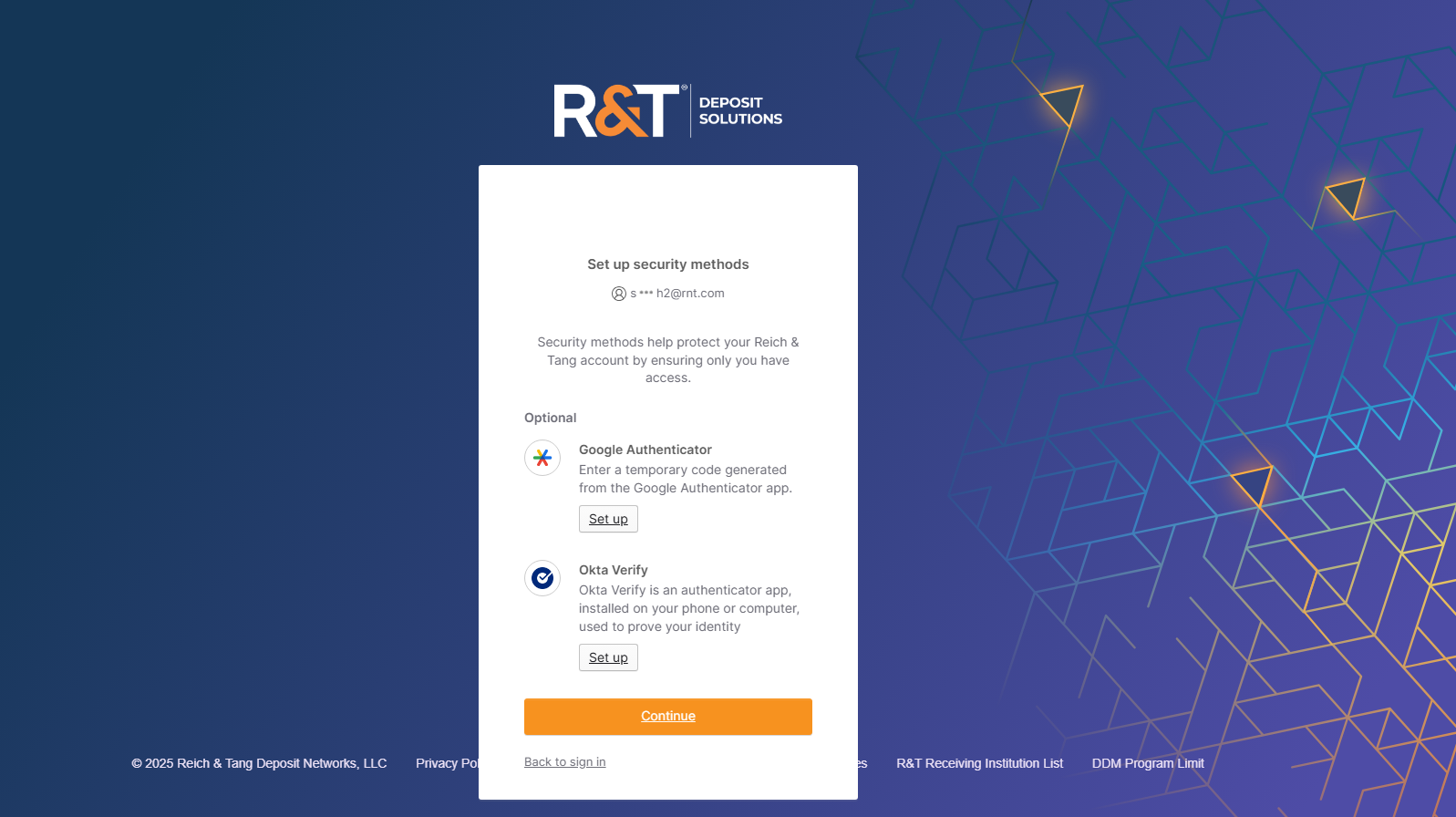
On the Verify it's you with a security method screen, select Email.
-
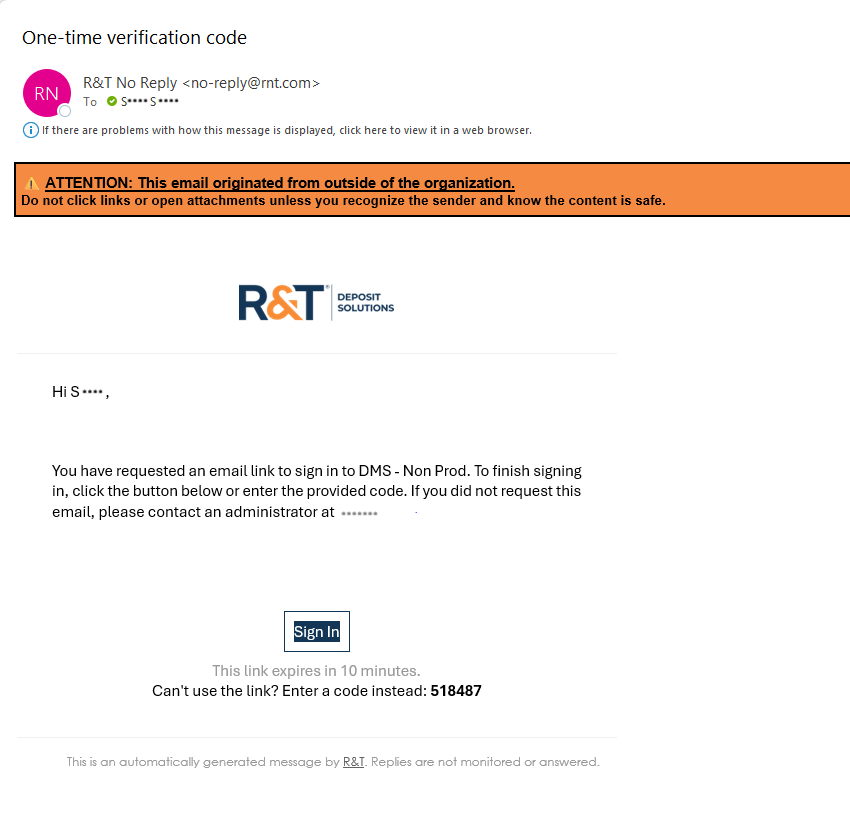
Check your email for a message containing a verification code.
-
Enter the code on the sign-in screen.
-
Select Verify.
Once your identity has been verified, you will be signed in and redirected to your application.
What's Next
Now that you understand the Okta sign-in experience, continue to Manage Authentication Methods to learn how to add, remove, or update your verification methods.
Updated about 1 month ago