
Automated Transactions
Overview
Automated transactions are generated via direct file ingestion. Unlike manual entries, these transactions bypass the QC/Approval process and move directly into the system workflow.
System Behavior & Entry Logic
Approval Bypass
Since these transactions originate from a file, they do not require manual QC/Approval.
Workflow Status
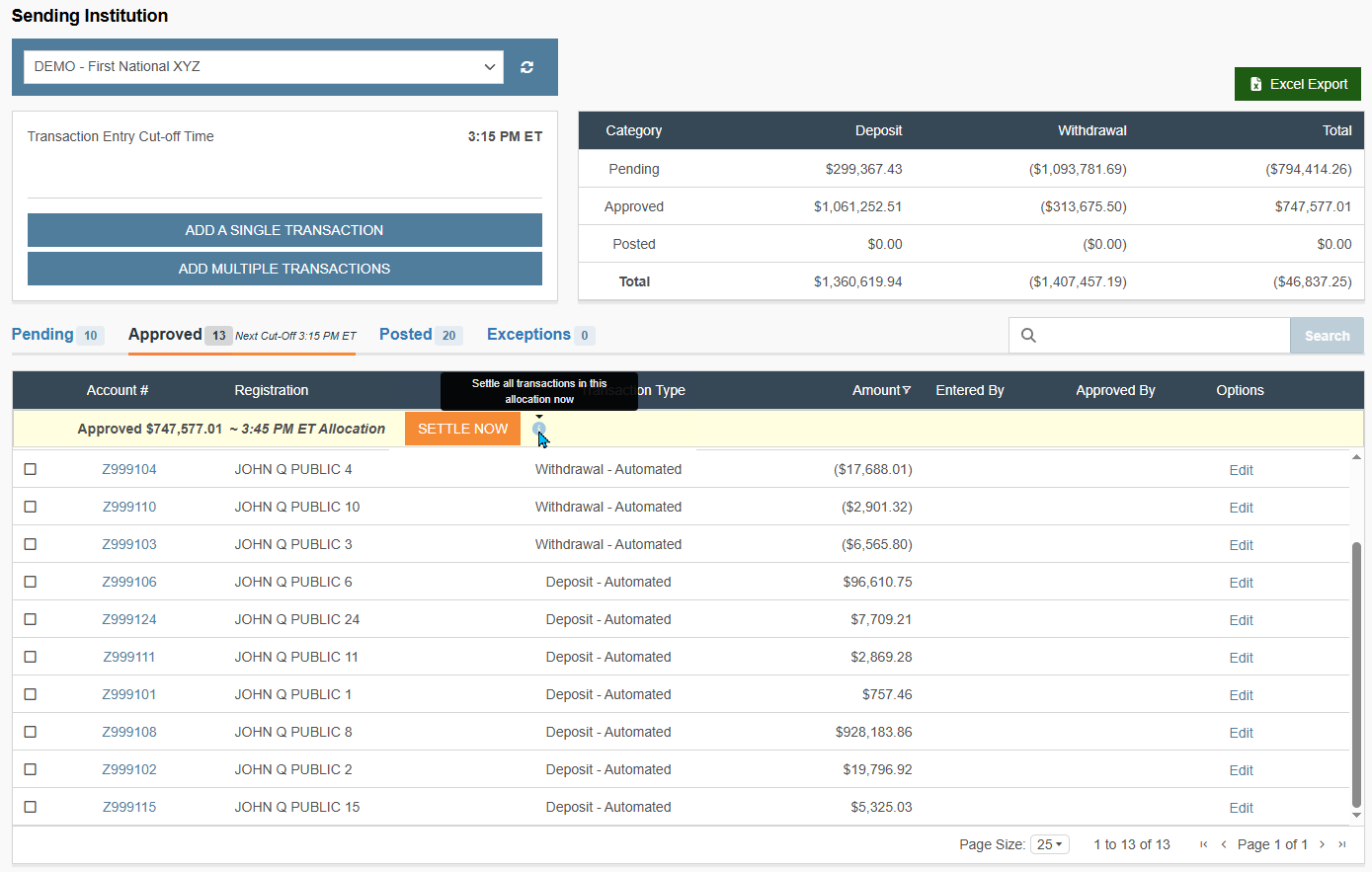
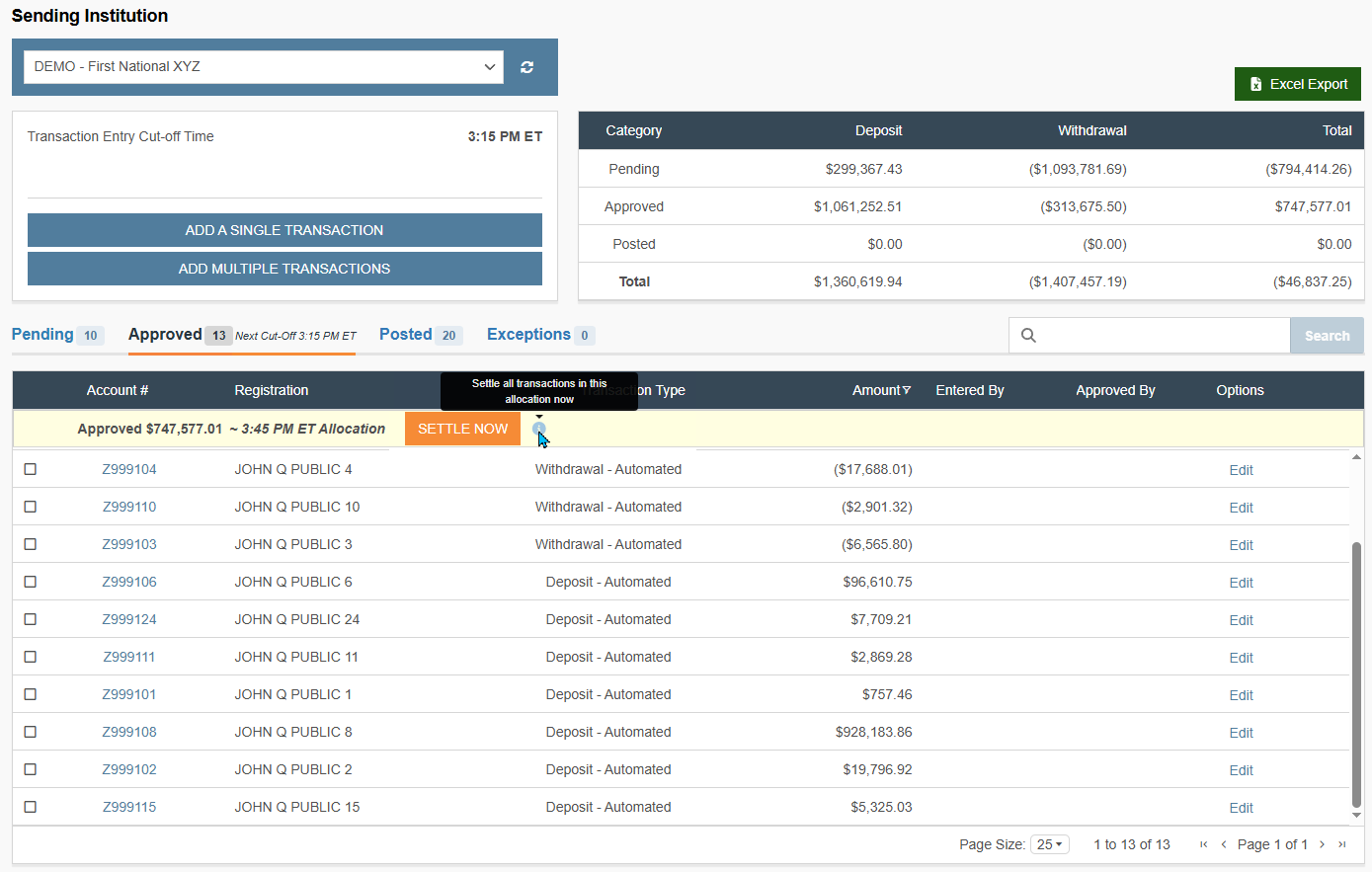
Automated transactions move directly to the Approved tab, bypassing the Pending stage entirely
Activity Summary Impact
Even if no manual transactions are entered for the day, the Activity Summary table will reflect these automated totals in the Approved and Total rows to ensure aggregate accuracy.
Transaction Identification
You can distinguish automated transactions from manual entries in the Approved tab by the Transaction Type column:
-
Withdrawal - Automated
-
Deposit - Automated
Grid Navigation & High-Volume Viewing
To accommodate the high volume often associated with automated transaction files, the transaction grid provides flexible viewing options:
-
Default View: 25 records per page.
-
Expanded View: The page size can be adjusted via the dropdown menu to display up to 200 records per page for easier review.
Search and Filter Capabilities
To manage high-volume automated transaction files, use the following grid tools:
Global Search
Search by account number, registration, or numeric amount. Avoid using dollar signs ($) in the search field to ensure accuracy.
Amount Filtering
Use the filter icon on the Amount column to apply logical operators (e.g., "Greater than").
Note: "Entered By" and "Approved By" fields remain blank for automated transactions.
Managing Automated Transactions
Until the next scheduled system allocation, users can perform the following actions:
Note: Modified transactions require a QC/Approval, if applicable.
-
Edit: Modify the dollar amount if a correction is required. See Modification/Correction Procedure.
-
Delete: Remove the transaction entirely from the upcoming allocation. See Delete a Transaction Entry.
Note: If a file is transmitted into the system and no manual transactions are entered, the Pending tab remains empty, and all activity immediately appears in the Approved tab.
Exceptions & Rejections
The Exceptions tab displays automated transactions that the system could not process.
Common Triggers
Invalid account numbers or insufficient funds.
Deposit Exception
If automated deposit transactions reference a new account number, the system will create a template account automatically rather than rejecting the transaction.
Reconciliation
Always check the Exceptions tab if your net daily settlement activity does not match your expected totals.
What's Next
Once automated transactions have been reviewed in the Approved tab and any necessary exceptions have been resolved, the final step depends on the transaction type: for Automated Transactions without modifications, no further action is required; however, if transactions were manually entered or modified, you must use the Settle Now functionality to finalize the batch and lock the period.
-
Proceed to the Net Settlement Report Generation guide to learn how to trigger the "Settle Now" command and generate your daily report.
-
After the allocation cut-offs, you can verify finalized transactions in the Posted tab as outlined in the Transaction Status & Workflow Lifecycle.
Updated 2 months ago