
Single Transaction Entry
How to Access
-
Navigate to the Client Access Portal (CAP).
-
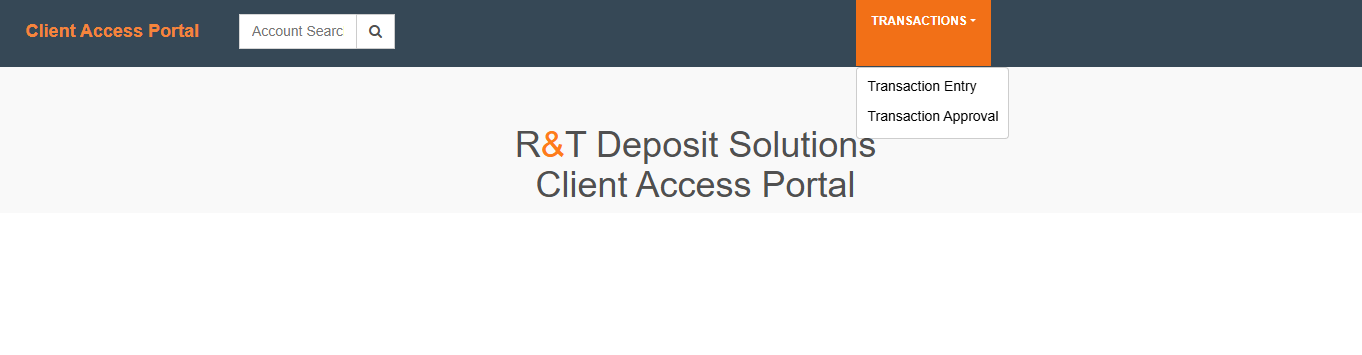
Select Transaction Entry from the primary navigation.
-
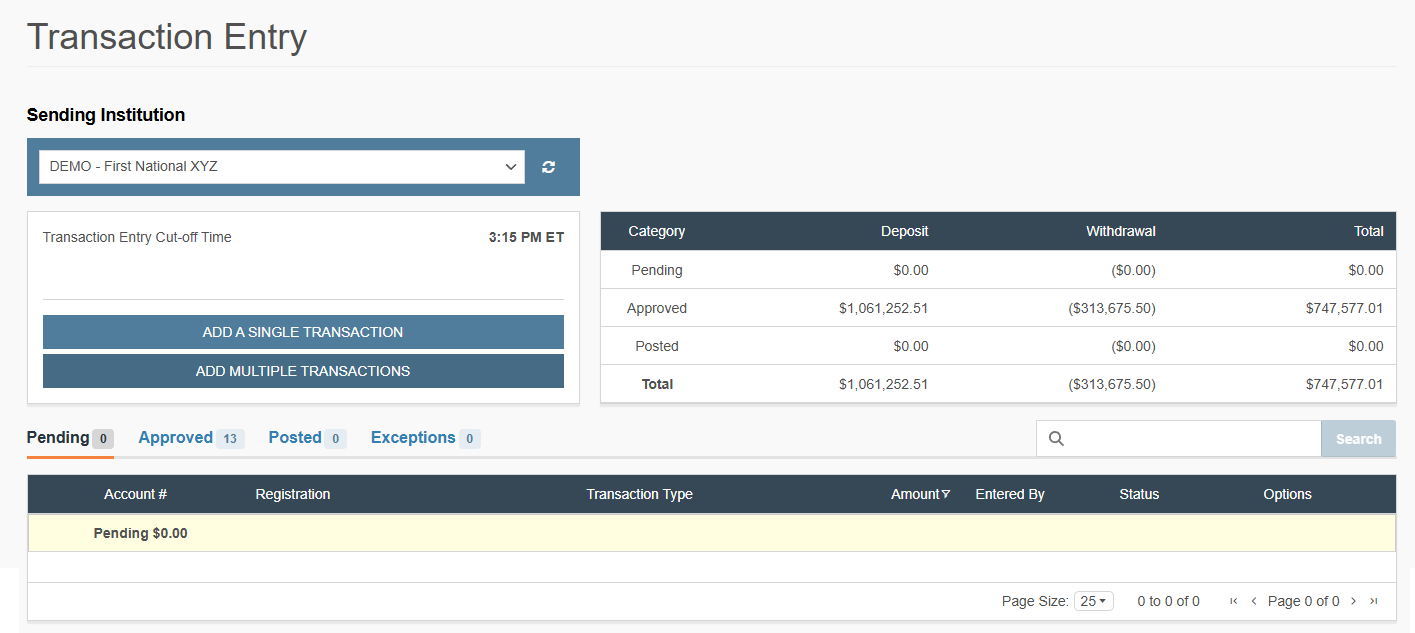
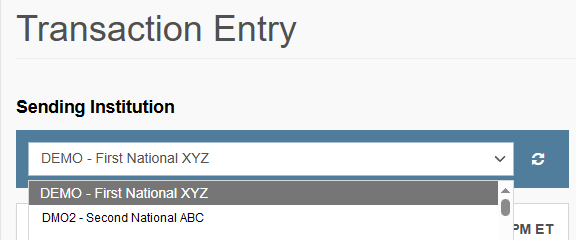
Select the appropriate Client Code from the dropdown menu (if applicable).
Enter a Single Deposit
Deposits credit the account principal and are subject to real-time validation against account status. Users must ensure that no pending full withdrawals exist on the target account before entry, as the system enforces a strict "No Activity" block on accounts with an active Full Withdrawal status.
-
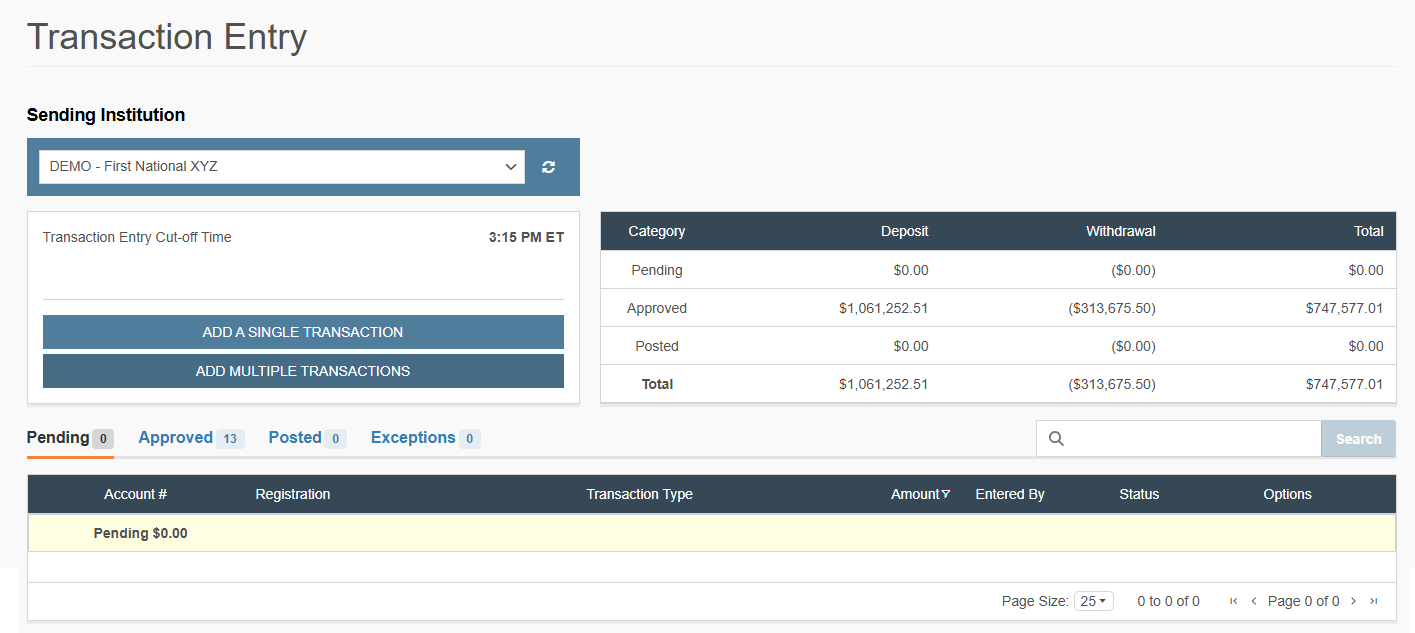
Click Add a Single Transaction.
-
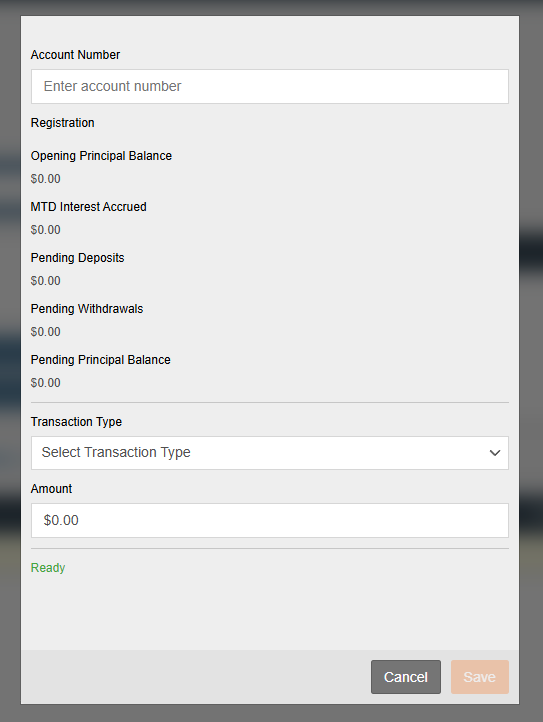
Enter your Account Number: Begin typing the account number.
-
If the account exists, the system automatically populates the registration, opening principal balance, MTD interest accrual, and pending activity.
-
This allows for real-time validation of pending full withdrawals before entering new activity.
-
-
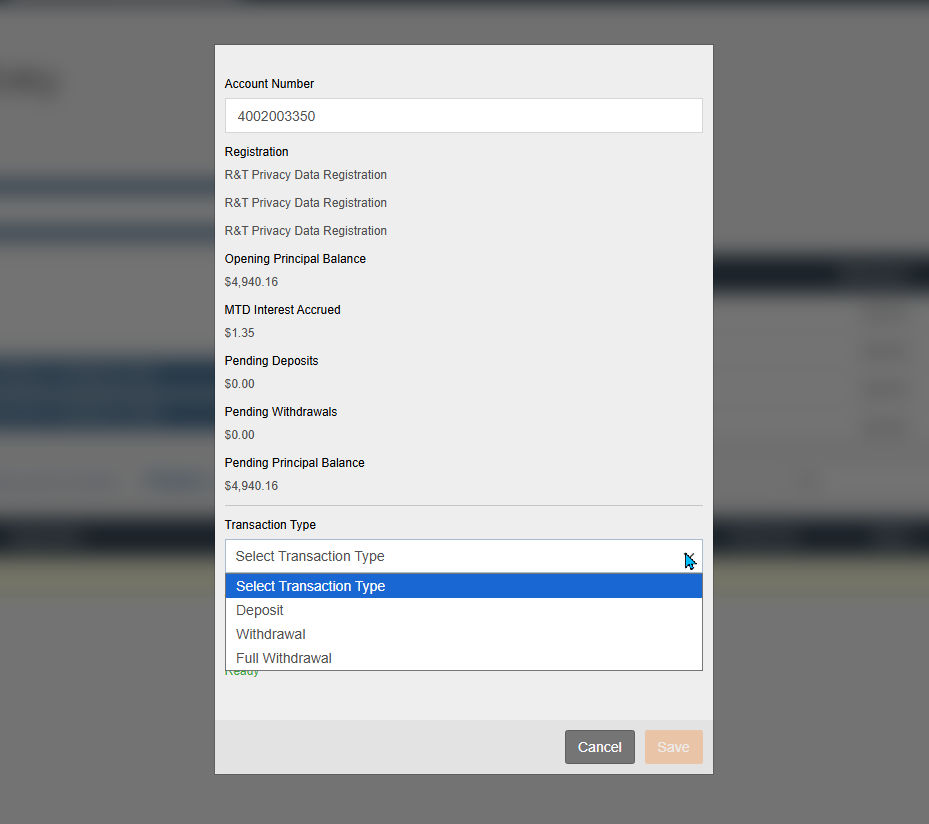
Select Transaction Type: Choose Deposit from the dropdown menu.
-
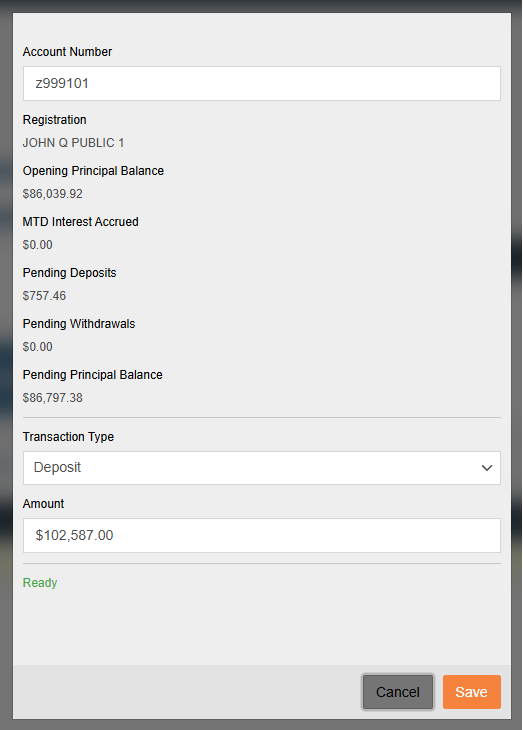
Enter desired Deposit Amount: Input a positive dollar figure.
You can populate the transaction list using two methods:
-
Manual Entry: Type the amounts directly.
-
Copy/Paste: Use
Ctrl+CandCtrl+Vto pull amounts from Excel or other source files.
-
-
Check Validation Status: Ensure the status in the bottom left reflects "Ready."
-
Click Save.
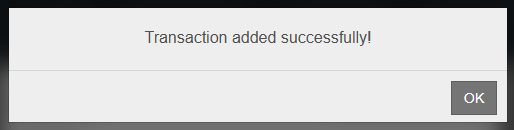
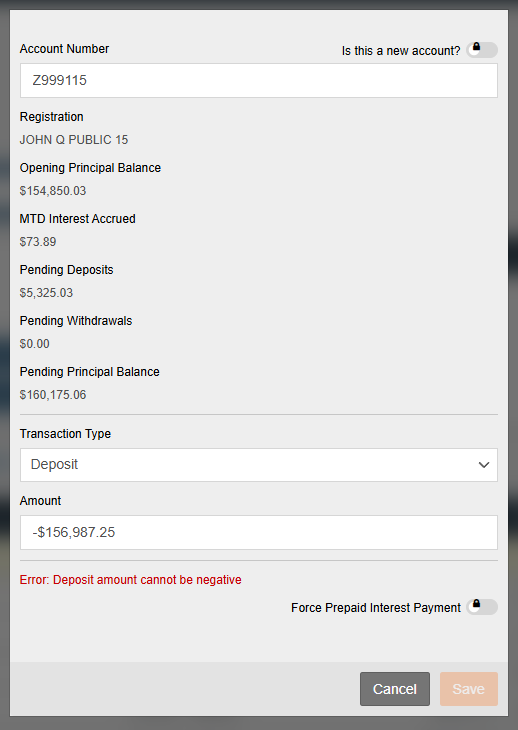
Note: If a negative figure is entered for a deposit, the system will display "Error: deposit amount cannot be negative" and block the save. To correct this error, ensure the dollar figure is a positive amount.
Handle Post-Save Validation Errors in a Deposit Transaction
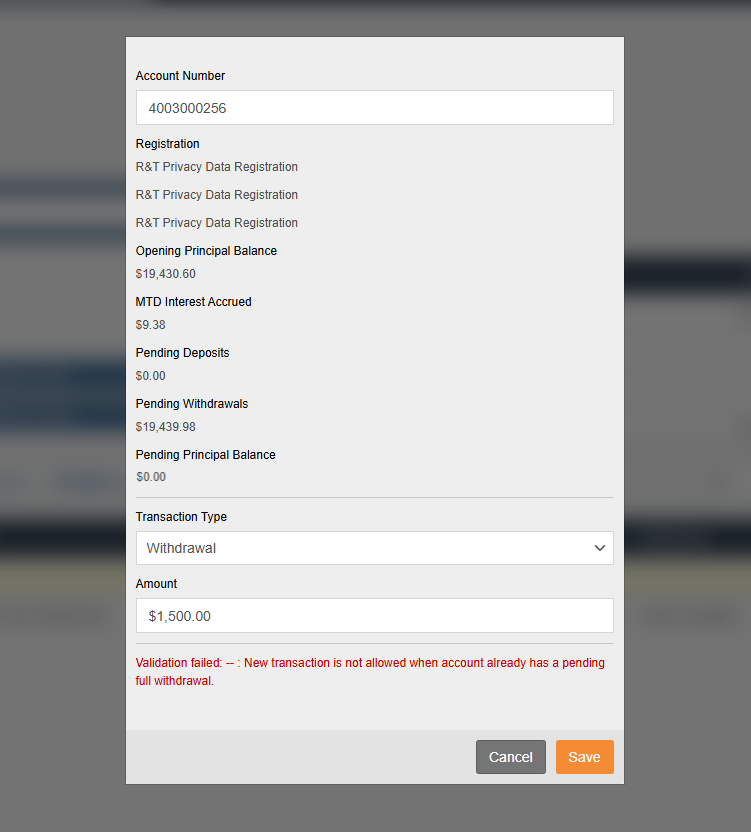
If the account has a Pending Full Withdrawal, the system will trigger a validation error and block the save.
Resolution: You must exit the transaction entry, allow the pending full withdrawal to settle, or return to the edit screen and delete the pending full withdrawal before any new activity can be booked for that account. See Delete a Transaction Entry for how to delete the transaction.
Enter a Withdrawal
Withdrawals reduce the principal balance of an account and, like deposits, are subject to real-time validation against any pending full withdrawals. The system includes logic to automatically convert negative dollar inputs into absolute values to ensure consistent transaction processing.
-
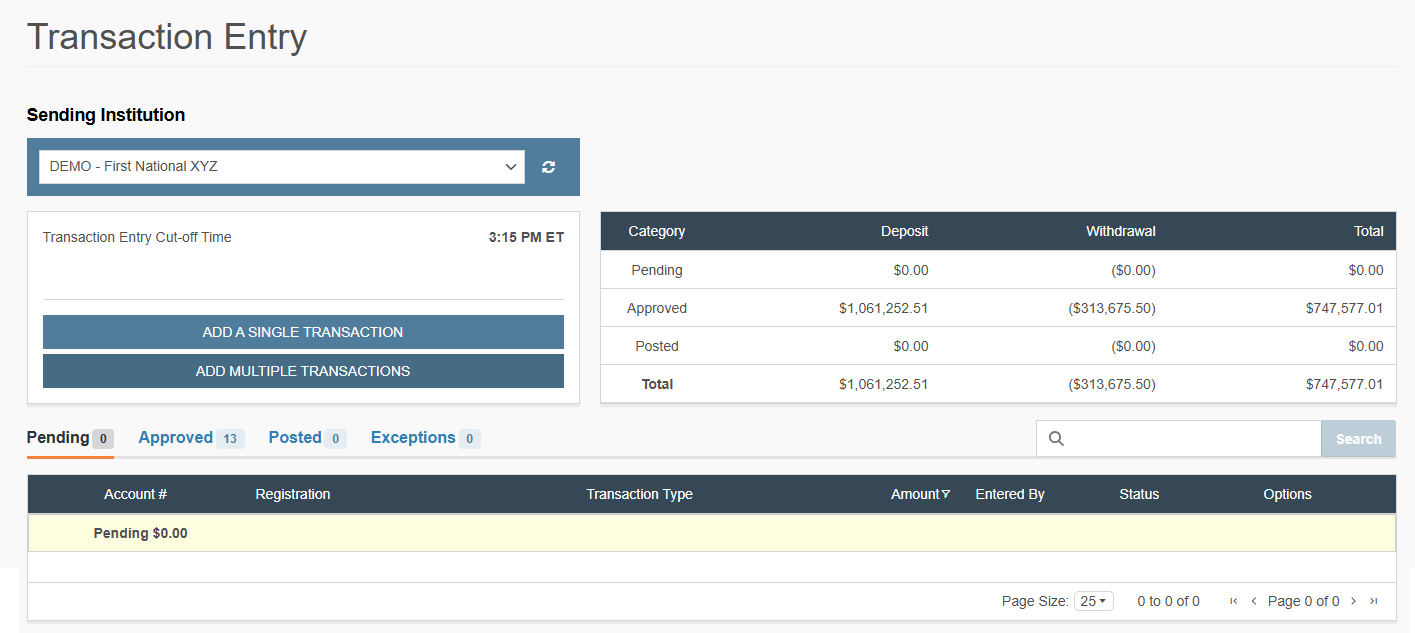
Click Add a Single Transaction.
-
Enter the Account Number: Begin typing the account number.
Note: A Customer Account must exist in the DDM Program in order to enter a withdrawal.
-
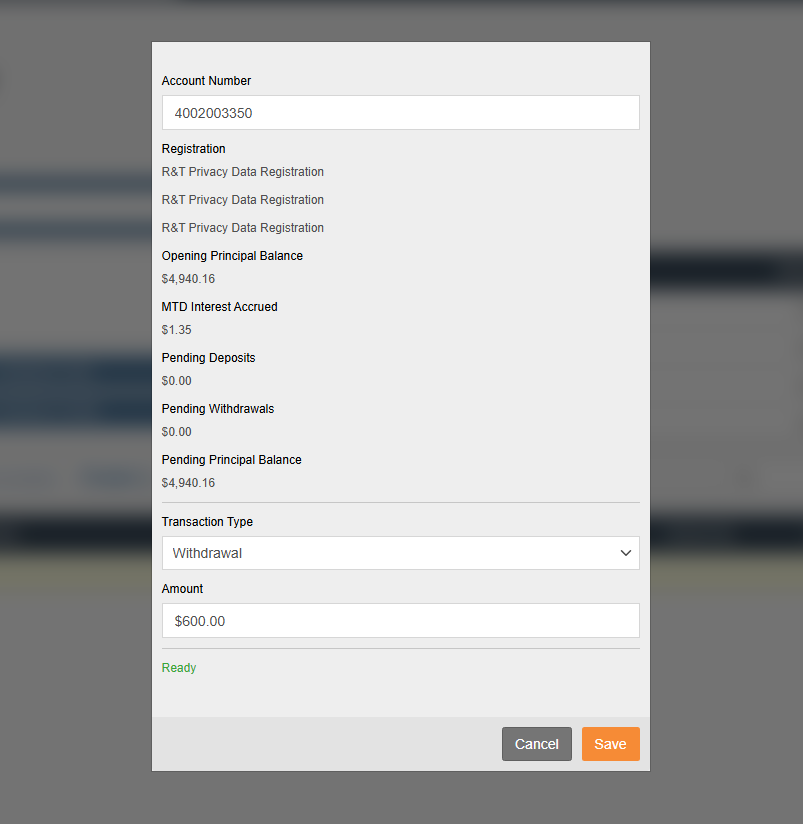
If the account exists, the system automatically populates the registration, opening principal balance, MTD (Month-to-Date) interest accrual, and pending activity.
-
This allows for real-time validation of pending withdrawals before booking new activity.
-
-
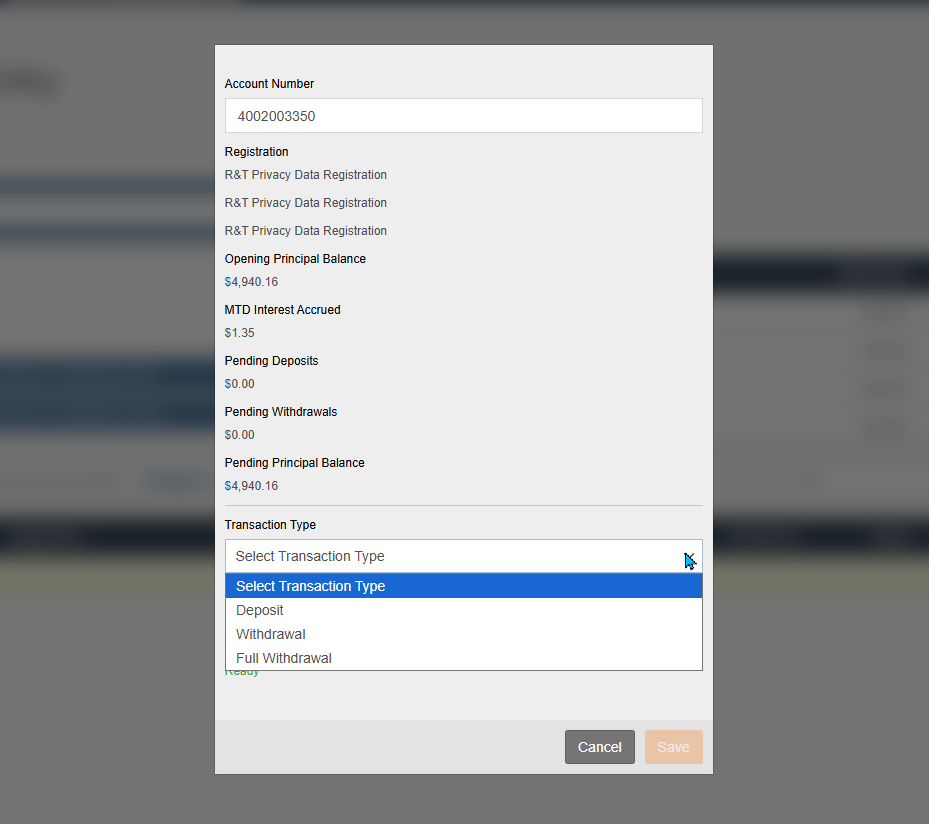
Select Transaction Type: Choose Withdrawal from the dropdown menu.
-
Enter desired Withdrawal Amount: Input a positive dollar figure.
You can populate the transaction list using two methods:
-
Manual Entry: Type the amounts directly.
-
Copy/Paste: Use
Ctrl+CandCtrl+Vto pull amounts from Excel or other source files.
-
-
Validation: Ensure the status in the bottom left reflects "Ready."
-
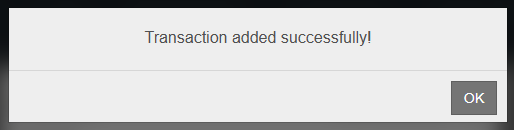
Click Save.
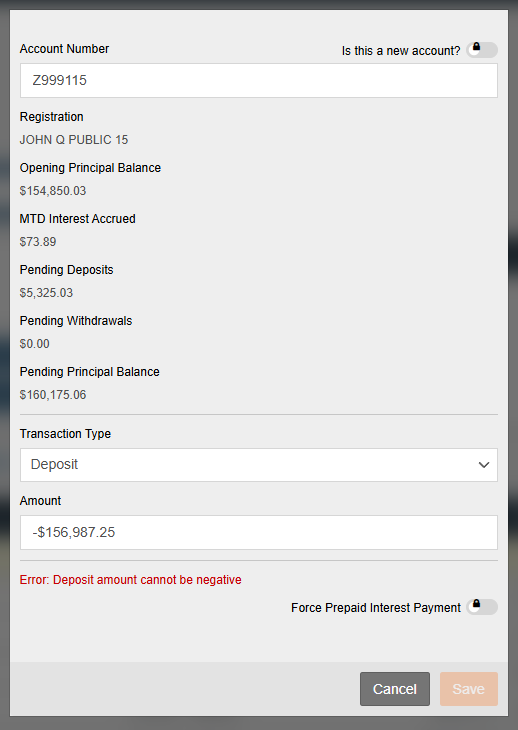
Note: If a negative figure is entered for a deposit, the system will display "Error: deposit amount cannot be negative" and block the save. To correct this error, ensure the dollar figure is a positive amount.
Handling Post-Save Validation Errors in a Withdrawal Transaction
As with deposits, the system will block a withdrawal if it detects a conflicting status on the account. If the account has a Pending Full Withdrawal, the system will trigger a validation error and block the save.
Resolution: You must exit the transaction entry, allow the pending full withdrawal to settle, or return to the edit screen and delete the pending full withdrawal before any new activity can be booked for that account. See Delete a Transaction Entry for how to delete the transaction.
Enter a Full Withdrawal
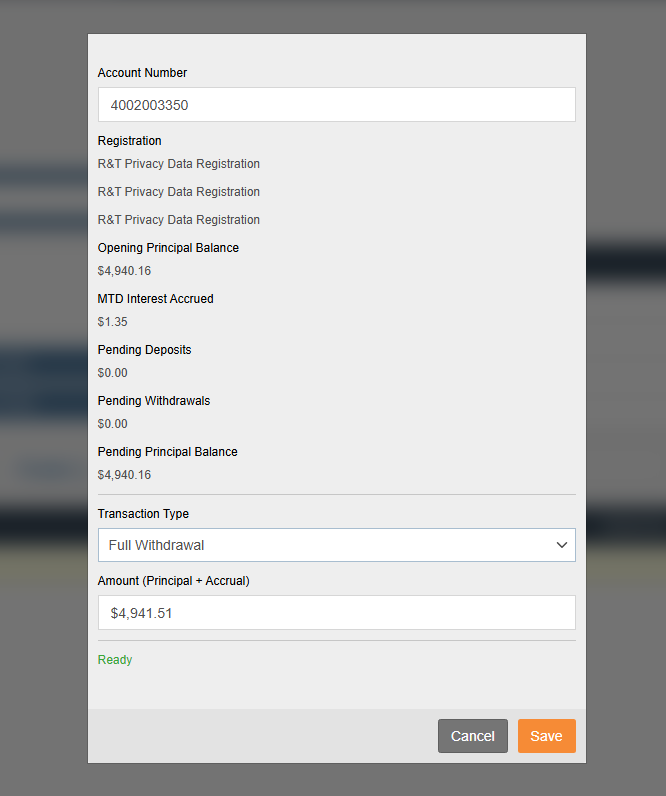
A Full Withdrawal means the entire principal balance and all interest accruals for an account is fully withdrawn. Unlike standard transactions, a Full Withdrawal acts as a "terminal" action for the current cycle; therefore, the system requires that no other manual transactions be in a pending state before this request can be initiated. The system will automatically pull the Principal + Interest total to ensure a true zero-balance withdrawal.
Prerequisite: Clear Pending Activity
The system enforces a "Zero Pending Activity" rule for Full Withdrawals. If the account has existing manual transactions in a pending state, the Full Withdrawal will be blocked.
-
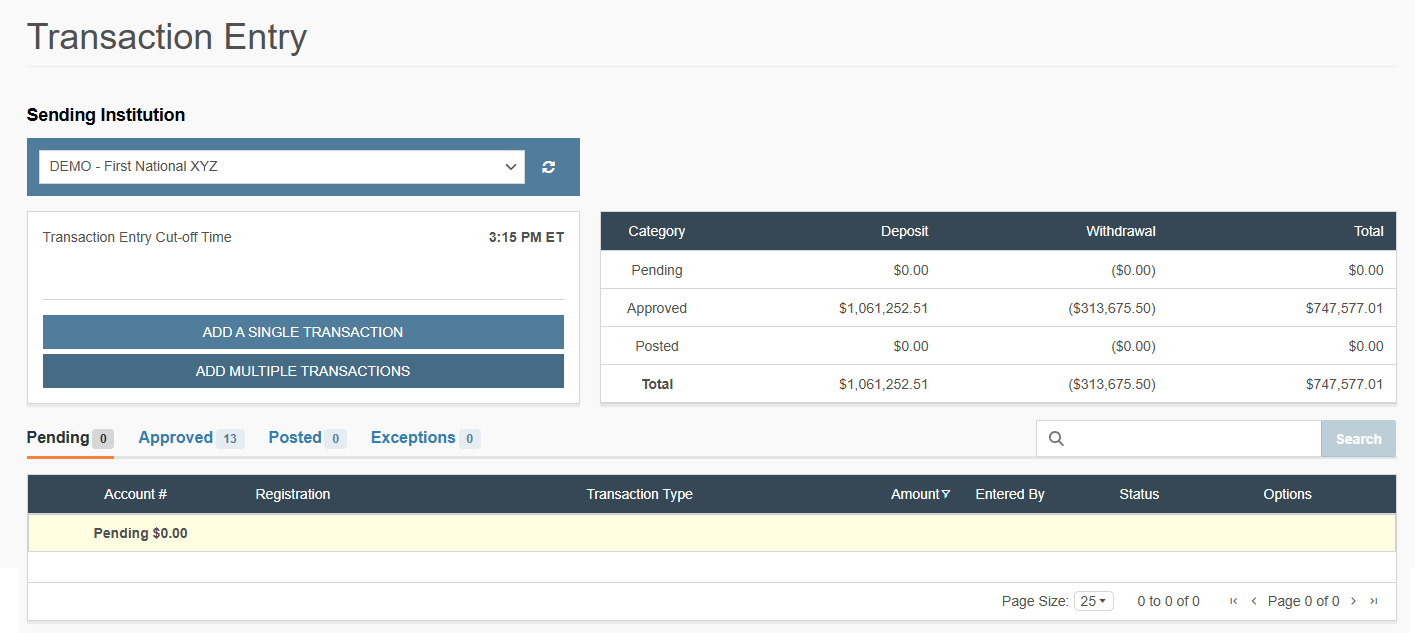
Click Add a Single Transaction.
-
Enter your Account Number: Begin typing the account number.
Note: An account must exist in the program in order to enter a withdrawal.
-
If the account exists, the system automatically populates the registration, opening principal balance, MTD interest accrual, and pending activity.
-
This allows for real-time validation of pending withdrawals before booking new activity.
-
-
Select Transaction Type: Choose Full Withdrawal from the dropdown menu.
-
Validate Account Readiness:
-
If there are pending transactions, a system error will appear immediately.
-
Action: You must navigate back to the Pending tab and delete those manual transactions before the Full Withdrawal can proceed.
-
-
Review Amount: The system automatically calculates the full withdrawal amount (Principal + Accrued Interest).
-
Validation: Ensure the status in the bottom left reflects "Ready."
-
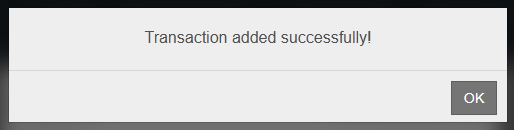
Click Save.
Delete a Transaction Entry
-
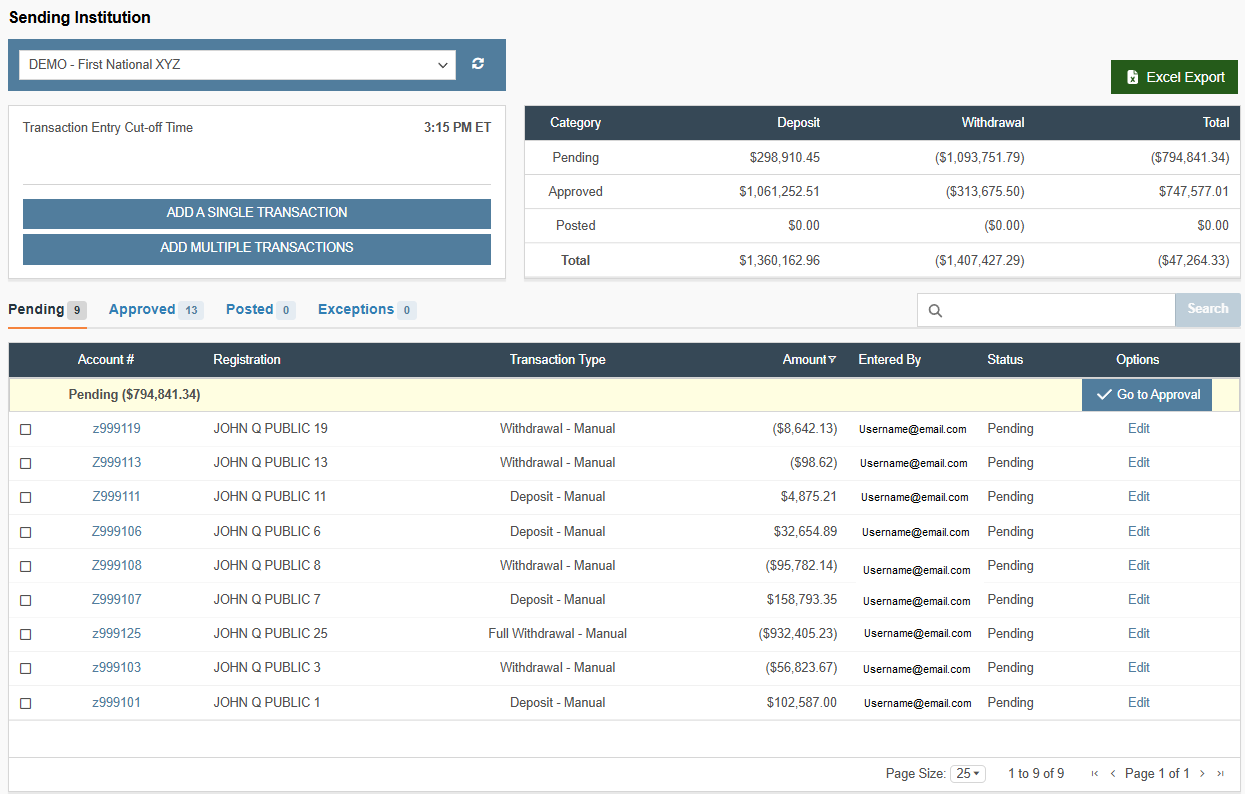
Return to the Transaction Entry page and locate the entry in the Pending tab.

-
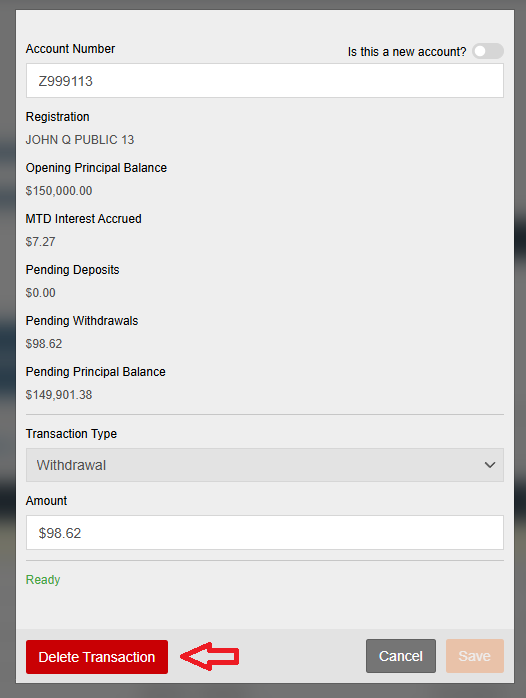
Click Delete.
-
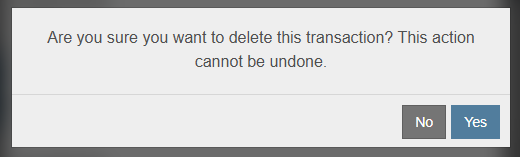
Click Yes to confirm the deletion.
-
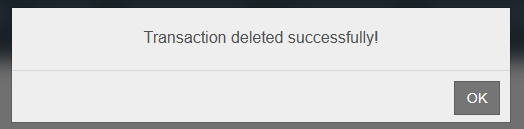
Click OK to exit screen.
Transaction Status & Approval (QC)
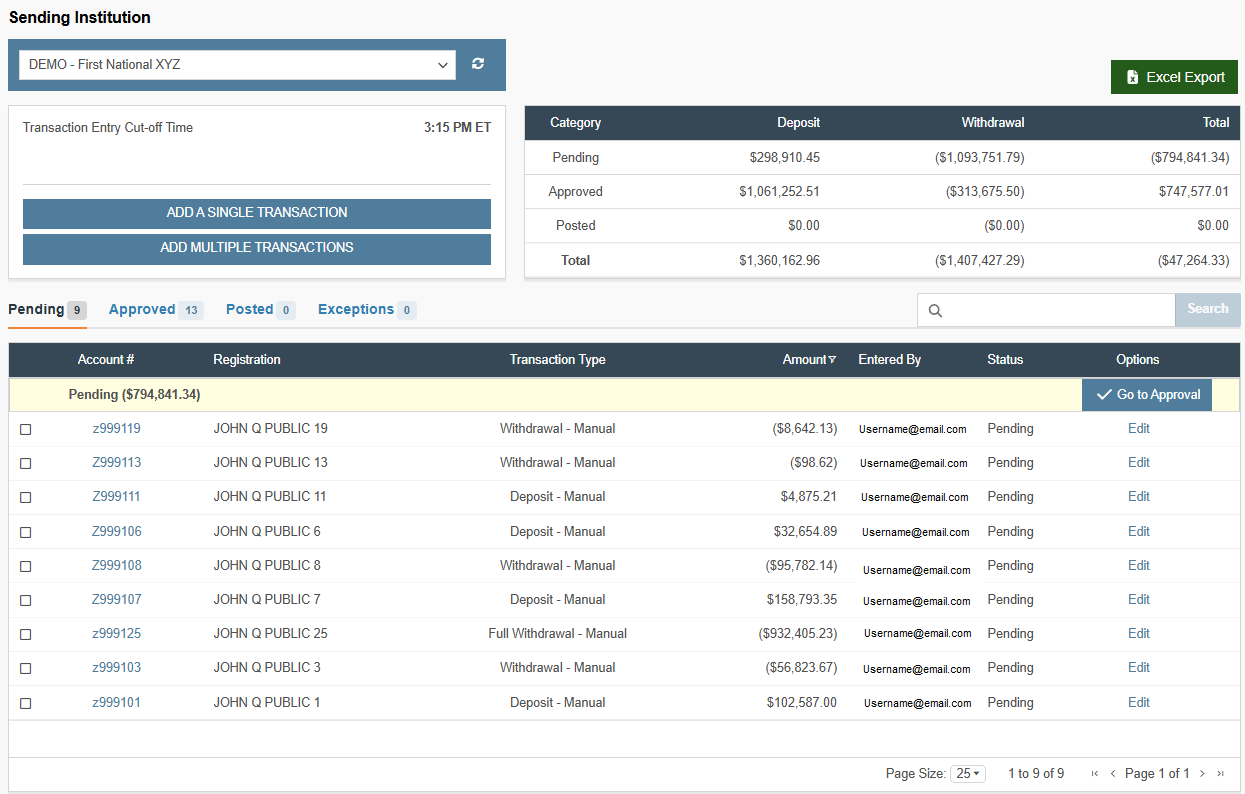
Once saved and passed through the initial validation checks, transactions appear in Pending status where they are processed in one of two ways:
-
Dual Control (Optional): A second individual from the firm must perform the QC/Approval. Users are systemically blocked from approving their own entries.
-
Straight-Through Processing: If the client has opted to not require dual control, this configuration bypasses the manual QC step and transactions flow through the system automatically.
What's Next
Now that you have initiated a single transaction, the entry may need to be approved (if approval permissions were requested) and the transaction must be settled to impact the account balance.
-
Approve the Entry: Move to the Transaction Approval Workflow to learn how to QC your transaction and advance it to the Approved status.
-
Verify System Status: Review the Transaction Status & Workflow Lifecycle to understand the transition from "Pending" to "Posted" states.
-
Bulk Data Entry: If you need to process large volumes of activity rather than individual entries, see the guide for Multiple Transaction Entry.
-
Finalize for the Day: Once all entries are approved, follow the Net Settlement Report Generation procedure to lock your daily batch and generate a net settlement report.
Updated 20 days ago