
Account Balances
Purpose of This Option
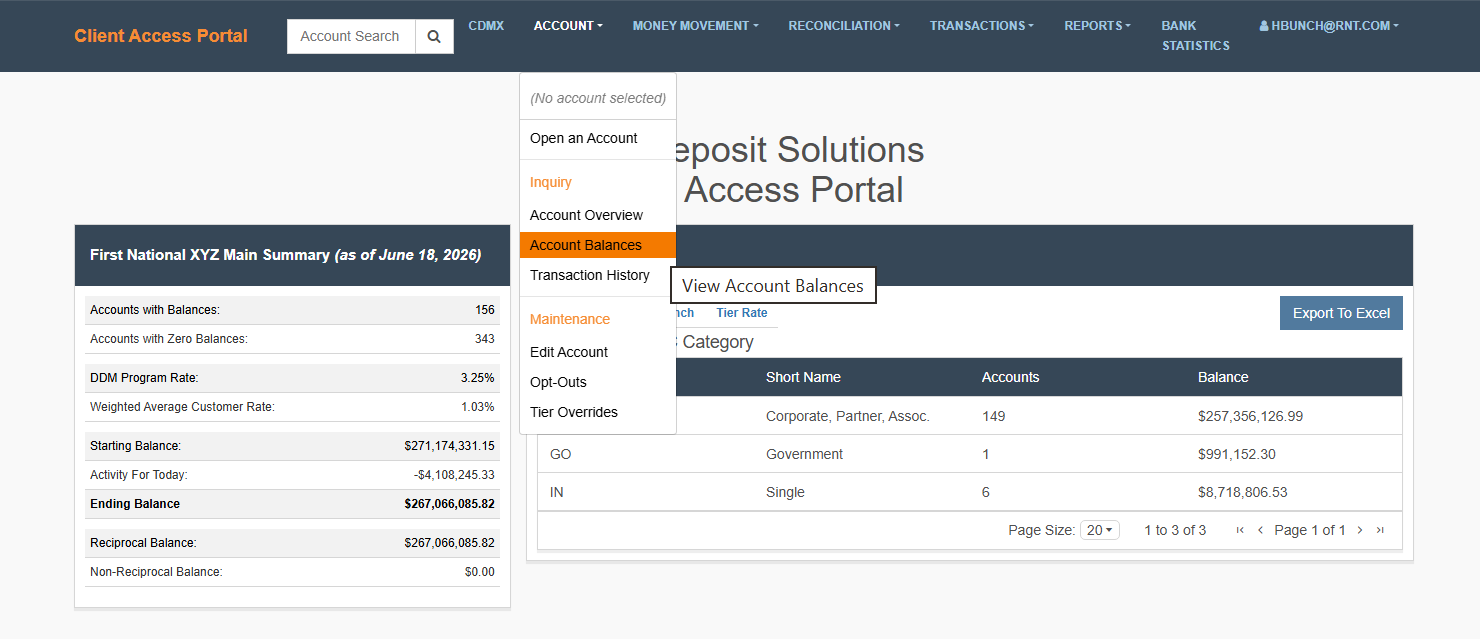
The Account Balances option in the Account menu provides direct access to the Balance Summary view.
When you select Account Balances, the system navigates directly to the Balance Summary page.
- No additional setup or selection is required
- The Balance Summary is displayed for the currently selected account
How to Access
-
Navigate to the Client Access Portal (CAP).
-
From the top navigation, select Account then Account Balances.
How This Relates to Account Overview
The Balance Summary accessed here is the same as the Balance Summary available within Account Overview.
- Account Overview → Includes Balance Summary as part of a broader view
- Account Balances (Menu Option) → Takes you directly to Balance Summary
When to Use This Option
Use Account Balances when you:
- Want to go directly to balance data
- Do not need the additional context provided in Account Overview
- Are repeatedly accessing Balance Summary and want a faster path
What to Do Next
Once redirected:
- Review the Balance Summary
- Follow the instructions in Balance Summary for filtering, sorting, or exporting data
Tip
If you need additional context (such as recent transactions or pending activity), navigate to Balance Summary.
Updated about 2 months ago
Did this page help you?