
Tier Override
Purpose of This Page
The Tier Override module allows the Sending Institution to change the Customer Interest Rate tier applied to an account.
Use this page to:
- Update the account’s current customer interest rate tier
- Apply temporary or permanent tier changes
- Review past tier updates
For additional information about Customer Interest Rate Management, including how customer interest rates are assigned, managed, and maintained, refer to Customer Interest Rate Management.
How to Access
-
Navigate to the Client Access Portal (CAP).
-
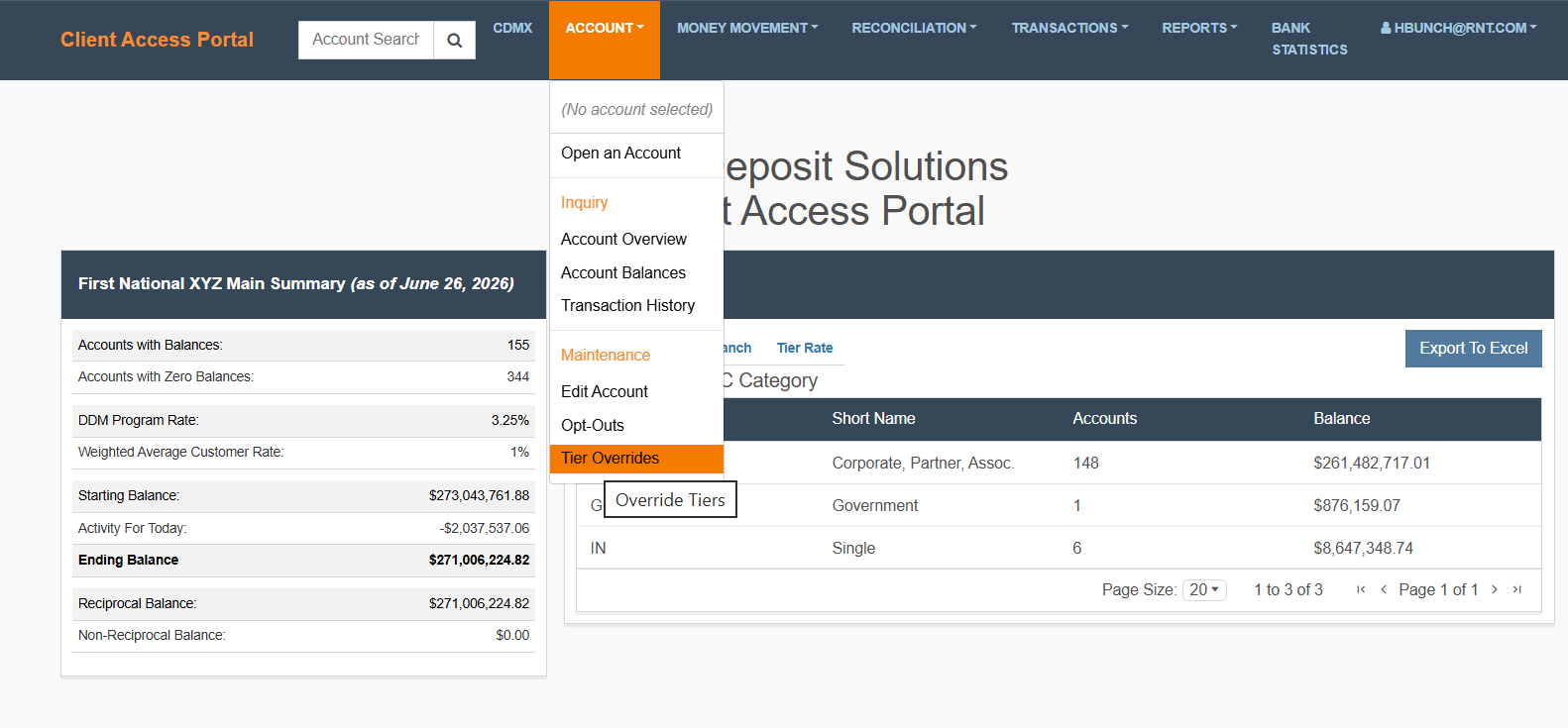
From the top navigation, select Account then Tier Overrides.
Understand Customer Interest Rate Management
Customer Interest Rate management controls the customer interest rate applied to an account through tier selection or manual rate entry.
What You Need to Know
- Each tier has an associated customer interest rate
- Selecting a tier updates the account’s rate automatically
- Custom rate may be available
Understand the Page Layout
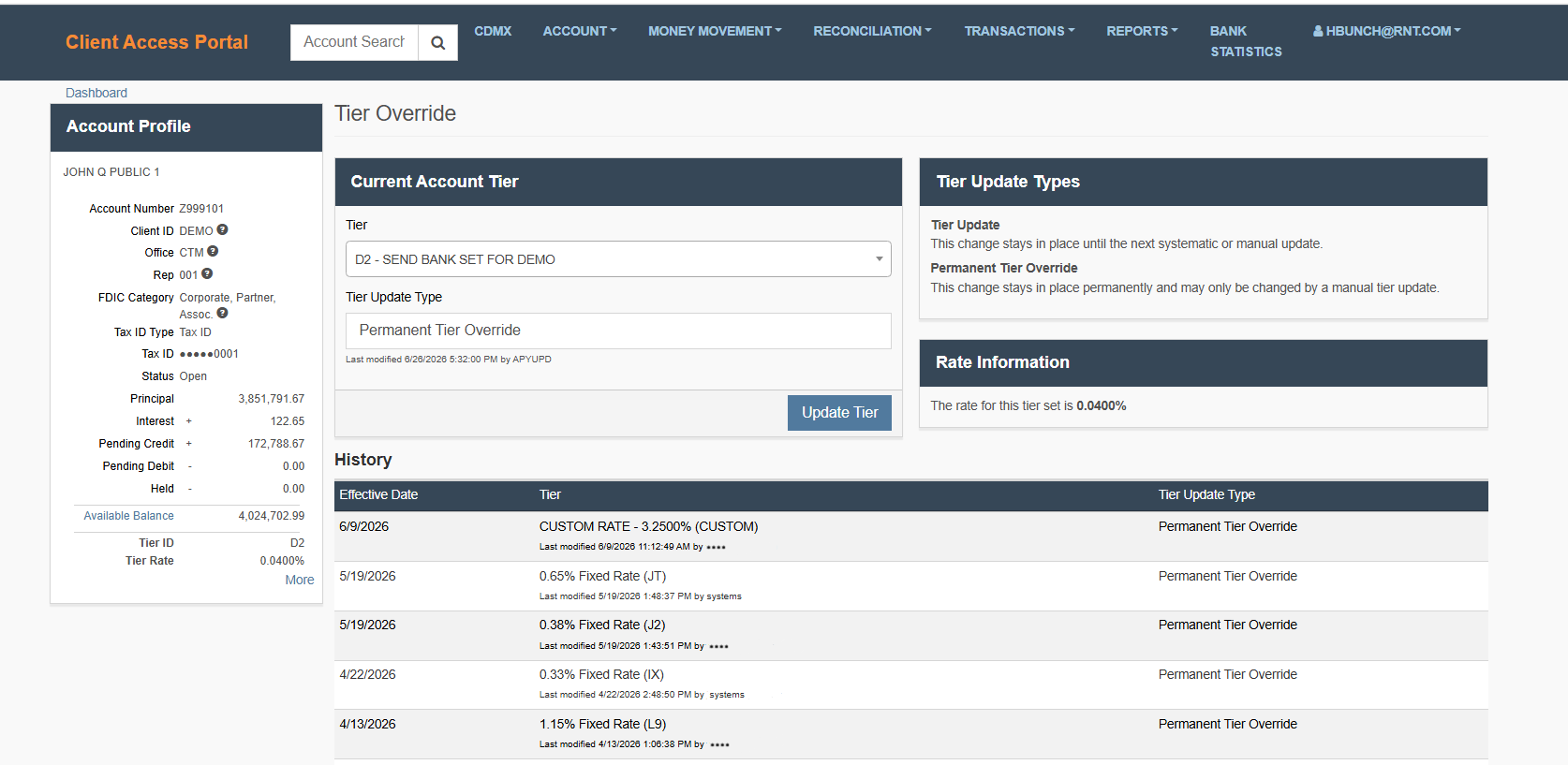
Current Account Tier
Displays the current tier and allows changes to:
- Tier → Select a standard tier or custom option
- Tier Update Type → Determines how long the change remains in effect
- Update Tier → Applies the change
Rate Information
Displays the rate associated with the selected tier or custom value.
- Updates automatically when a selection is made
- Use this to confirm the rate before applying changes
Tier Update Types
Explains how long the rate change will apply:
- Tier Update → Temporary; may be overridden by system processes (e.g., core processor data feeds)
- Permanent Tier Override → Remains until manually changed
Tier History
Displays a record of changes made to the account.
Includes:
- Effective Date → When the change was applied
- Tier → The selected tier and associated rate
- Tier Update Type → Temporary or permanent
- Audit details → Who made the change and when
Update the Account Rate
Update the account's customer interest rate in one of two ways:
Option 1: Apply a Standard Tier
What This Means
Select a predefined tier that includes a set customer interest rate.
When to Use This Option
- Following established pricing or customer interest rate structures
- Applying consistent customer interest rates across accounts
- A custom customer interest rate is not required
What to Expect
- The customer interest rate is automatically set based on the selected tier
- No manual customer interest rate entry is required
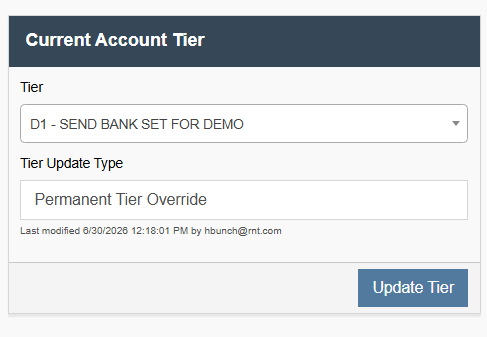
What You Need to Do
-
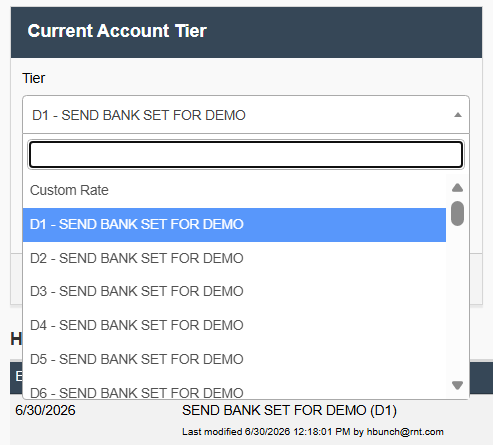
Select a Rate ID from the Tier dropdown. (e.g. D1)
-
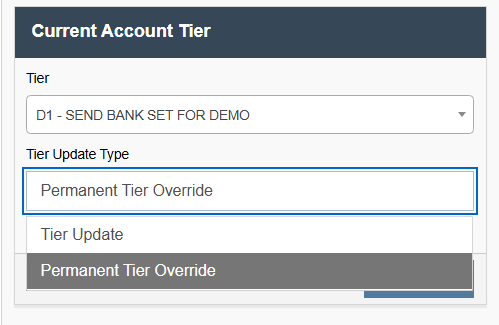
Select a Tier Update Type from the dropdown. (e.g. Permanent Tier Override)
-
Click Update Tier.
Option 2: Apply a Custom Rate
What This Means
Manually enter a specific customer interest rate instead of using a predefined tier.
When to Use This Option
Use a custom rate when:
- A specific customer interest rate must be applied that is not tied to a standard tier
- Exception pricing is required
- The desired customer interest rate is not tied to a standard tier
What to Expect
- You will enter the rate manually
- The entered value overrides the standard tier rate
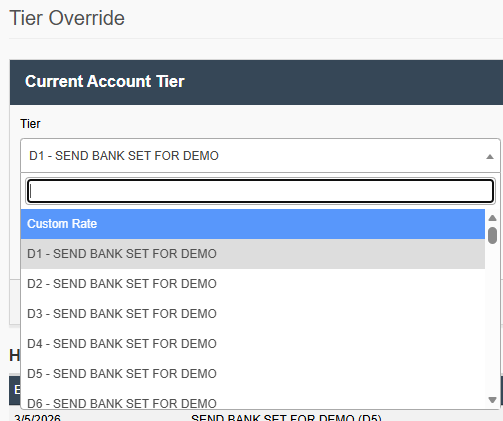
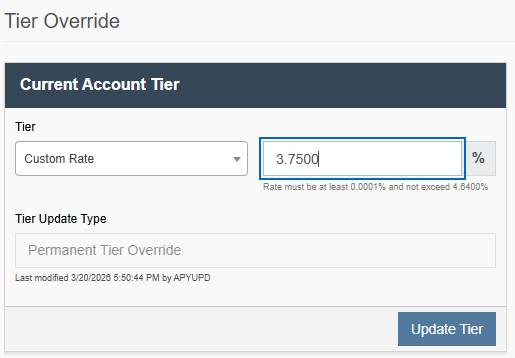
What You Need to Do
-
Select a Custom Rate option from the Tierdropdown.
-
Enter the desired rate value.
-
Confirm the Tier Update Type.
-
Click Update Tier.
What Happens Next
- The selected tier or rate is applied to the Customer Account.
- The updated rate takes effect based on system timing.
- The change is recorded in the Tier History section.
Updated 21 days ago