
Account Overview
Purpose of This Page
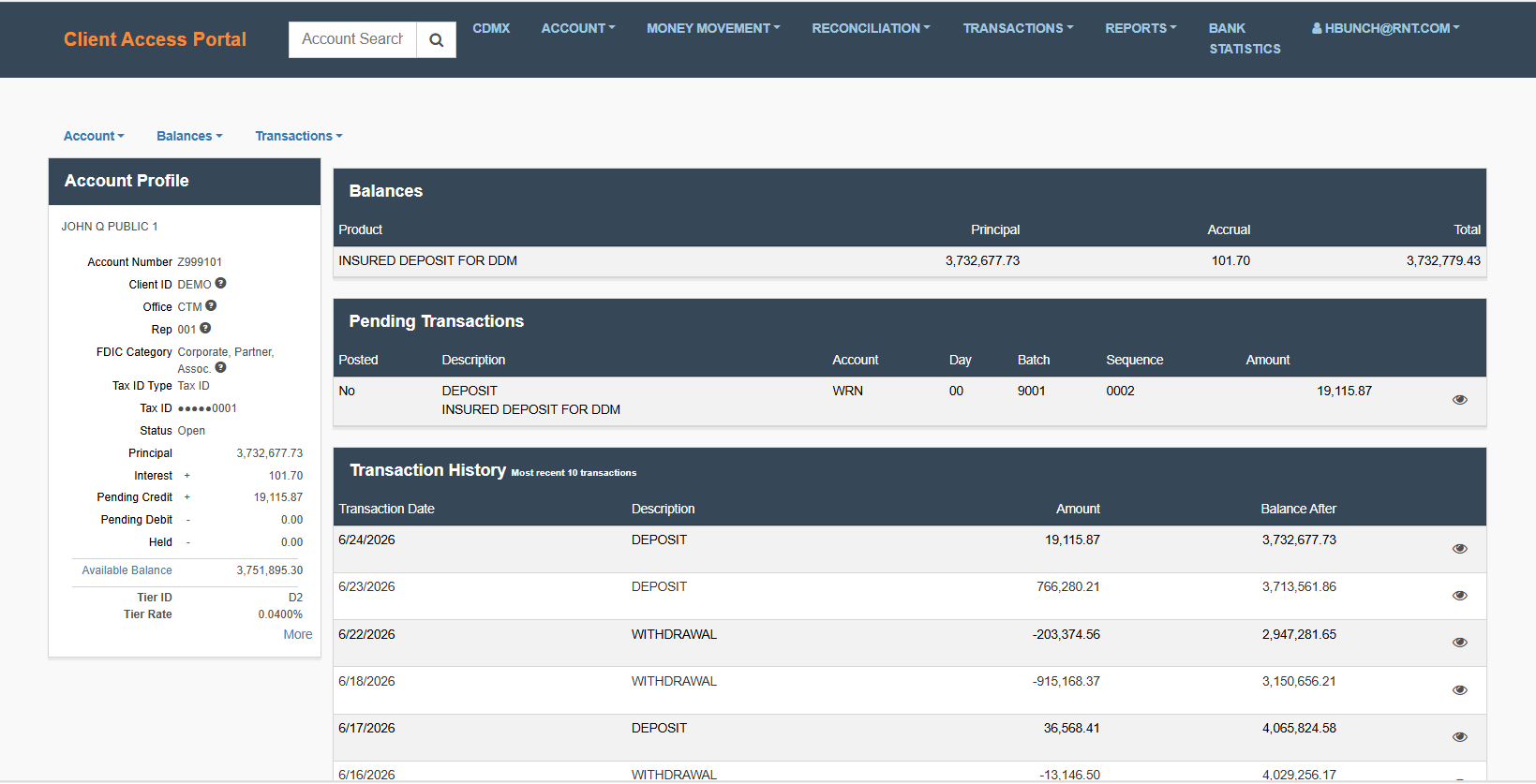
The Account Overview is your starting point for understanding the current state of a Customer Account. Use this page to:
- Quickly assess balances and activity
- Identify pending or recent transactions
- Navigate to more detailed views when needed
Think of this page as a summary dashboard—it helps you decide whether you need to take action or simply review information.
How to Access
- Navigate to the Client Access Portal (CAP).
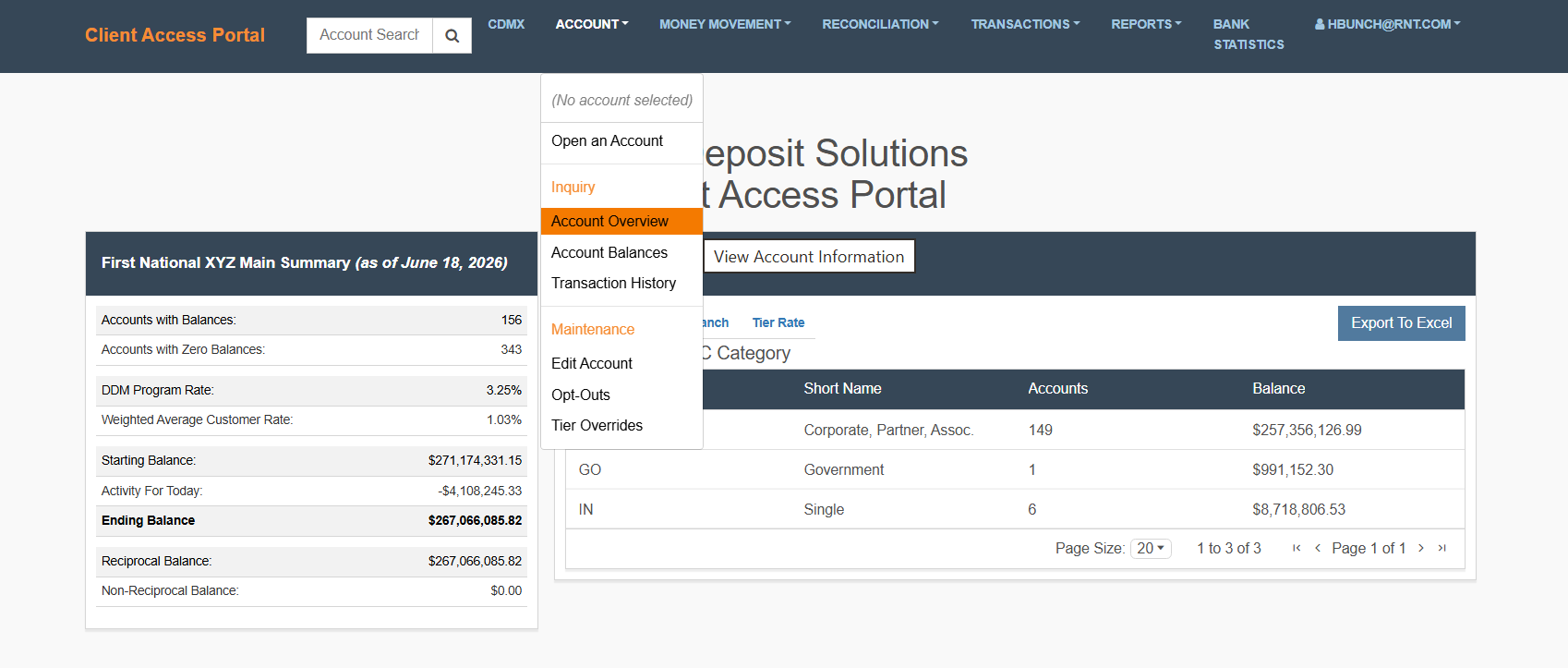
- From the top navigation, select Account then Account Overview.
Account Profile
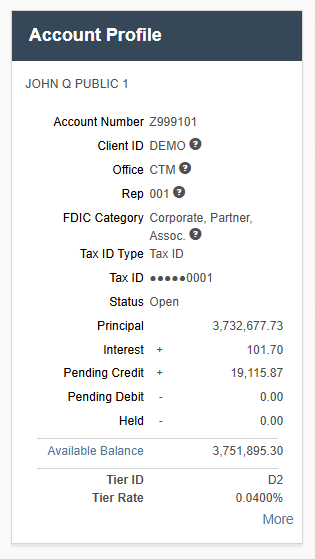
The Account Profile view provides key identifying details and a high-level snapshot of the Customer Account, including:
- Account name/number
- Current balance indicators (e.g., available, pending, ending balance)
- Interest rate or account attributes (if applicable)
Why it Matters
Use this section to:
- Confirm you are viewing the correct Customer Account
- Quickly understand the Customer Account’s current financial position
What You Need to Do
- Verify the Customer Account details match your intended selection
- Use the balance indicators to determine if further review is needed
No action is required unless something looks incorrect.
Account Details
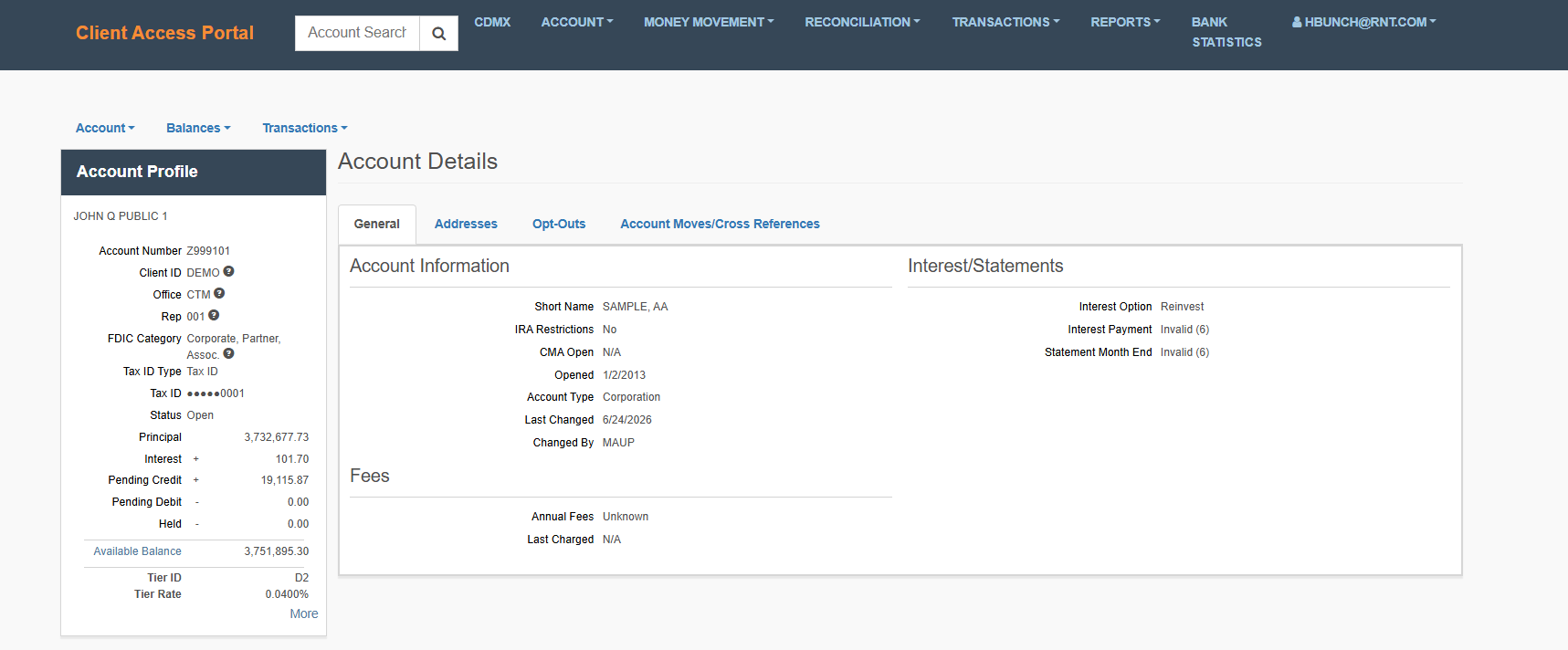
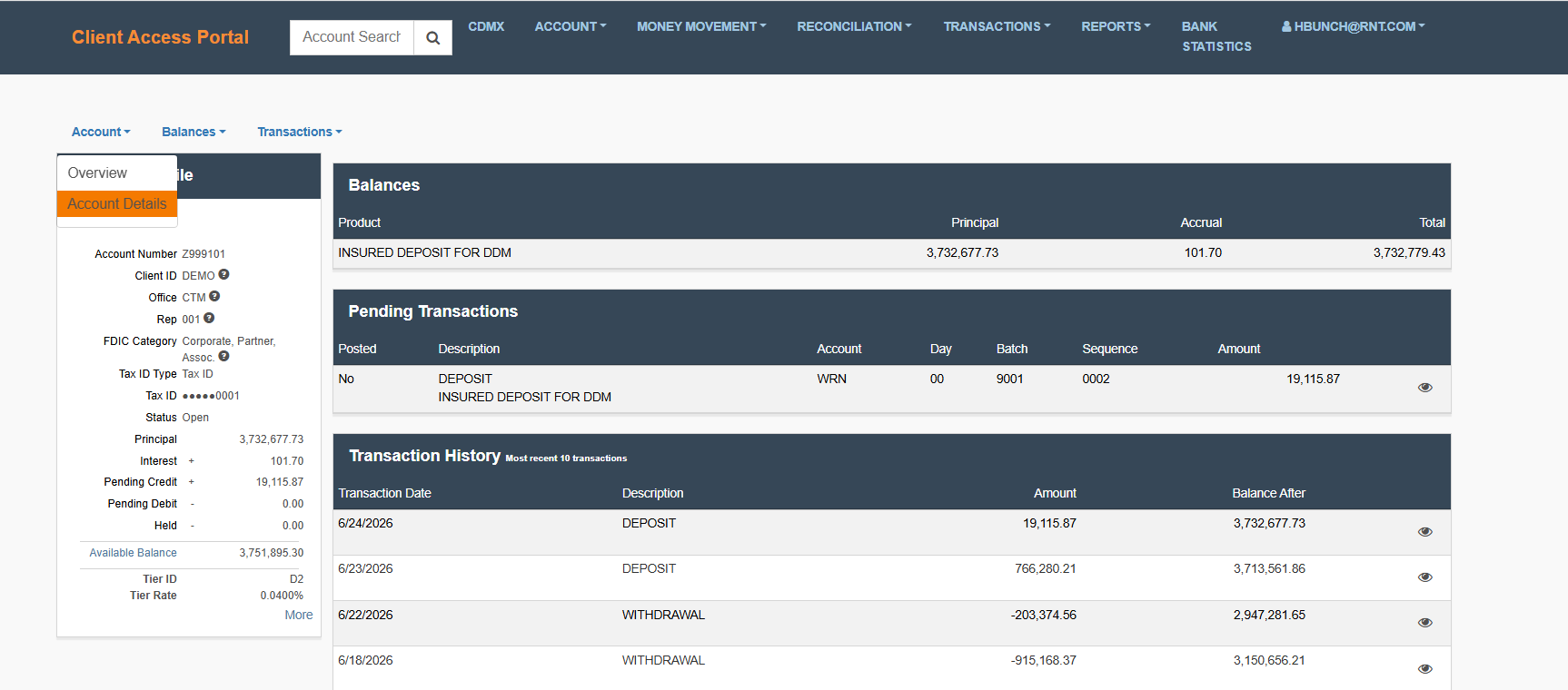
The Account Details view provides additional account-level information beyond the summary. You can switch to this view using the Account dropdown menu.
Why it Matters
This section is useful when you need:
- More context about account configuration
- A deeper view into account-level data that isn’t shown in the profile summary
What You Need to Do
Move here when the overview does not provide enough information.
- Select Account Details from the dropdown.
- Review the information relevant to your task.
Balances
The Balances table provides a snapshot of key balance types, typically including:
- Current balance
- Available balance
- Other relevant balance categories (depending on configuration)

Balance Summary
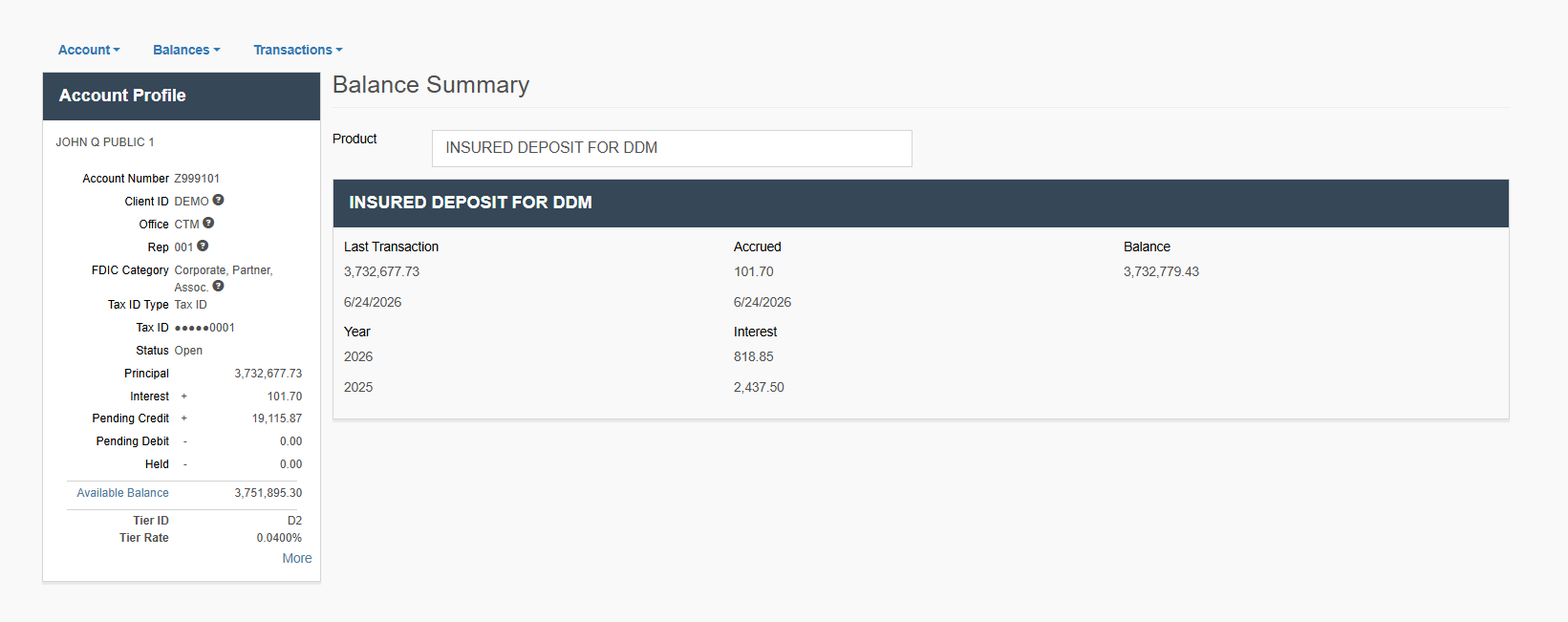
The Balance Summary view aggregates balance information across accounts or categories.
Why it Matters
Use this to:
- Get a consolidated financial position
- Compare balance types at a glance
What You Need to Do
Best for quick, high-level review
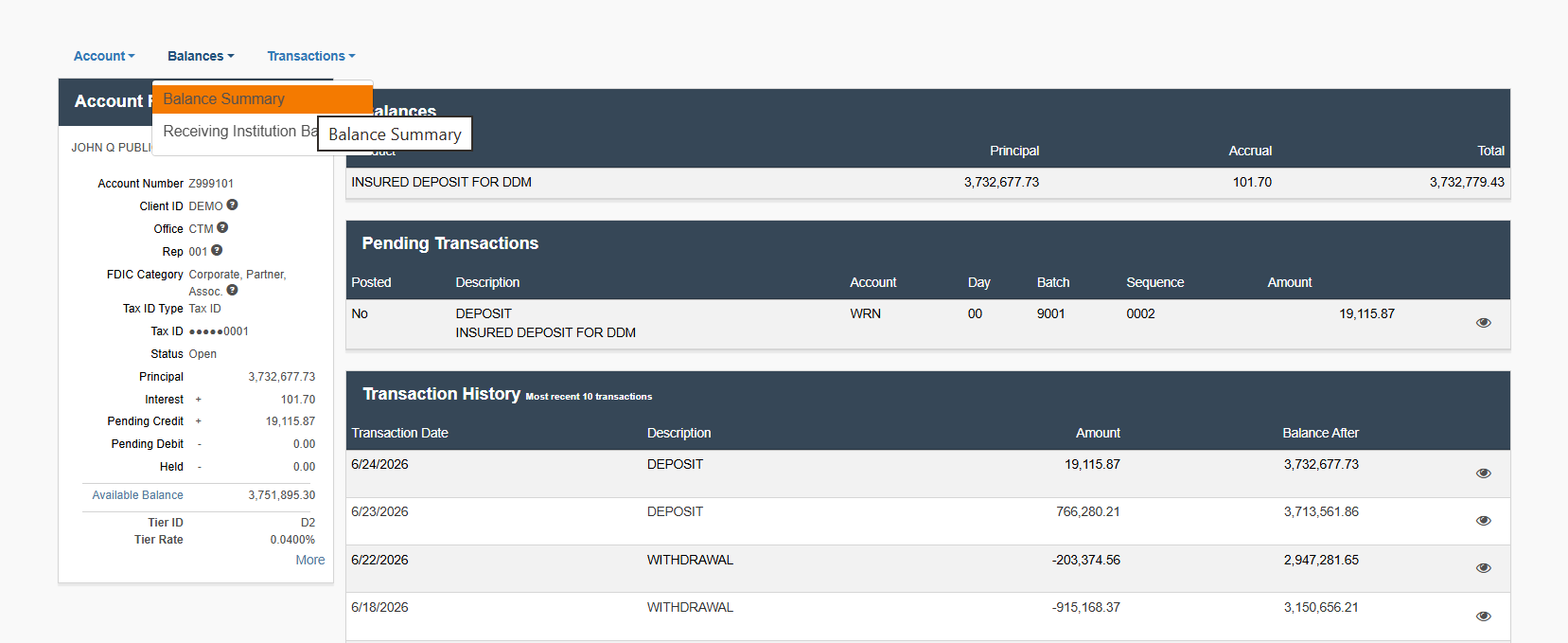
- Select Balance Summary from the Balances dropdown.
- Review totals and categories.
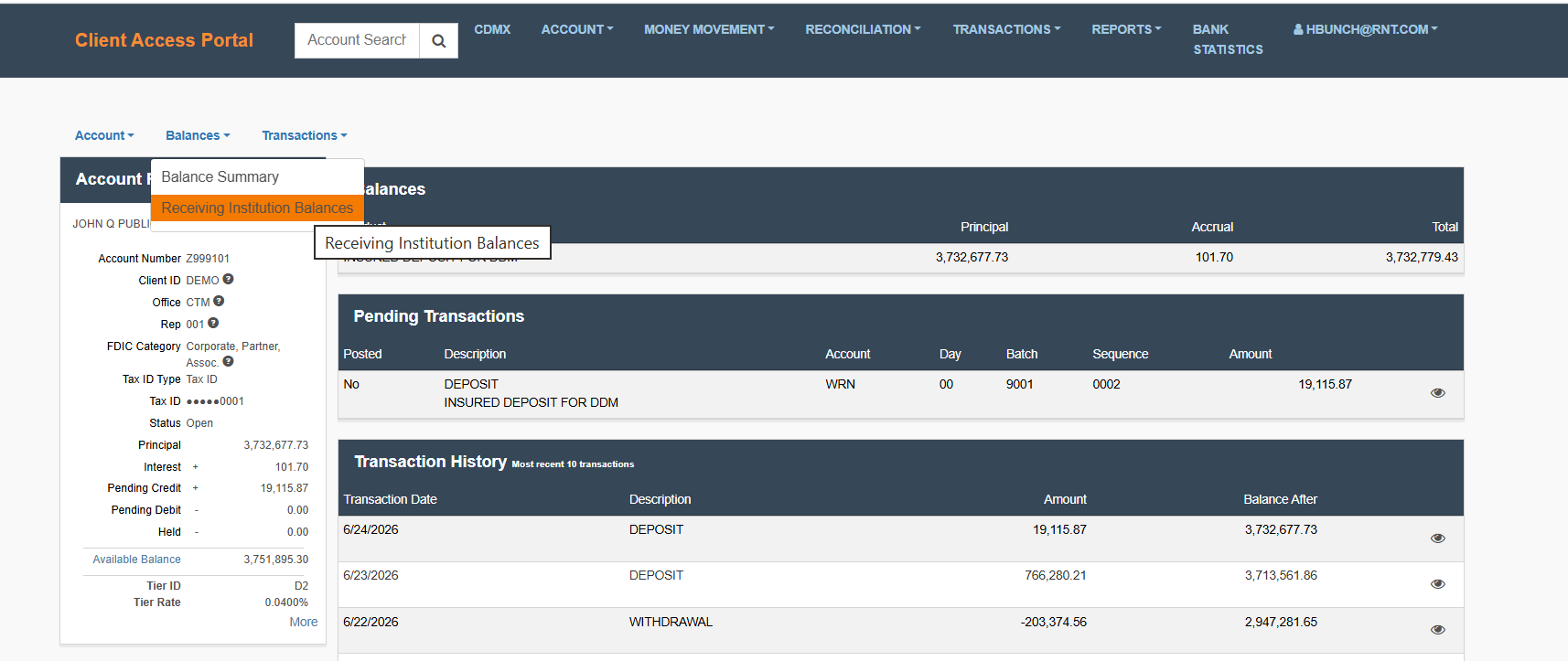
Receiving Institution Balances
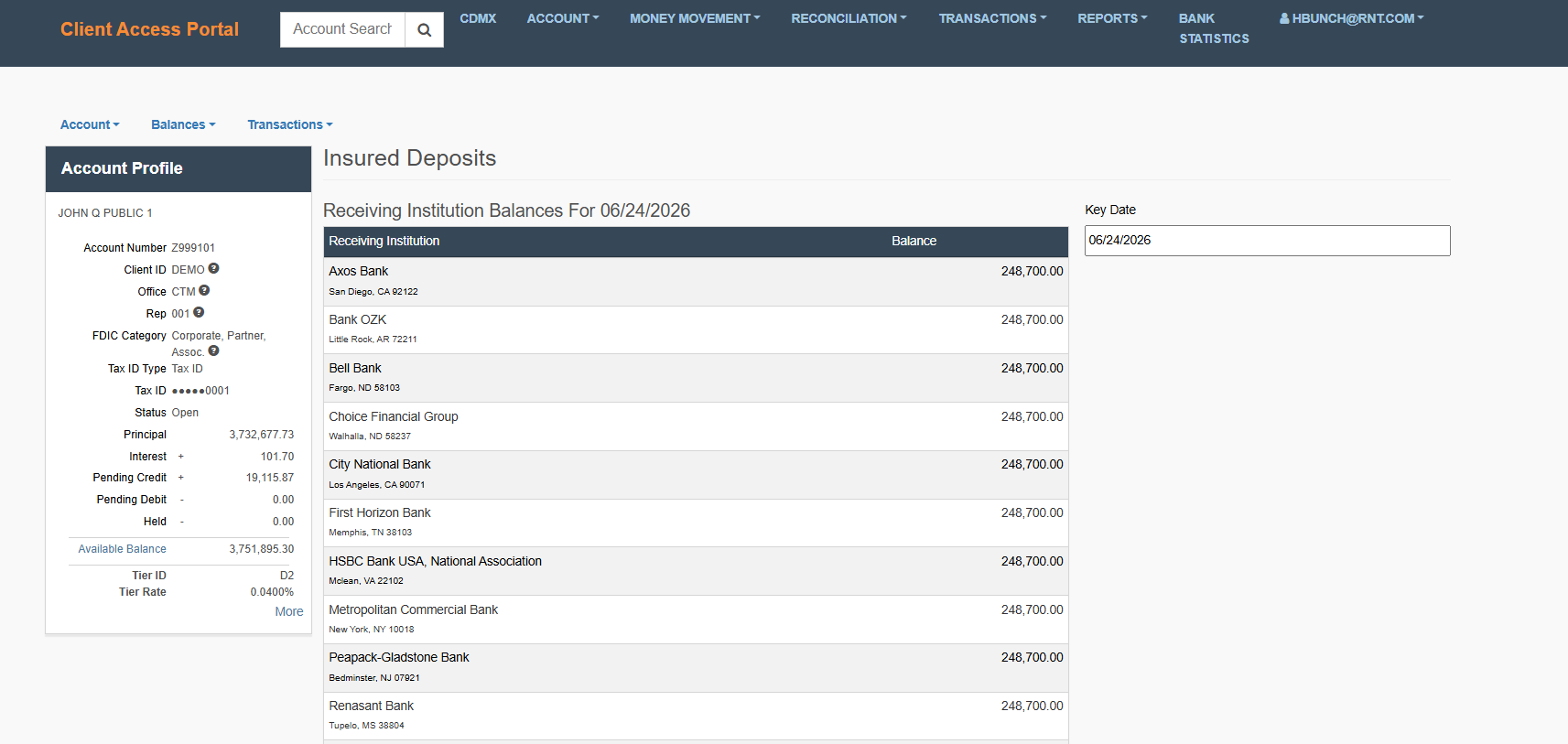
This view displays the allocation of the balance across Program Receiving Institutions for the given Customer Account.
Why it Matters
Use this when you need to:
- Understand where funds are held across Program Receiving Institutions
- Review balances by Receiving Institution
What You Need to Do
Best for institution-level analysis
- Select Receiving Institution Balances from the dropdown.
- Review balances by institution.
Transactions
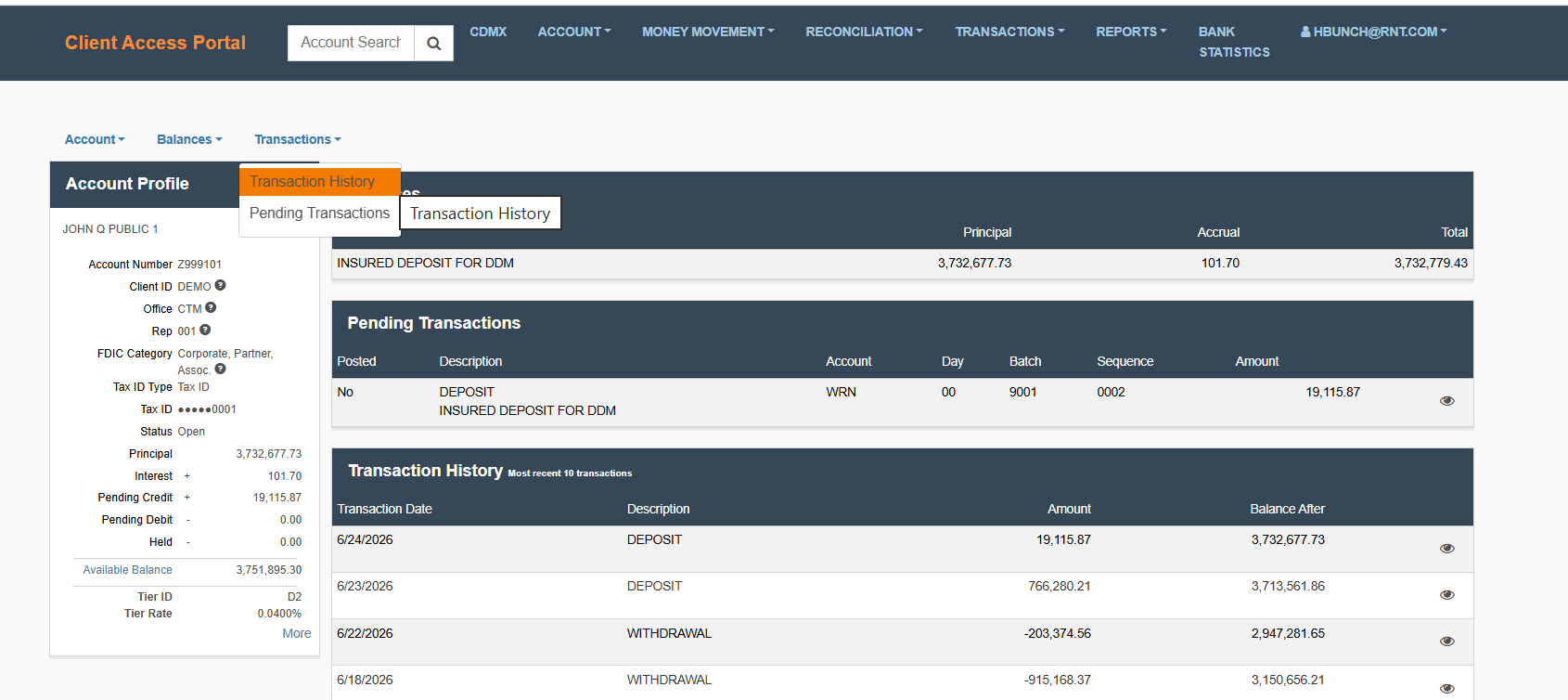
Pending Transactions
A list of transactions that have been initiated but are not yet finalized.

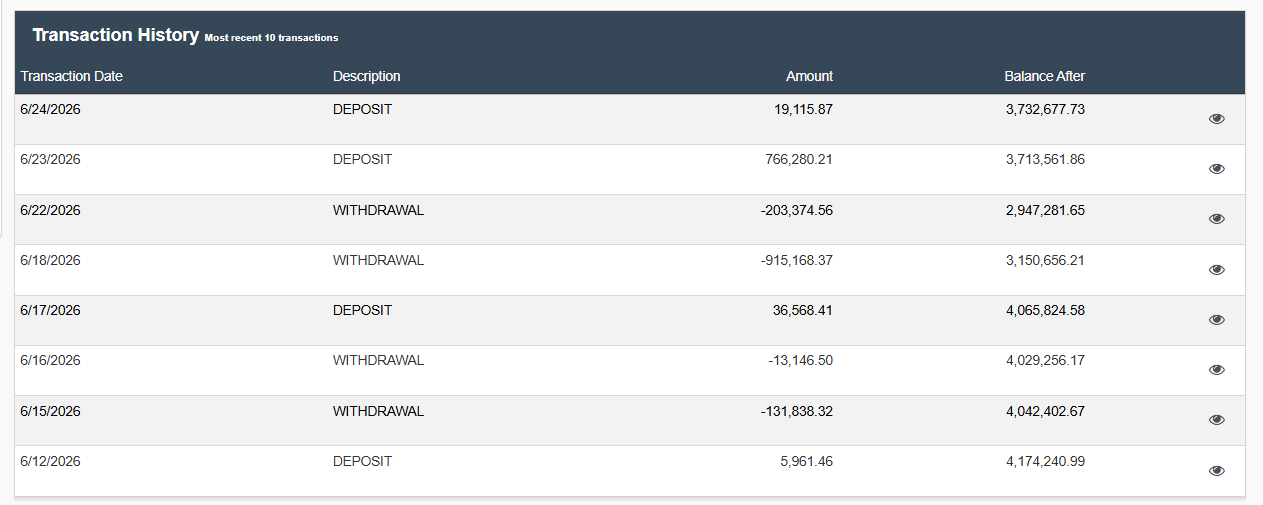
Transaction History (Most Recent)
A short list of the most recent completed transactions.
Why it Matters
Provides a quick way to:
- Validate recent activity
- Confirm that expected transactions have posted
What You Need to Do
Use this section for quick verification
- Scan for expected transactions
- Confirm amounts and dates
Transaction History (Full)
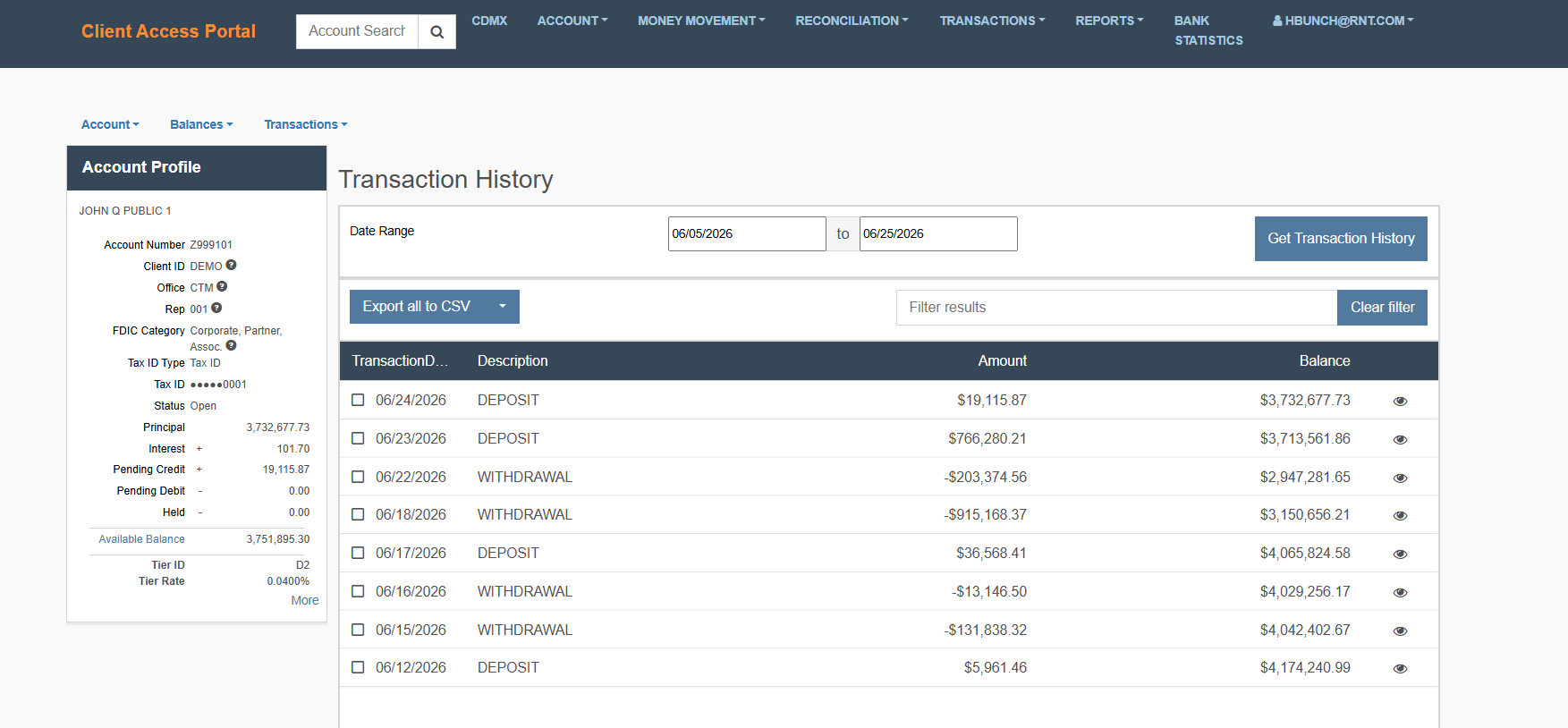
Provides access to the complete transaction history with filtering and expanded detail.
Why it Matters
Use this when:
- You need historical data beyond the recent list
- You are researching a specific transaction
- You need detailed reporting
What You Need to Do
Use this for deep investigation or reporting
- Select Transaction History from the dropdown
- Apply filters (date, type, etc.) as needed
- Review or export results (if available).
Updated 21 days ago