
Edit Account
Purpose of This Page
The Edit Account page allows you to update Customer Account information, including account details, tax information, and customer details.
Use this page to:
- Modify existing account information
- Correct or update account data
- Maintain accurate account records
How to Access
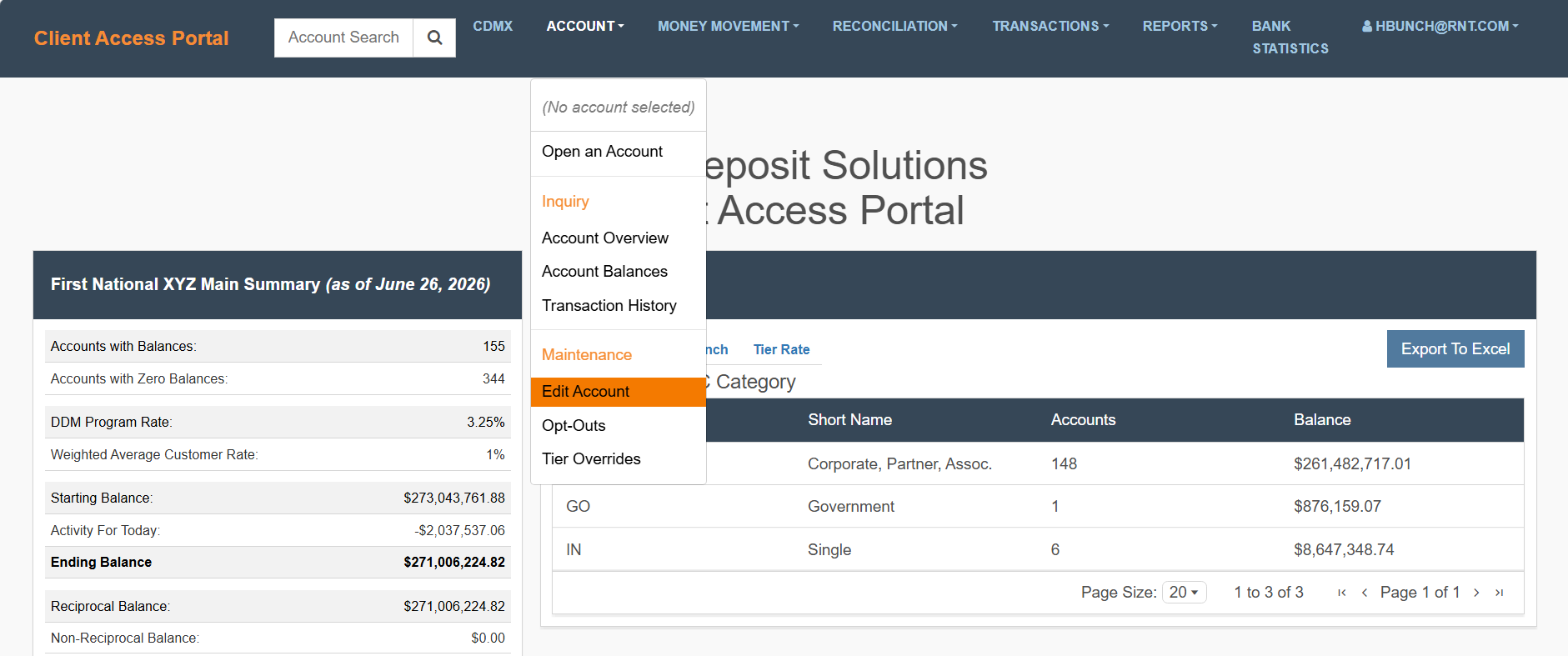
- Navigate to the Client Access Portal (CAP).
- From the top navigation, select Edit Account then Open an Account.
What You Need to Do
Review and update the Customer Account information as needed. The process is completed in three sections:
- Account Details
- Tax Information
- Customer Details
Important: Existing values are pre-populated. Only update fields that require changes.
Accounts with Tax ID Masking
Some Customer Accounts are configured with Tax ID masking, which restricts what information can be viewed or updated.
What You Will See
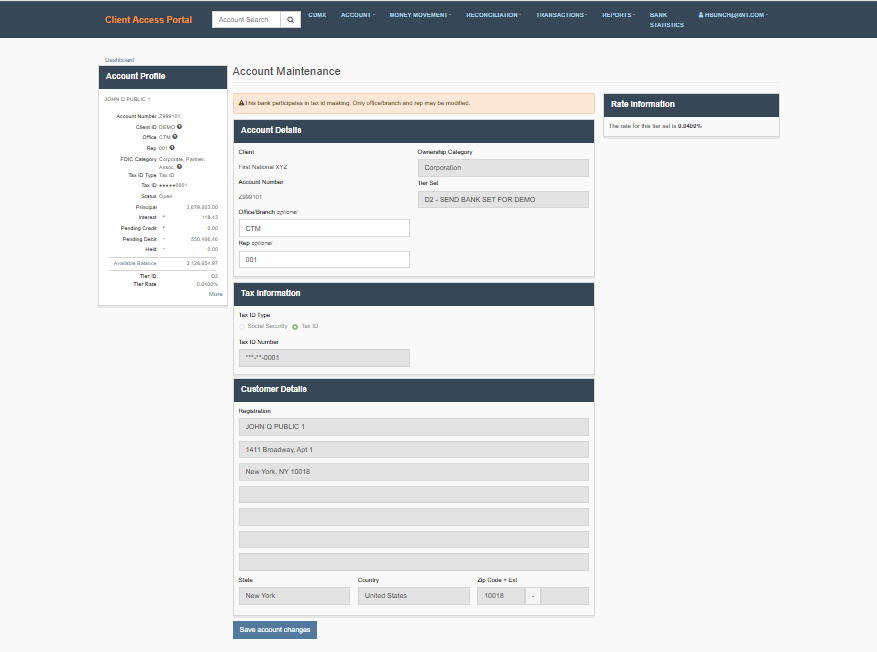
- A notification message at the top of the page:
“This bank participates in tax id masking. Only office/branch and rep may be modified.”
- Masked Tax ID values (e.g., *--0004)
- Certain fields disabled or read-only
What You Need to Know
- Only the following fields can be updated:
- Office/Branch
- Rep
- Other fields (e.g., Account Details, Tax Information) cannot be modified
When This Applies
This applies to accounts where Tax ID masking is enabled by the bank or system configuration.
Account Details
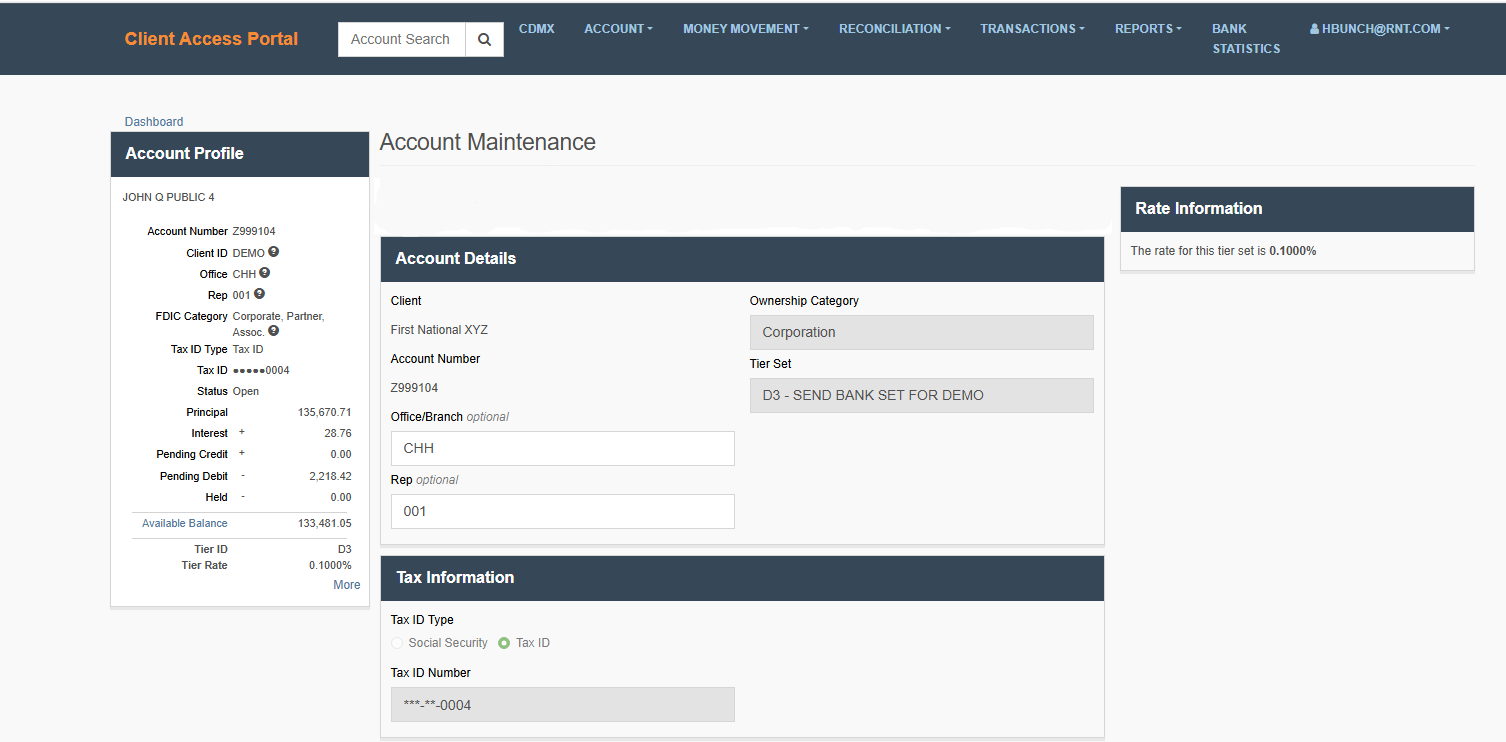
This section displays core account information and allows you to update key account settings.
What You Need to Do
Review and update the following fields as needed:
- Client: Displays the Customerassociated with the Customer Account. This field may not be editable depending on system permissions.
- Ownership Category: Select the account ownership type (e.g., individual, joint, corporate). Update only if the ownership structure has changed.
- Account Number: Displays the account number. This field is typically not editable.
- Tier Set: Select the Rate set ID to be applied to this account. The selected rate set determines the rate assigned to the Customer Account. If you are unsure which rate set to apply, contact Client Services for guidance.
- Office/Branch (optional): Update the associated branch or office if applicable.
- Rep (optional): Update the assigned representative if applicable.
Helpful Tips
- Ensure the correct client is selected before proceeding
- Required fields must be completed before submission
Helpful Tips
- Review all fields carefully before making changes
- Only update fields that require modification
- Some fields may be read-only
Tax Information
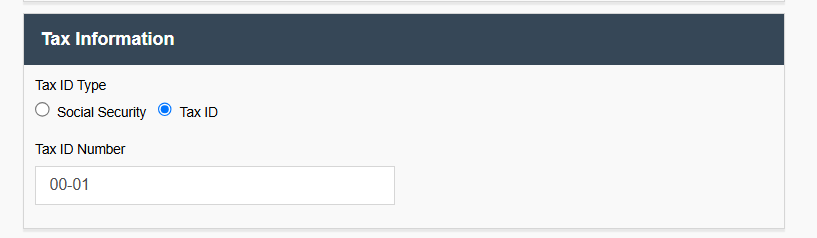
This section allows you to update the tax identification details associated with the Customer Account.
What You Need to Do
- Review the existing Tax ID Type:
- Social Security
- Tax ID (e.g. EIN)
- Update Social Security or Tax ID Number if needed.
Helpful Tips
- Verify the Tax ID format before updating
- Ensure the correct Tax ID type is selected
- Only make changes if required
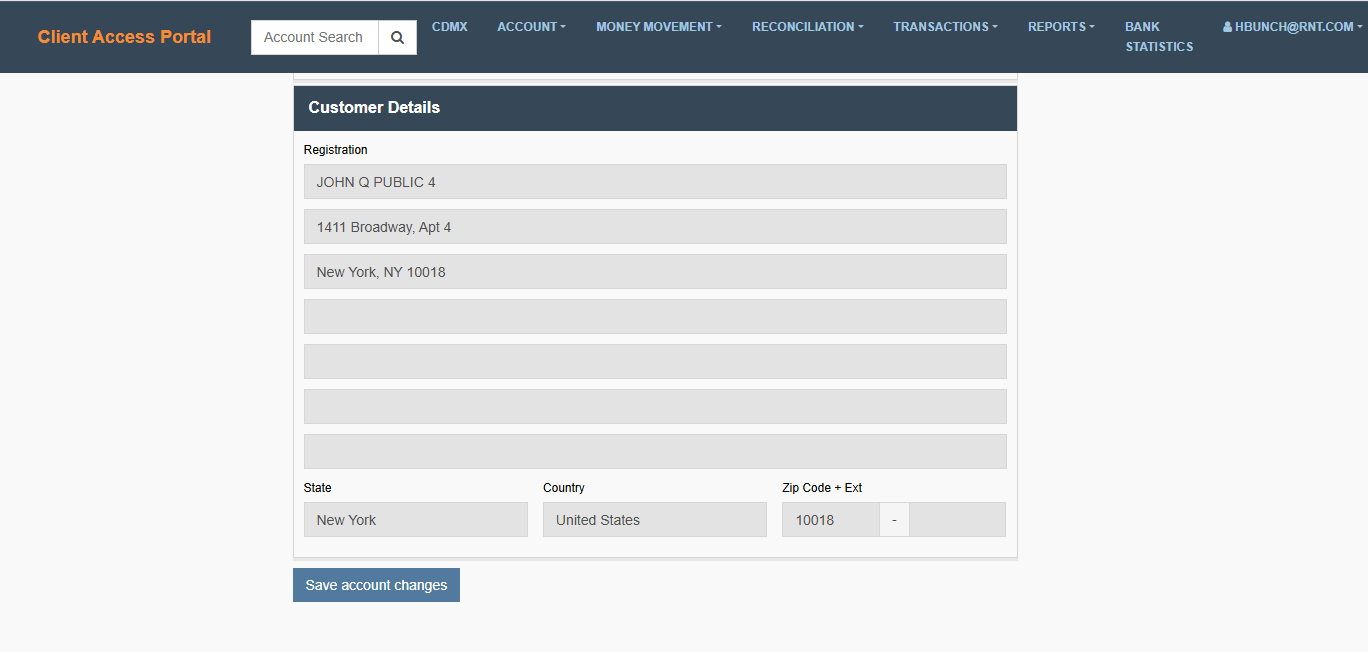
Customer Details
This section captures the Customer Account holder’s contact and address information.
What You Need to Do
Provide the following:
- Name: Enter the full legal name of the Customer Account holder or organization.
- Address: Enter the primary street address associated with the Customer Account.
- City: Enter the city for the address provided.
- State: Select from dropdown.
- Country: Confirm or select the country associated with the address.
- Zip Code: Enter the 5-digit zip code. Add the 4-digit extension if available.
Helpful Tips
- Ensure address information is complete and accurate
- Use correct formatting for state and zip code
- Review all updated fields before submitting
Save Changes
- Click Save (or equivalent action button in your UI)
What Happens Next
- Updates are applied to the account
- Changes are reflected immediately (or based on system processing rules)
Updated 21 days ago