
Set Up Account
Before you can sign in, you must set up your account. This is required to complete the identity verification step during sign-in.
Start Setup from Activation Email
If you are new to Okta or have recently been migrated, you will receive an activation email from [email protected] with a link to set up your account.
-
Open the activation email.
-
Select Activate R&T Account.
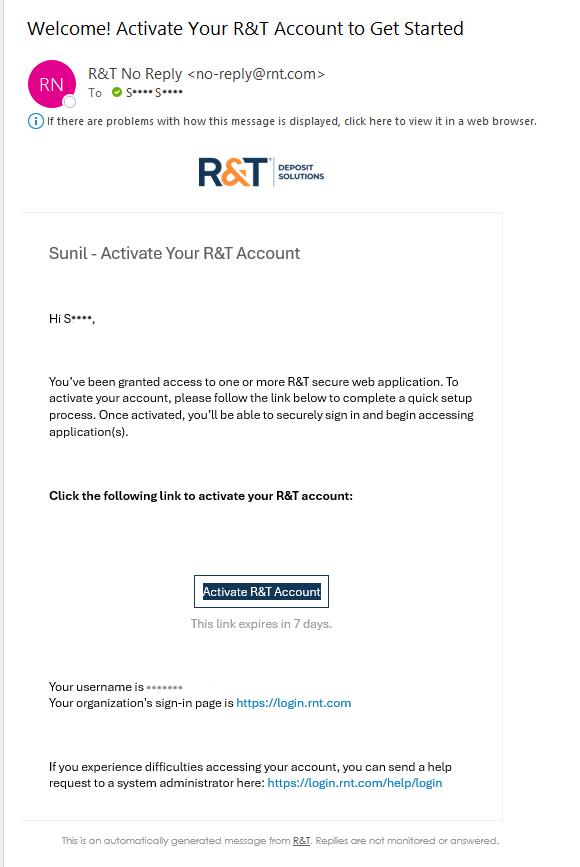
-
On the Set up security methods screen, select Set up next to Password.
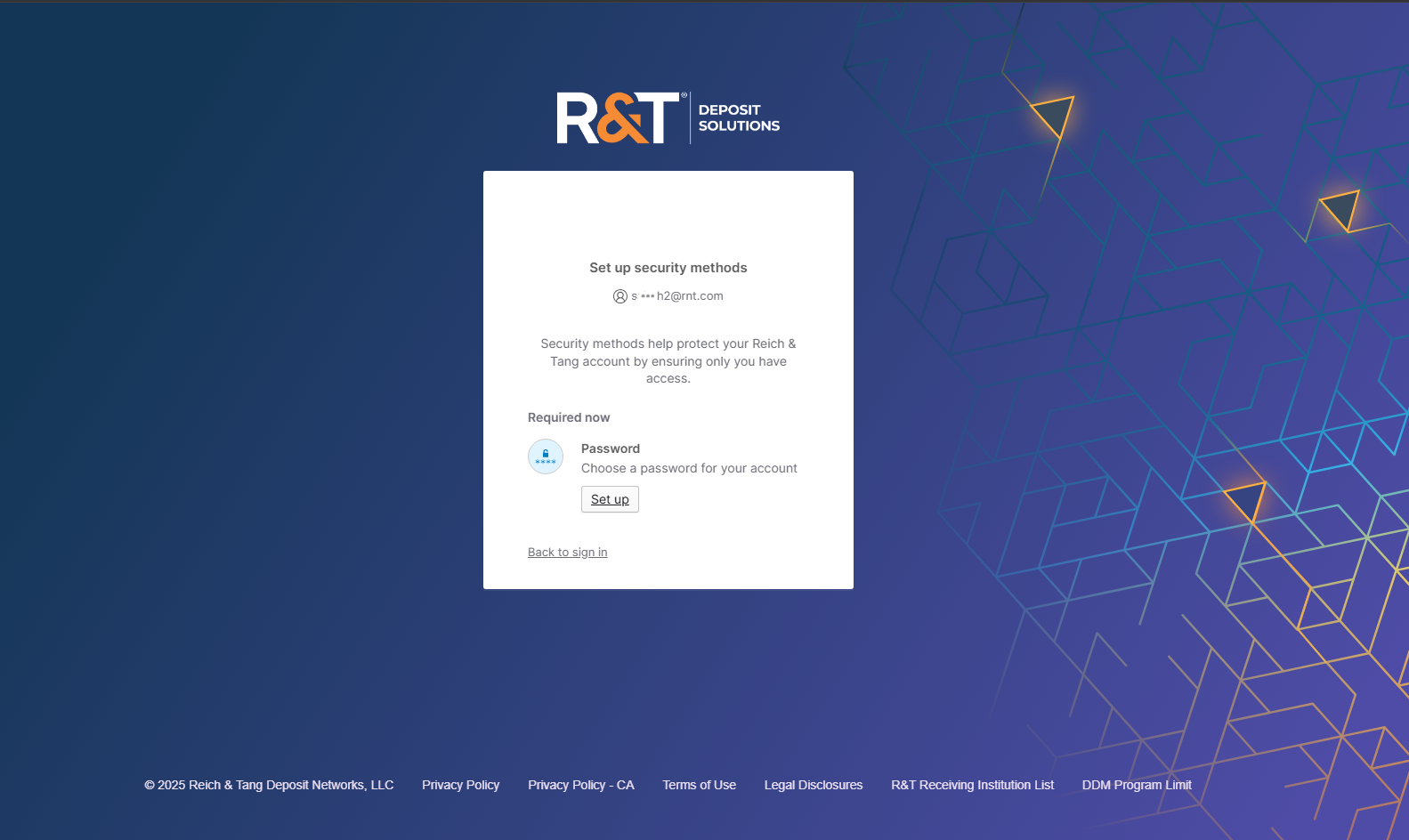
-
Enter a password that meets the listed requirements.
-
Re-enter the password to confirm it.
-
Select Next.
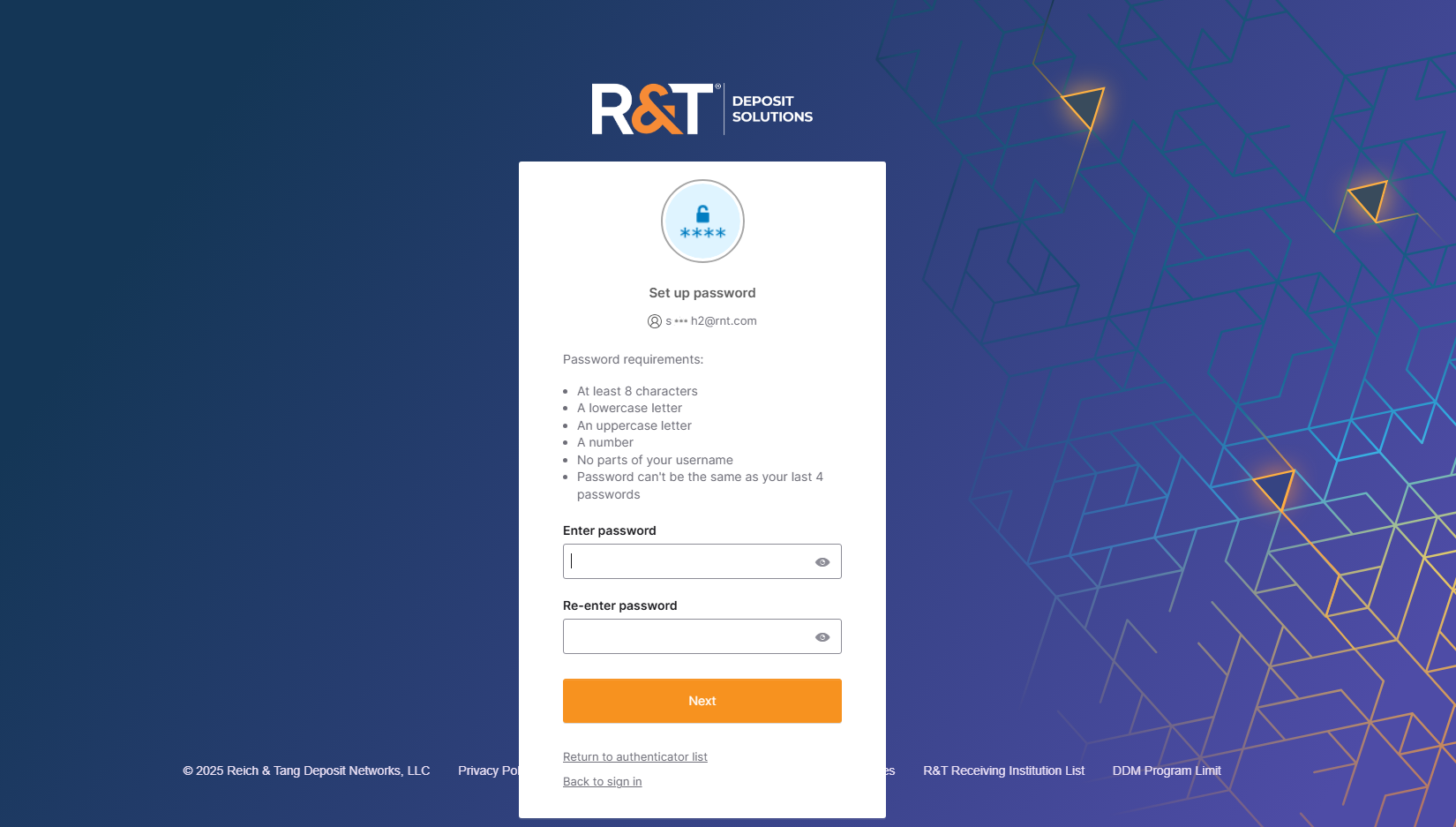
After your password has been created, continue to Choose Verification Method.
Choose Verification Method
You must select at least one of the following:
Authenticator App
- Okta Verify (recommended)
- Google Authenticator
Email Verification
- A one-time code sent to your email
Helpful Tip
Authenticator apps are recommended for faster and more secure sign-in, but email verification is available if needed.
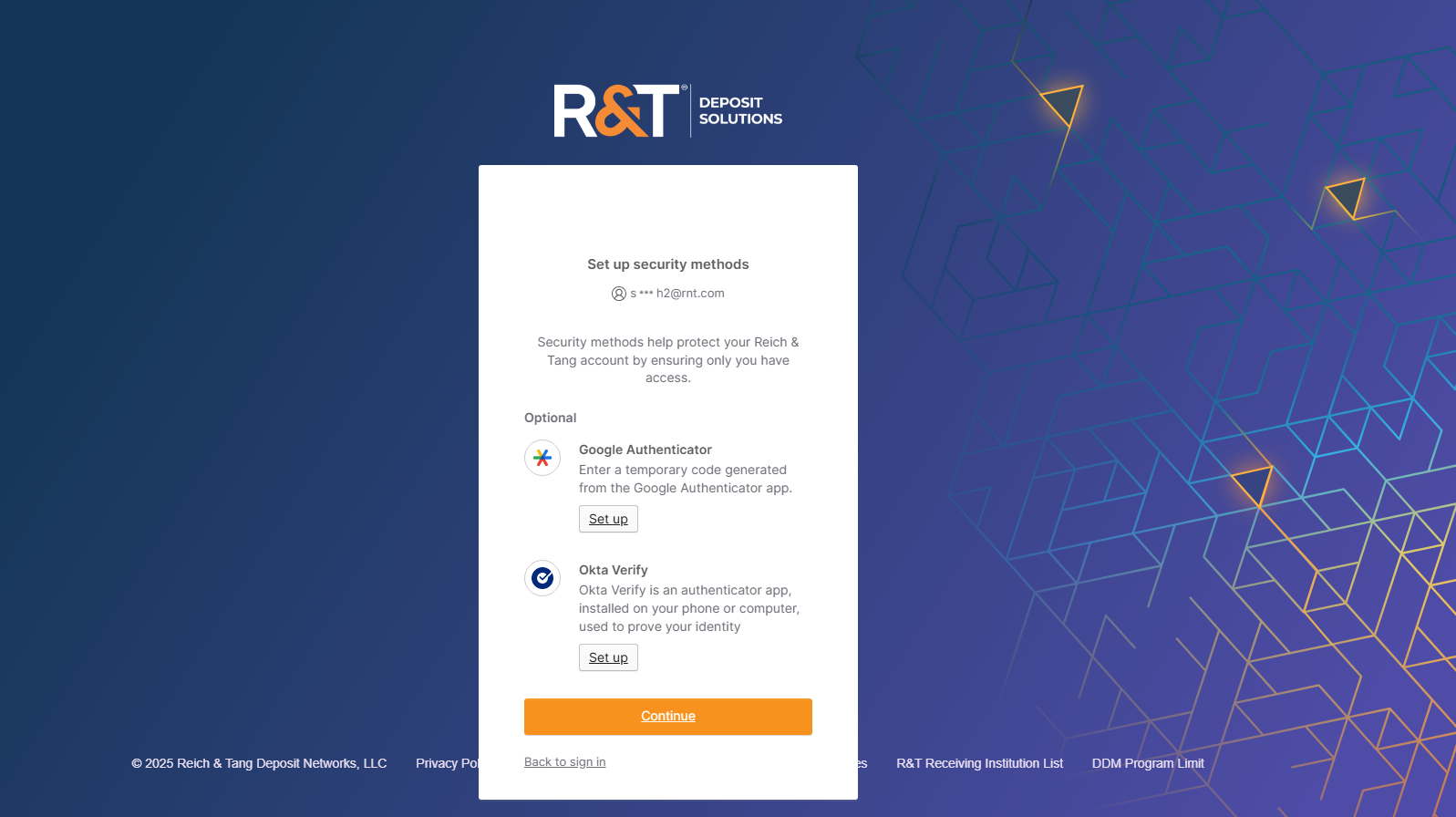
If you choose authenticator app, follow the steps in Set Up Okta Verify or Set Up Google Authenticator.
Set Up Okta Verify
-
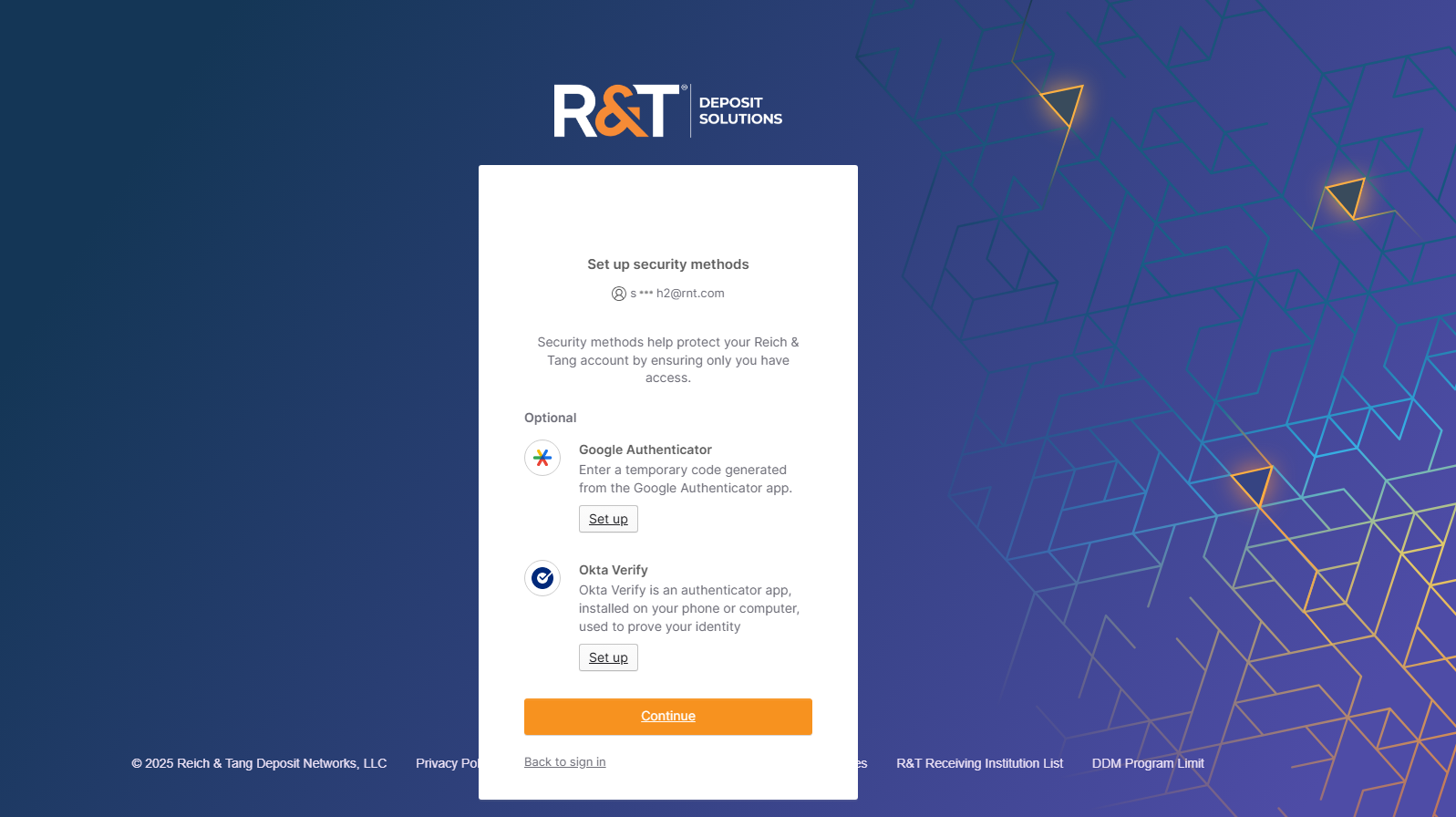
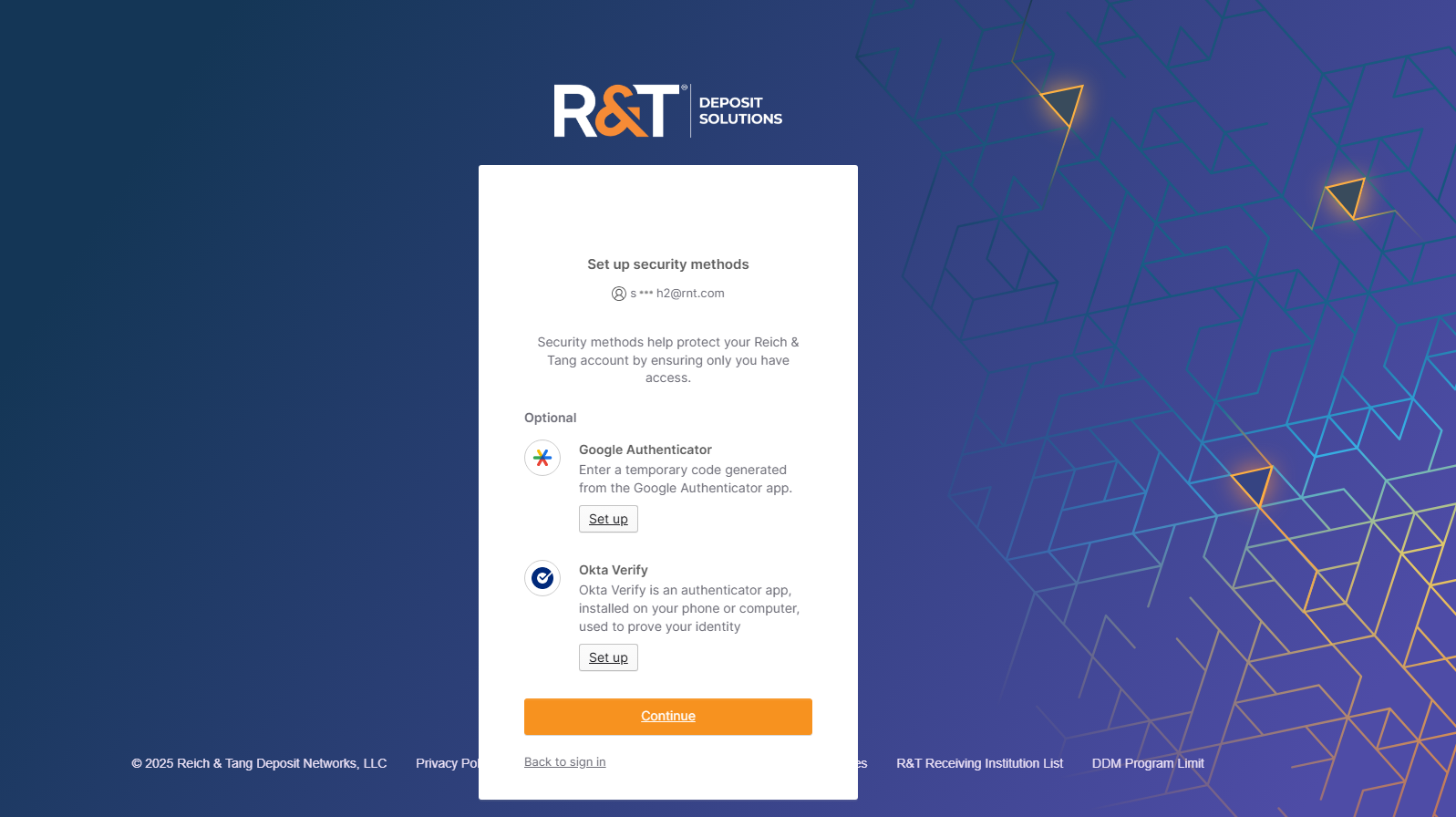
On the Set up security methods screen, select Set Up next to Okta Verify.
-
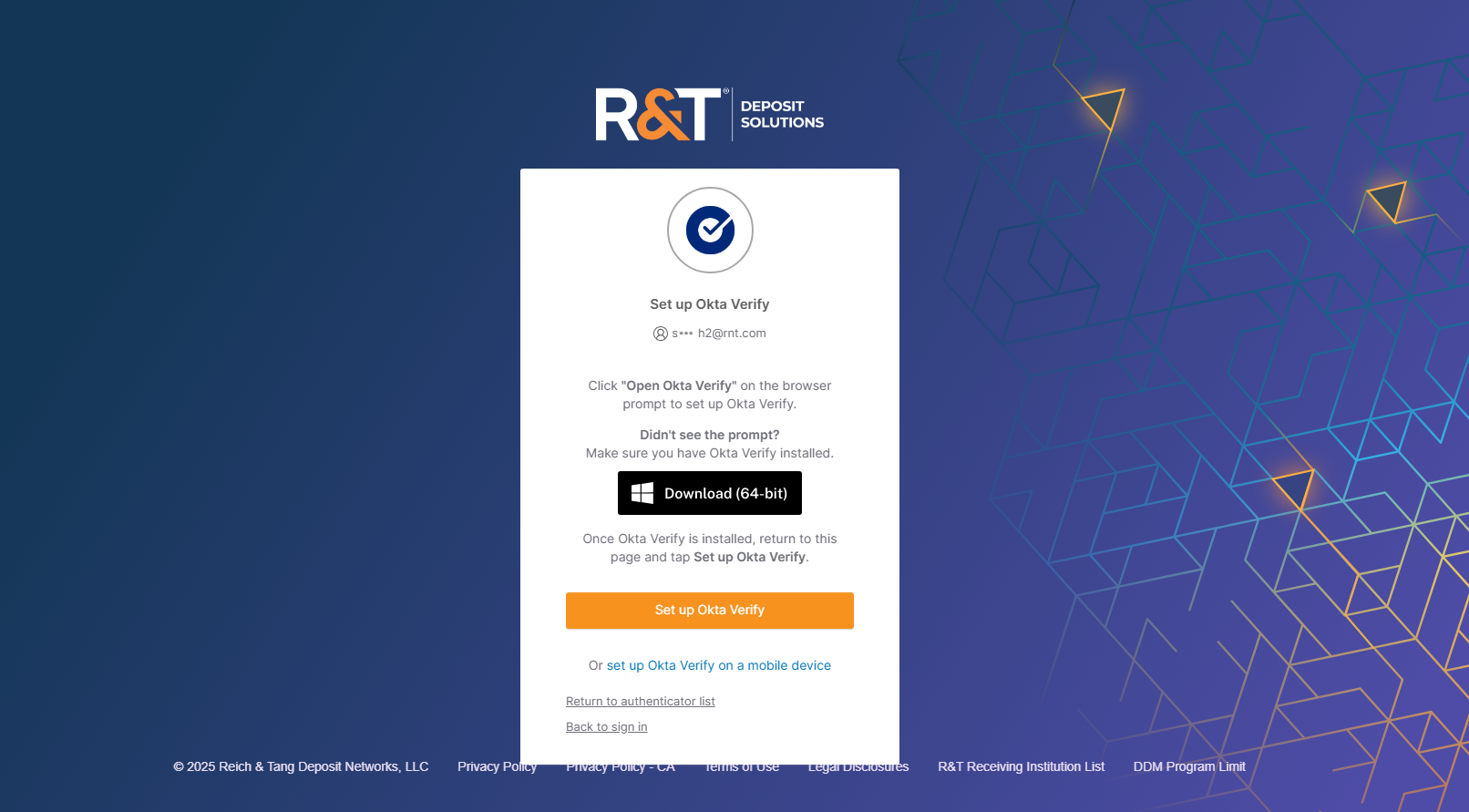
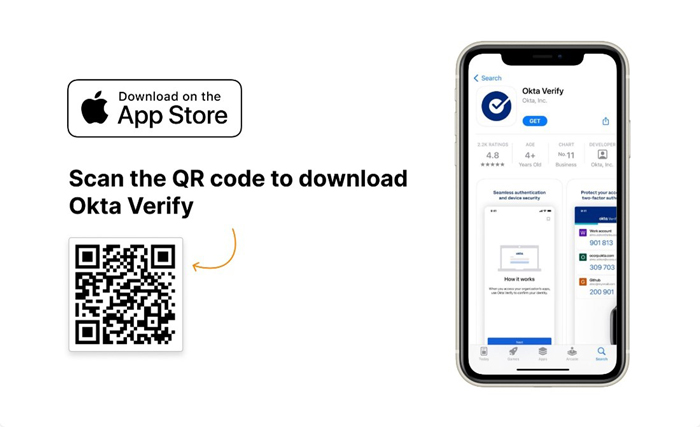
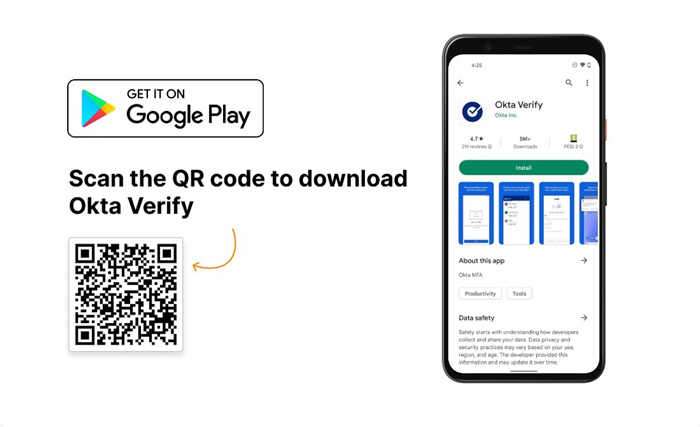
If Okta Verify is not already installed on your mobile device, select Download Okta Verify and install the application.
Note: Okta Verify must be installed on a mobile device. If you do not already have the application installed, download it from the Apple App Store or Google Play Store before continuing.
-
Open the Okta Verify app on your mobile device.
-
In the Okta Verify app, add a new account and use your mobile device to scan the QR code displayed in your web browser.
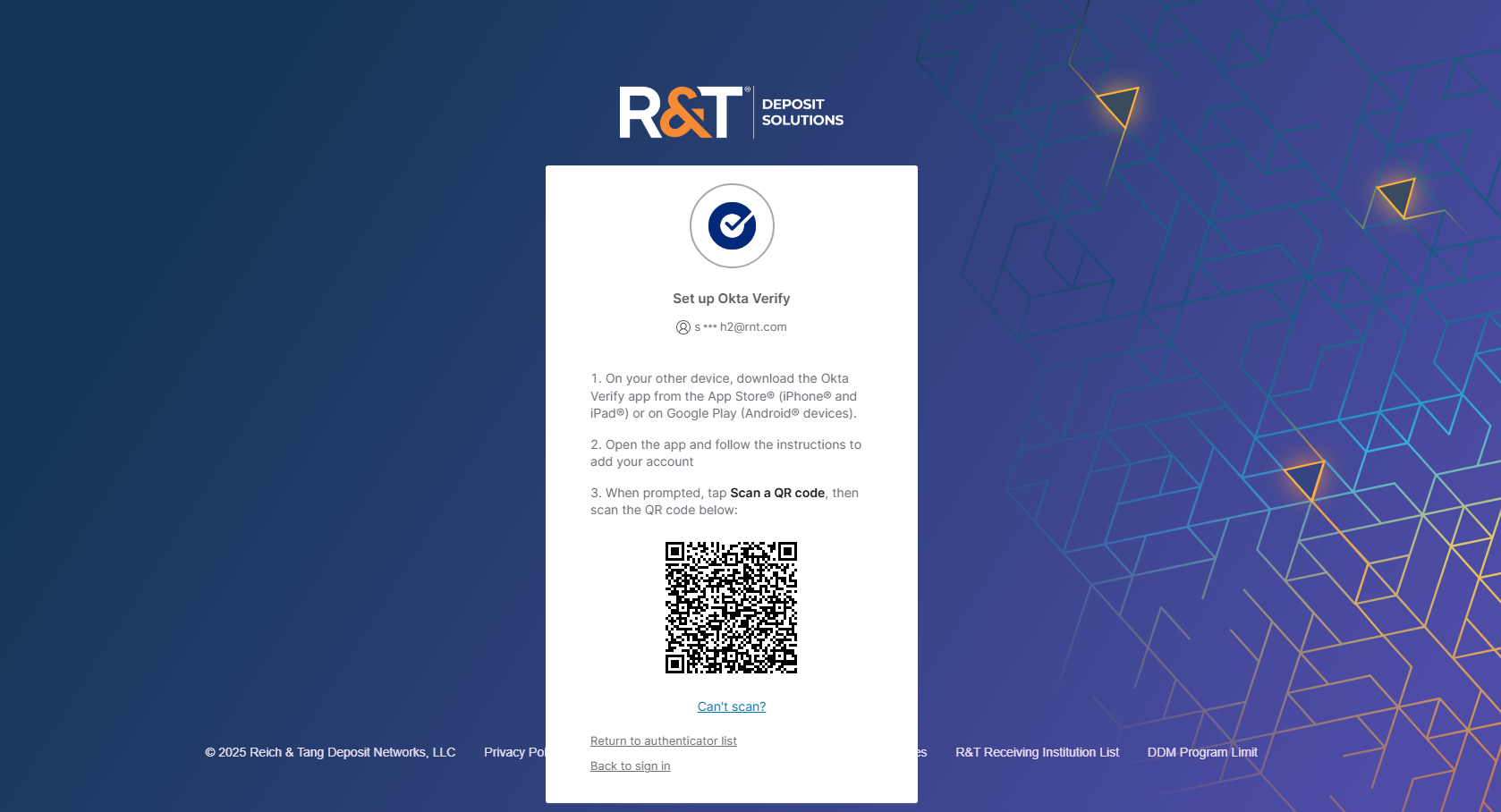
-
If prompted, allow Okta Verify to send notifications to your device.
-
Return to the browser and select Set up Okta Verify to continue.
-
Complete any verification steps displayed on screen.
Once setup is complete, future sign-ins can be approved using Okta Verify.
Set Up Google Authenticator
-
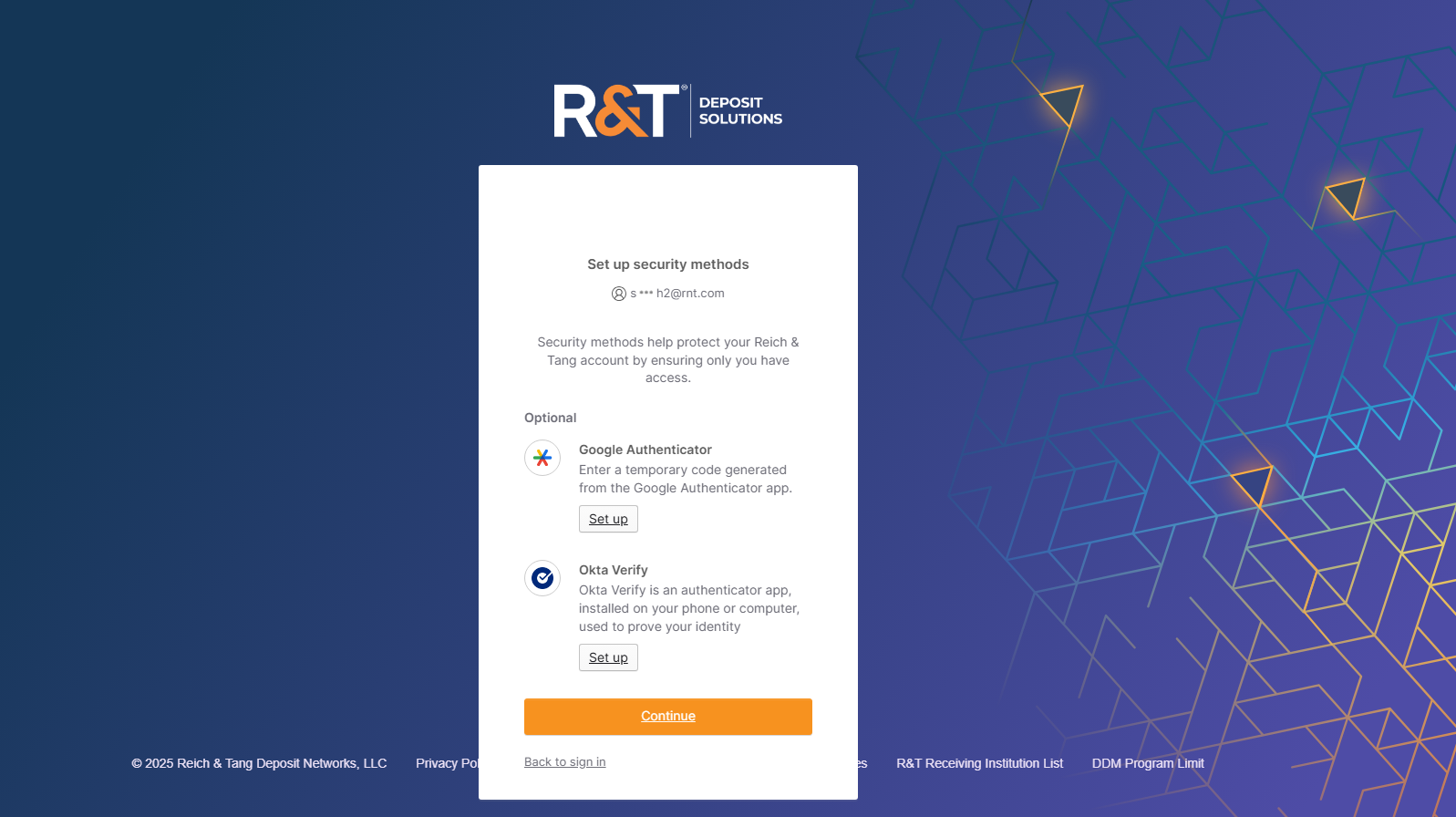
On the Set up security methods screen, select Set Up next to Google Authenticator.
-
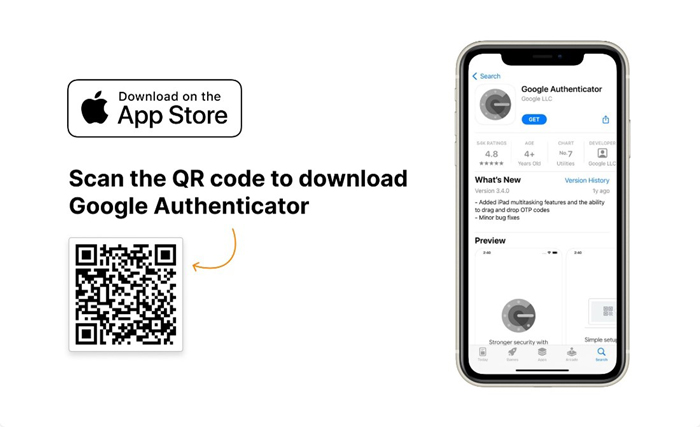
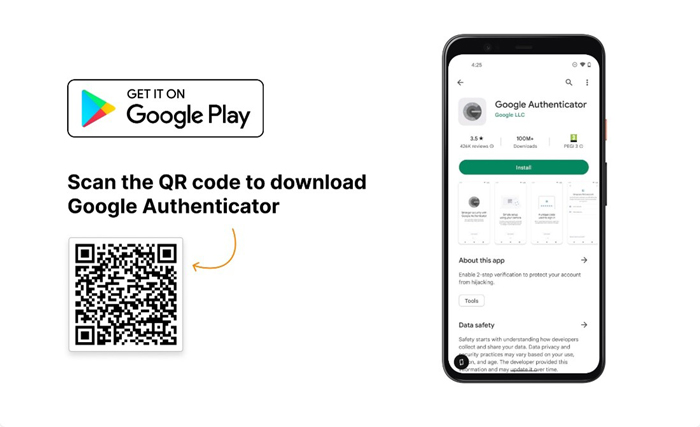
If Google Authenticator is not already installed on your mobile device, download and install it from your device's app store.
Note: Okta Verify must be installed on a mobile device. If you do not already have the application installed, download it from the Apple App Store or Google Play Store before continuing.
-
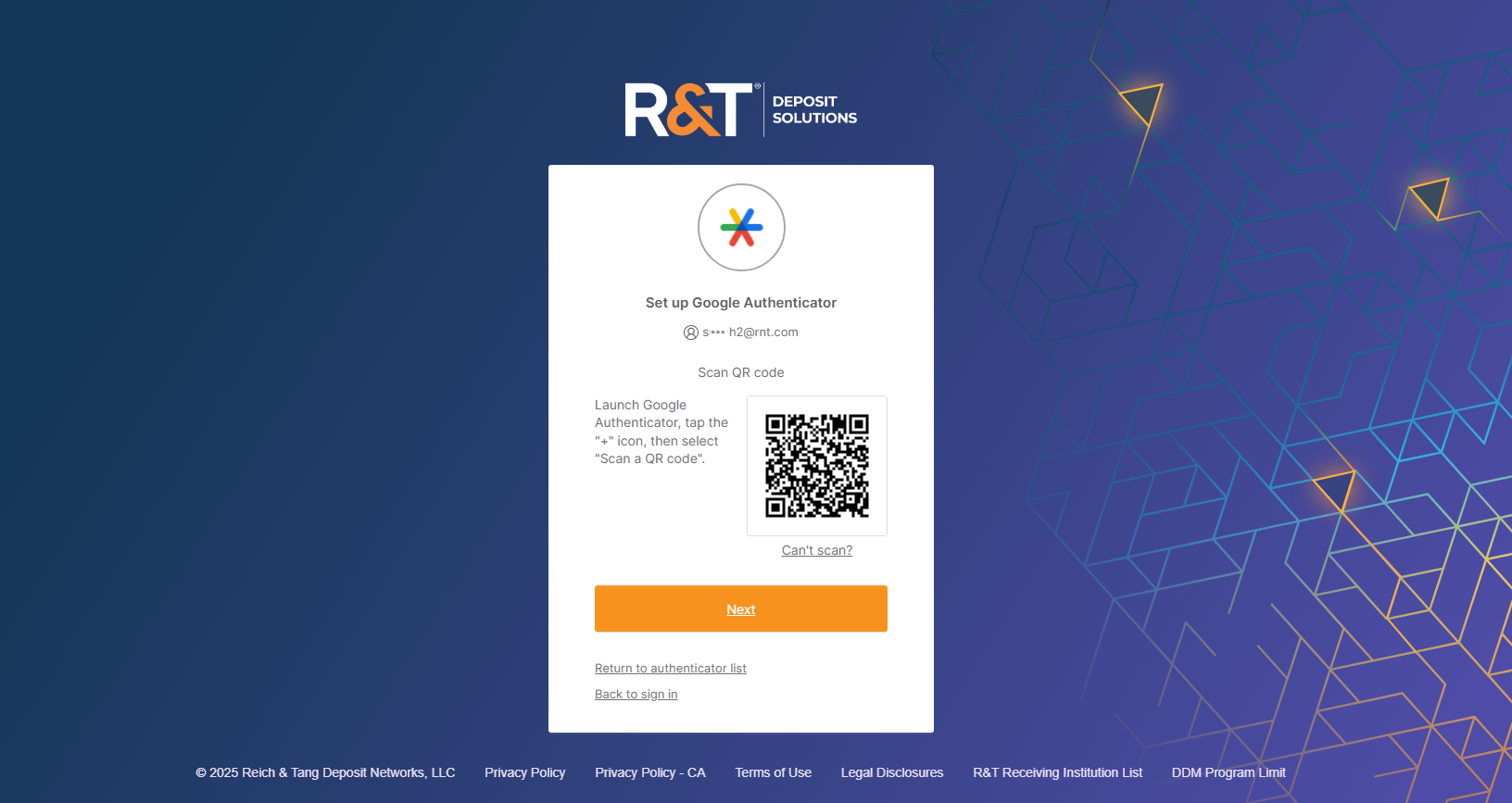
Open Google Authenticator.
-
In the Google Authenticator app, select the + icon, then select Scan a QR code. Use your mobile device to scan the QR code displayed in your web browser.
-
Return to the Okta setup screen and scan the QR code displayed on the screen.
-
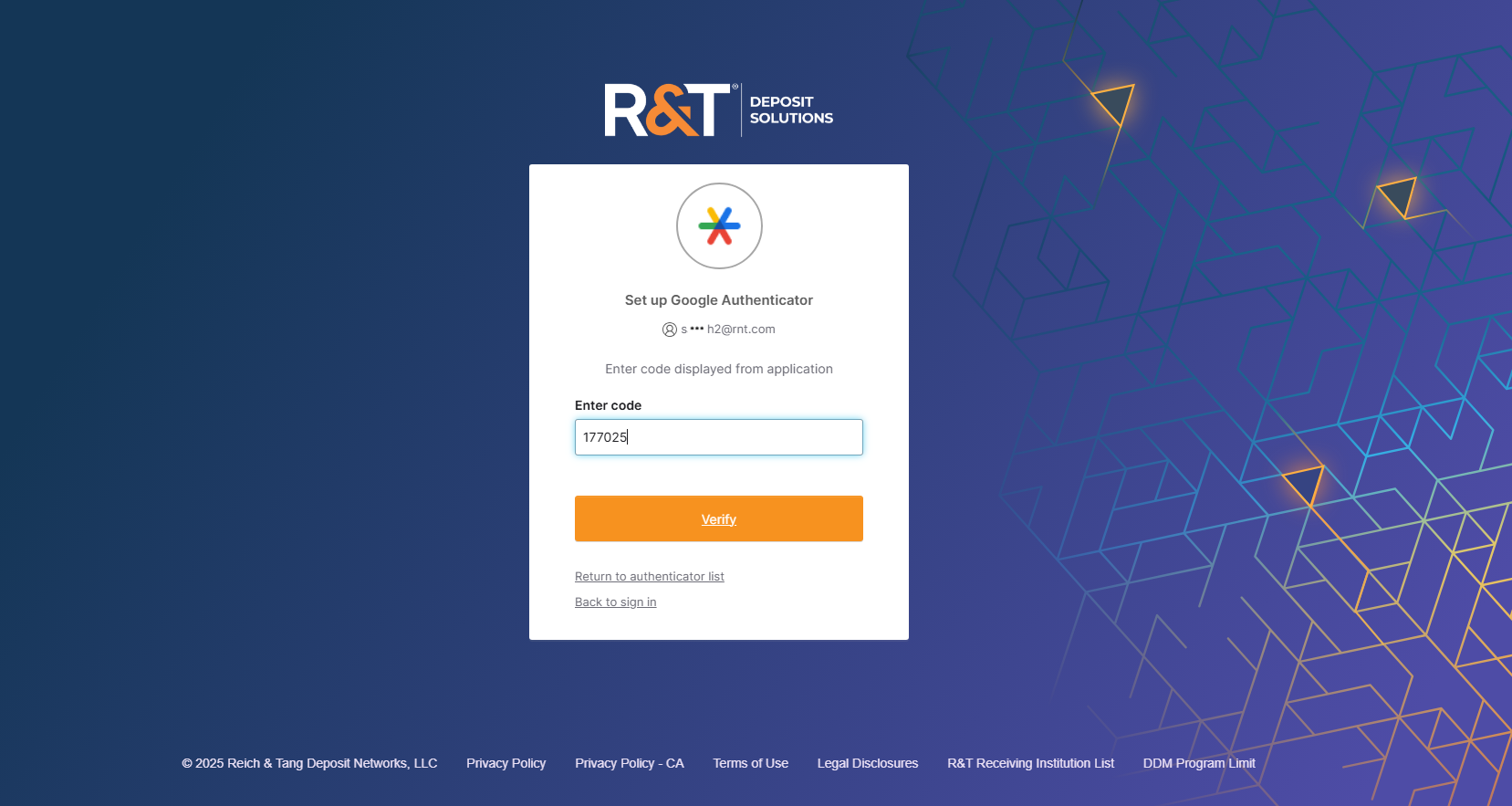
After the QR code is scanned, Google Authenticator will generate a six-digit verification code.
-
Enter the verification code in the Enter code field.
-
Select Verify to complete setup.
Once setup is complete, Google Authenticator can be used to generate verification codes during sign-in.
Set Up Email Verification
Email verification is the default verification method when Okta Verify or Google Authenticator are not configured. If you cannot use an authenticator application, you can use email verification instead. Email verification requires a corporate email address. Shared mailboxes and distribution lists are not supported.
During setup, you will verify your email address to complete enrollment. After setup is complete, email verification can be used to verify your identity when signing in.
-
On the Set up security methods screen, select Continue without setting up Okta Verify or Google Authenticator.
-
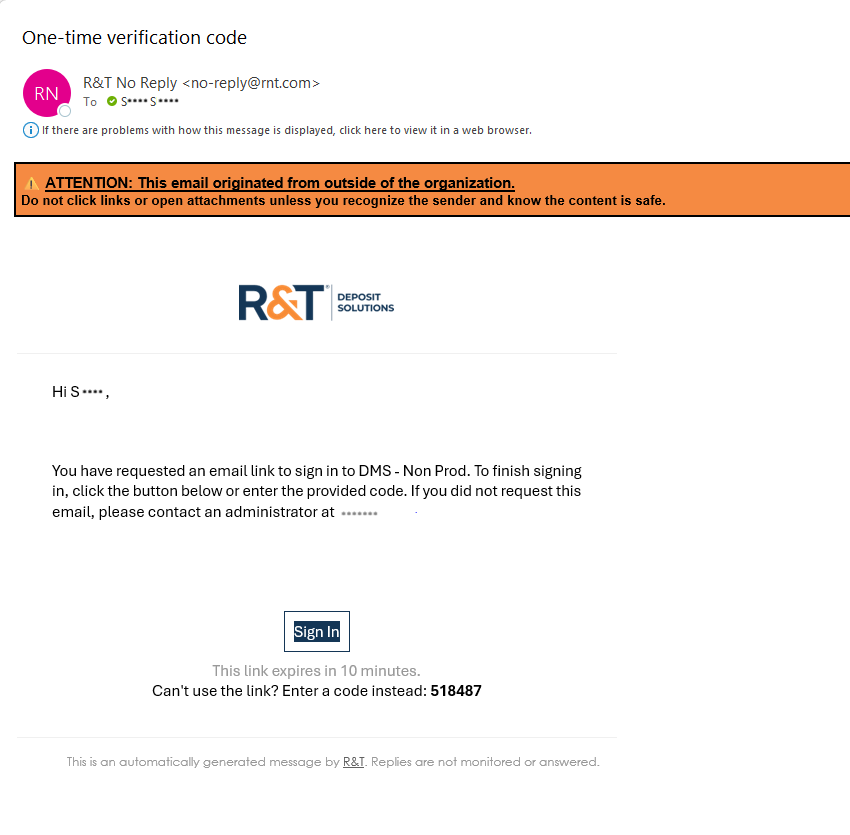
Check your email for a verification message from [email protected].
-
Complete verification using one of the following options:
- Select the Sign In link in the email, or
- Copy the verification code from the email and enter it in the Enter Code field and select Verify.
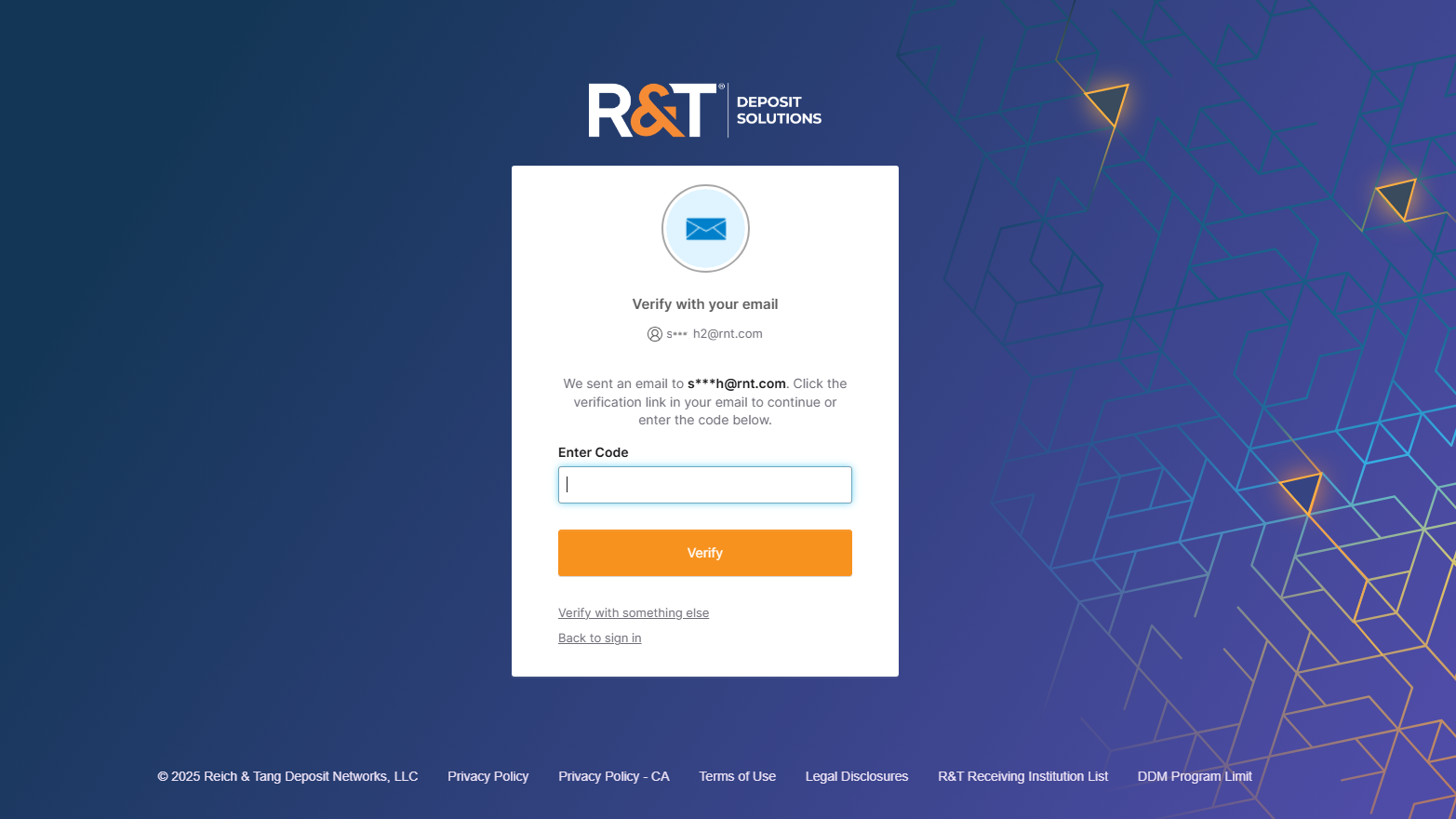
Once verification is complete, email will be used to verify your identity during sign-in.
Finish Setup
After completing setup:
- Your authentication method is saved
- You can sign in using Okta
- You will use this method each time you verify your identity
What's Next
Now that you have activated your account and configured a verification method, continue to Complete Sign-In to learn how to securely access R&T applications using Okta.
Updated about 1 month ago