
Opt-Outs
Purpose of This Page
The Opt Outs page allows you to control the Receiving Institutions that your Customers Opt-Out of.
Use this page to:
- Include or exclude specific Receiving Institutions
- Control where funds can be allocated
- Update account participation preferences
For additional information about Receiving Institution Opt-Outs, including how they affect fund allocation and Customer Account participation, see Receiving Institution Opt-Outs.
How to Access
- Navigate to the Client Access Portal (CAP).
- From the top navigation, select Account then Opt Outs.
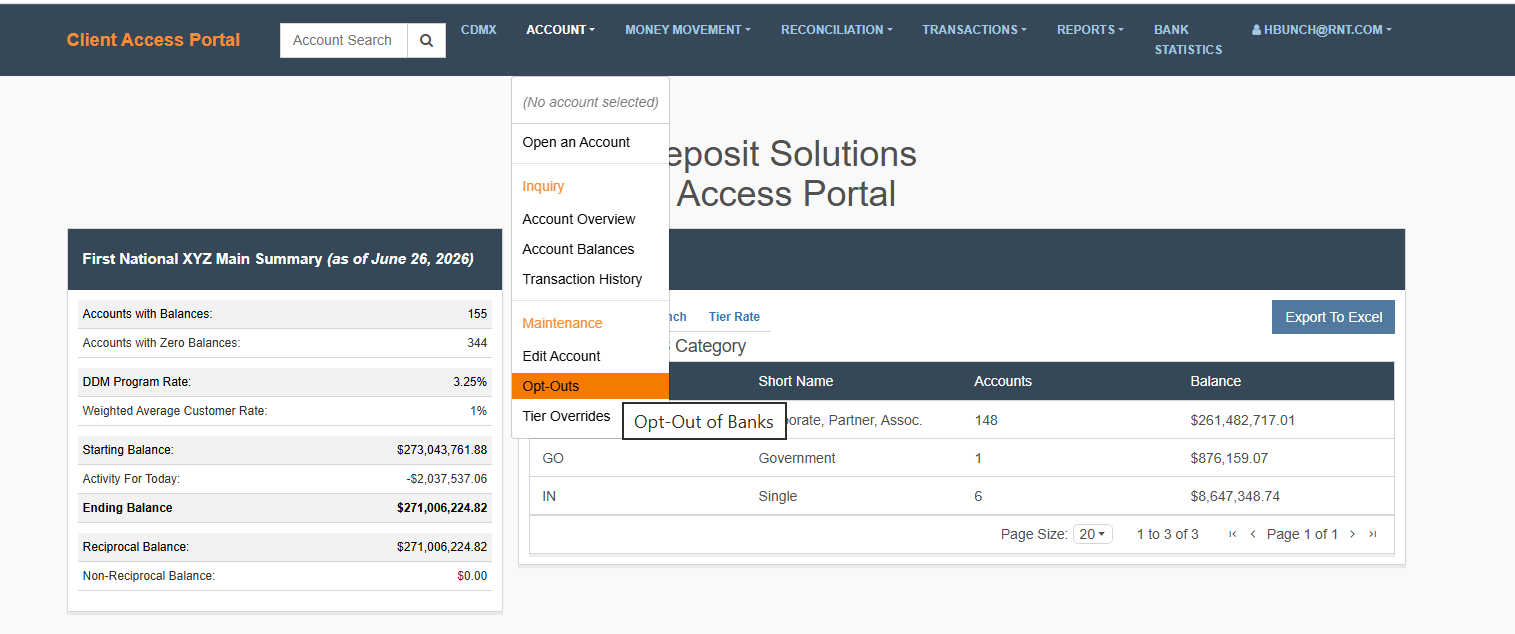
What You Need to Do
Review the list of Receiving Institutions and update participation as needed.
Note: Each row represents a Receiving Institution.
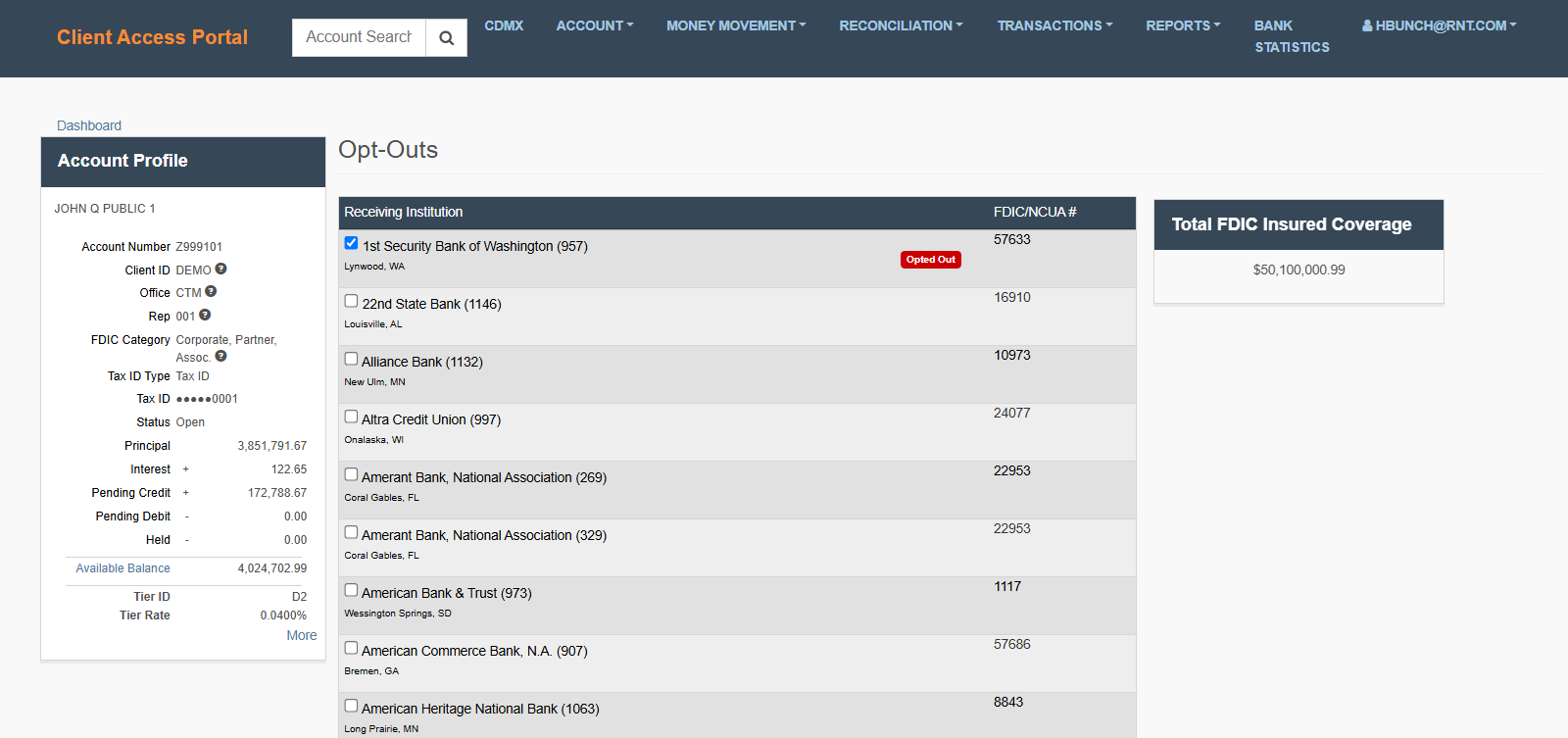
Manage Receiving Institution Participation
What the Status Means
- Opted Out → Funds will not be placed with this Receiving Institution
- Not Opted Out / Enabled → Funds can be placed with this Receiving Institution
When to Update Opt-Outs
Update these settings when:
- A Customer requests to exclude a specific Receiving Institution
- You need to restrict where funds can be placed
- There are business or compliance requirements
What You Need to Do
- Review the list of Receiving Institutions displayed in the table.
- Find the row for the Receiving Institution you want to update.
- Review the current status.
- Update the setting to include or exclude that Receiving Institution.
Helpful Tips
- Changes affect how funds are allocated going forward
- Review selections carefully before making updates
- Availability of institutions may vary by account
Updated 21 days ago
Did this page help you?