
Manage Password
You can reset or update your password through the Okta sign-in screen.
Reset Password
If you forget your password:
-
On the Okta sign-in screen, select Forgot Password.
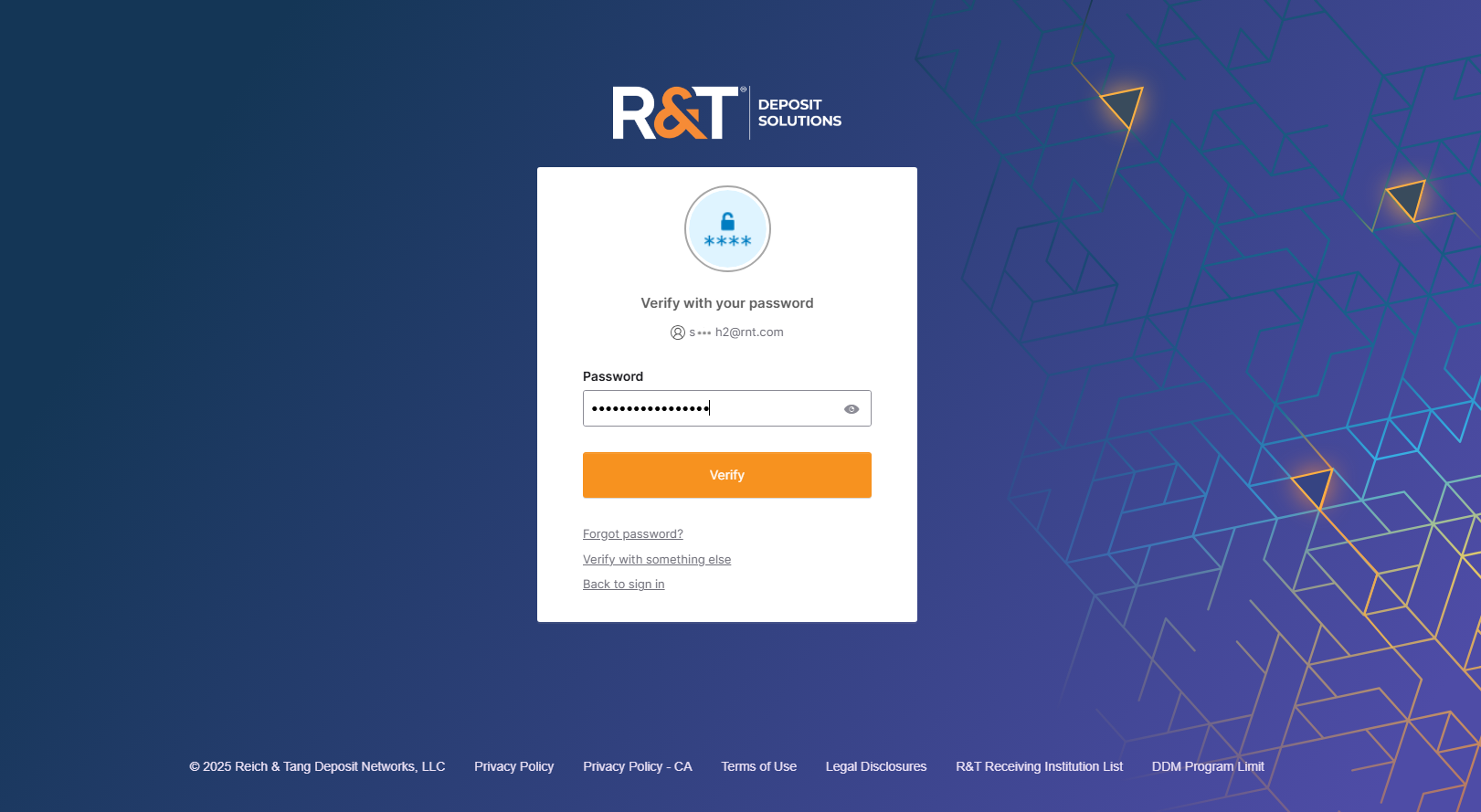
-
Select Send me an email to receive a password reset message.
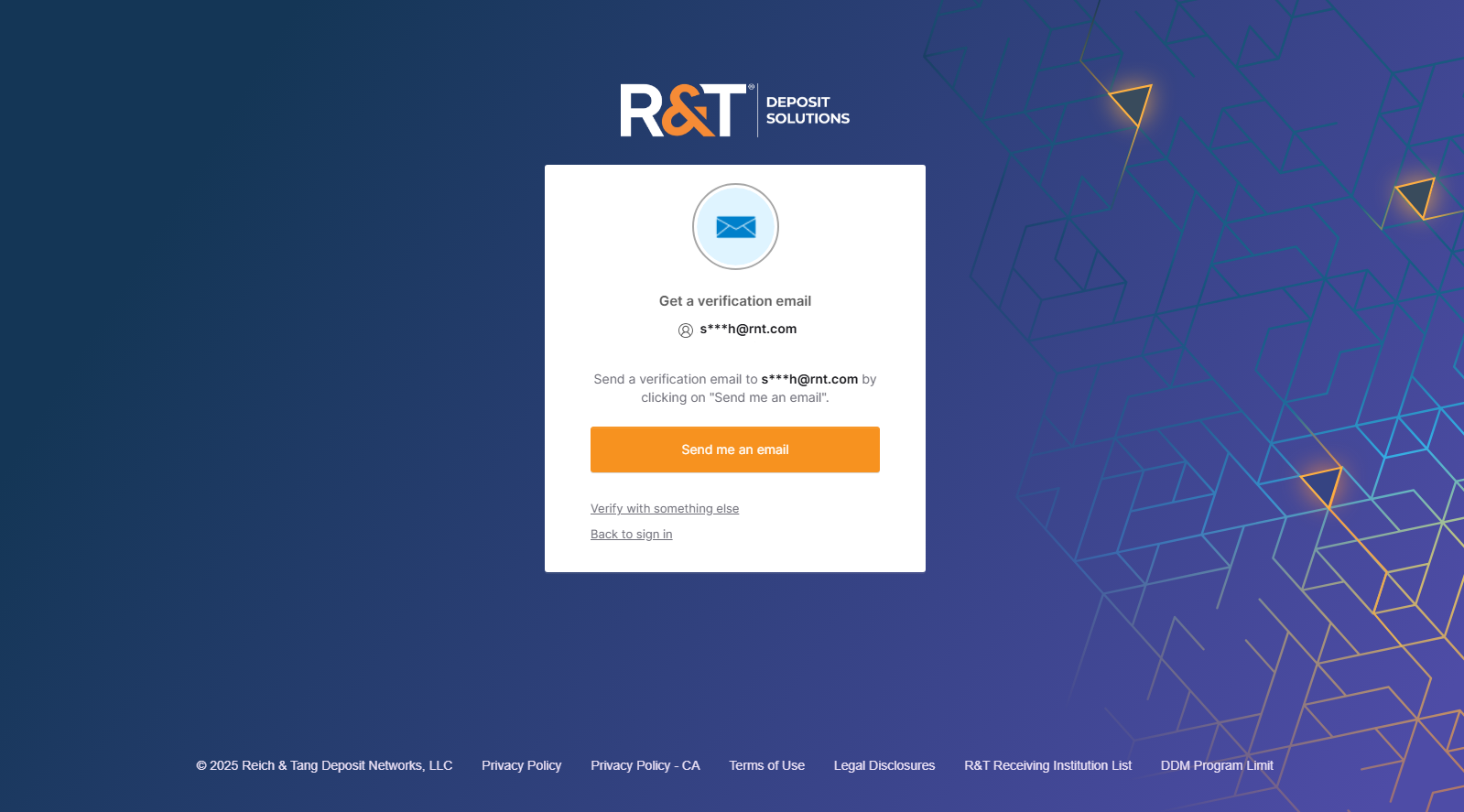
-
Check your email for the password reset message from [email protected].
-
Open the email and select Reset Password.
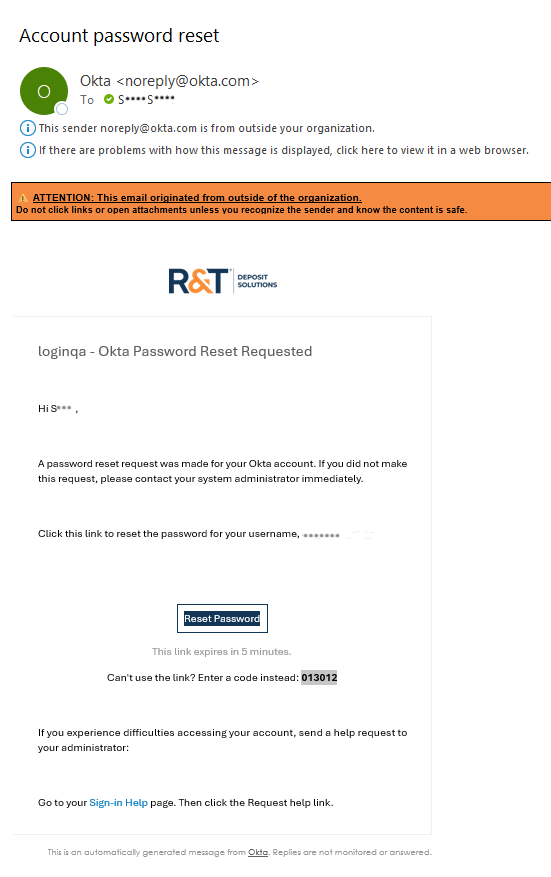
-
Enter a new password that meets the listed requirements.
-
Re-enter the password to confirm it.
-
Select Reset Password.
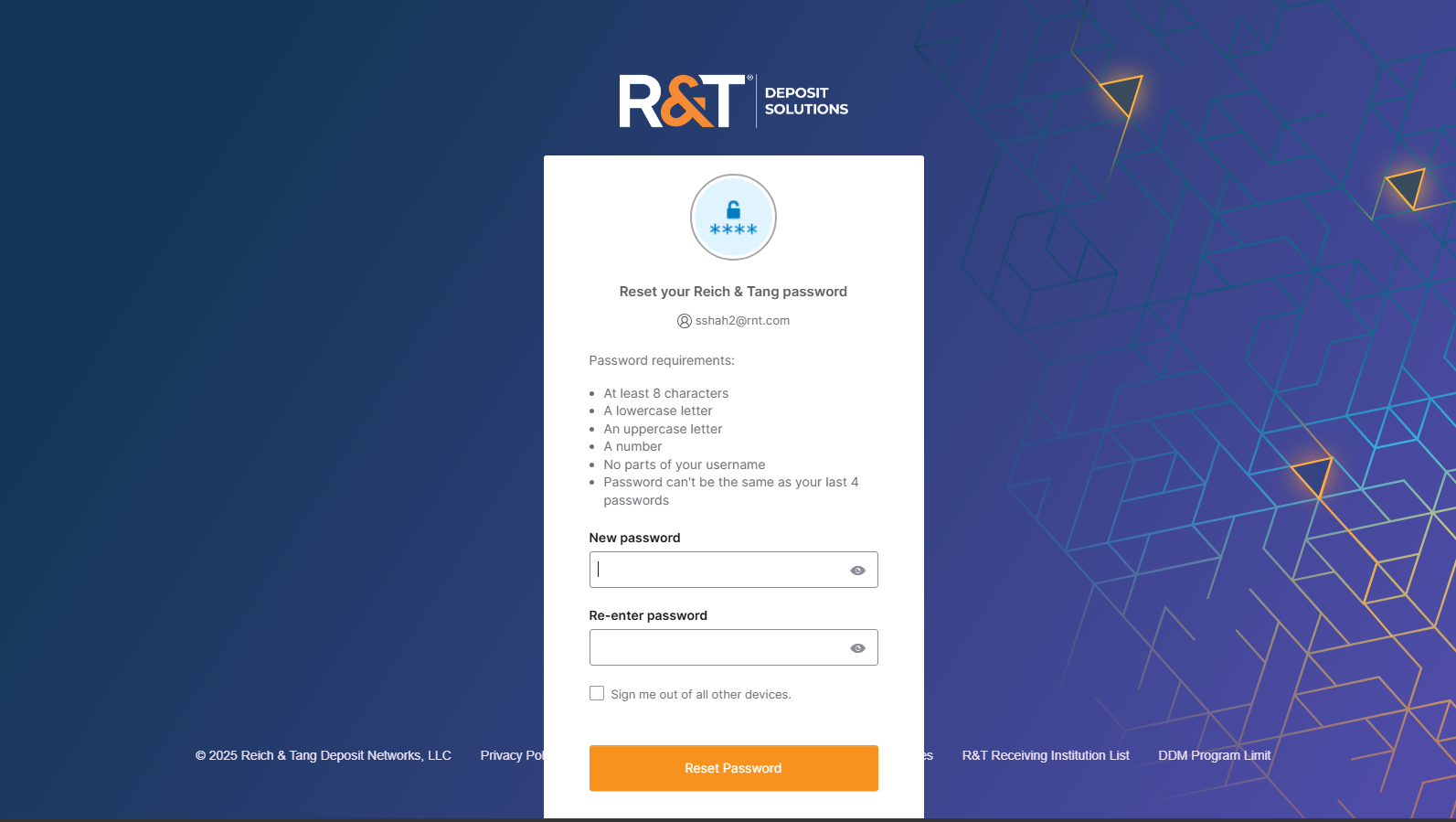
After successfully resetting your password, return to the Okta sign-in screen and sign in using your new password.
Unlock Account
Your account may be locked if:
- You enter an incorrect password too many times
- You enter an incorrect verification code multiple times
If your account is locked:
- Select Forgot Password on the Verify your password screen.
- Follow the steps to reset your password and unlock your account.
If you are unable to unlock your account, contact R&T Client Services for assistance.
What's Next
Now that you understand how to reset and manage your password, continue to Troubleshoot & Get Support to learn how to resolve common authentication issues and find additional assistance when needed.
Updated about 1 month ago