
Reconciliation
Purpose of This Page
The Reconciliation Entry module allows you to locate and review reconciliation records for a selected reconciliation date and Receiving Institution.
Use this page to:
- Create reconciliation entries
- Maintain accurate account records
- Support account balancing and reconciliation activities
How to Access
-
Navigate to the Client Access Portal (CAP).
-
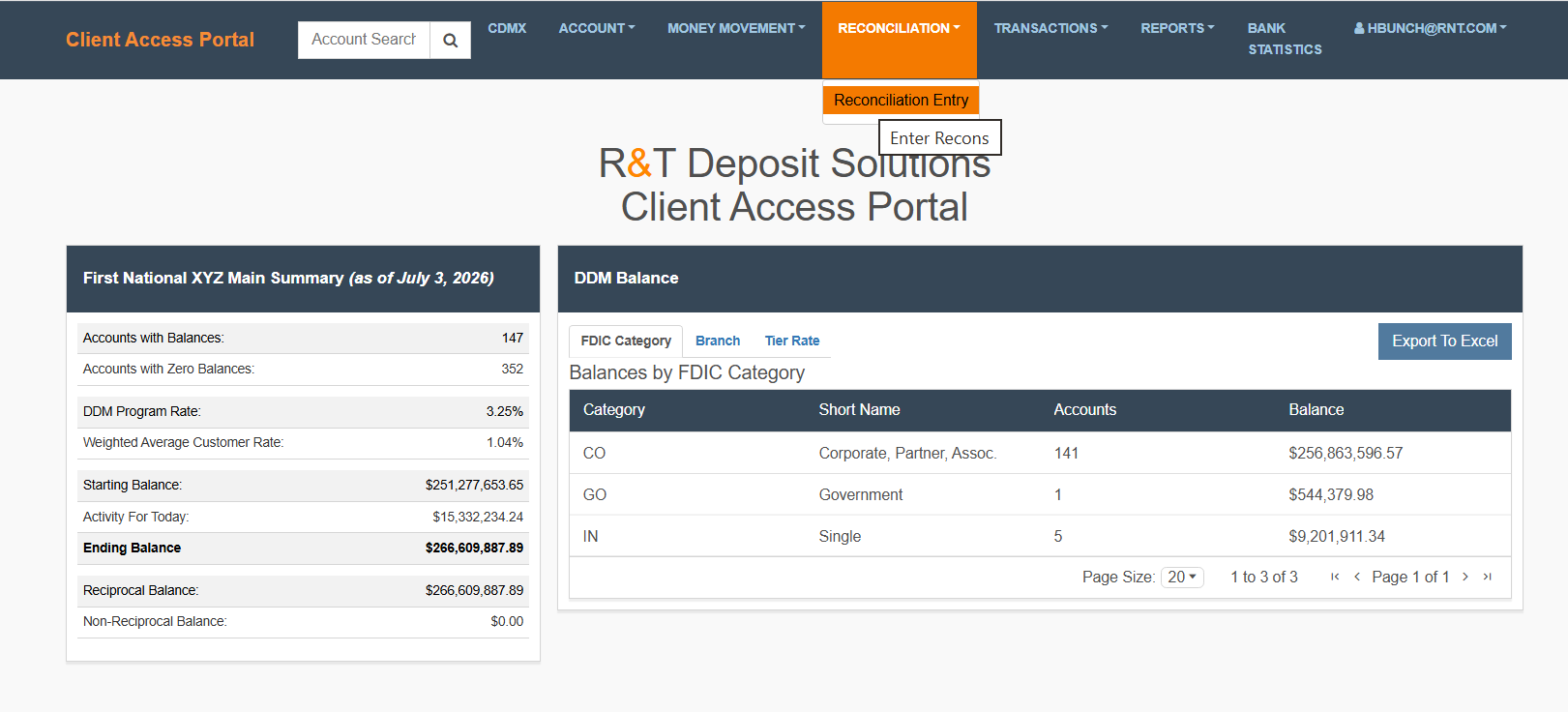
From the top navigation, select Reconciliation then Reconciliation Entry.
Understand Reconciliation Entry
Reconciliation Entry is used to review, reconcile, and finalize reconciliation records associated with a selected Receiving Institution and reconciliation date.
What You Need to Know
- Reconciliation entries are typically tied to a specific program account
- Accurate entry information helps ensure account activity remains properly balanced
Note: Additional guidance may apply based on your organization's reconciliation procedures.
Understand the Page Layout
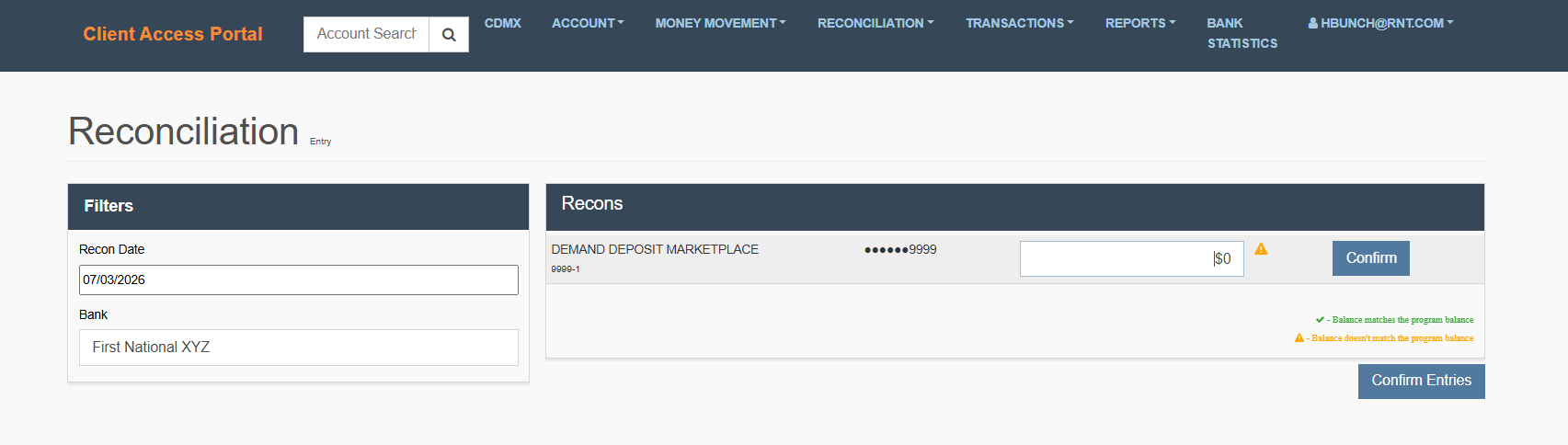
Filters
The Filters section is used to locate reconciliation records.
- Recon Date → Select the reconciliation date you want to review
- Bank → Displays the Receiving Institution associated with the reconciliation
Recons
The Recons section displays reconciliation records that match the selected criteria.
What You Will See
Depending on available data, this section may display:
- Reconciliation records
- Reconciliation details
- Status information
Helpful Tips
- Reconciliation records may not be available until participating Receiving Institutions have completed their balance submission process.
- If no records are available for the selected date, the message "No records found" is displayed.
Find Reconciliation Records
What You Need to Do
-
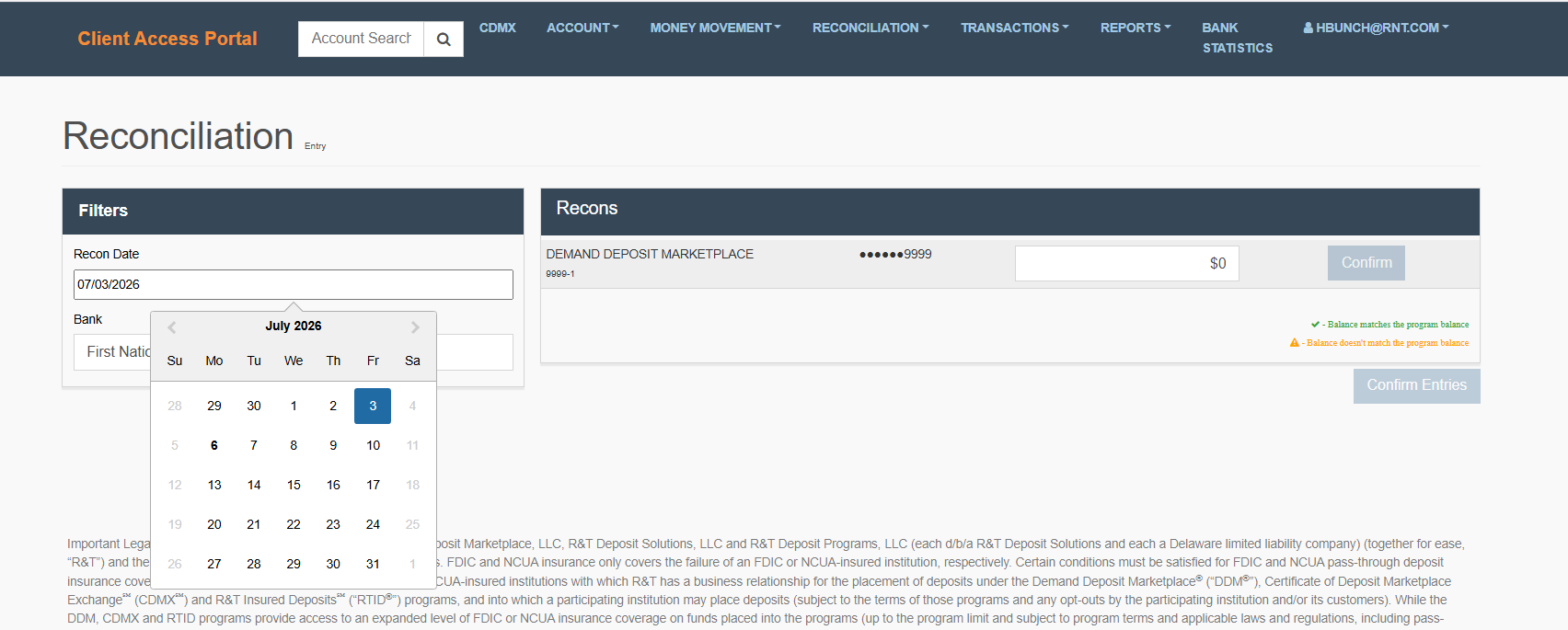
Select a Recon Date.
-
Review the records returned in the Recons section.
-
Select a reconciliation record for additional details, if available.
-
Contact Proof & Control at R&T if changes are required.
-
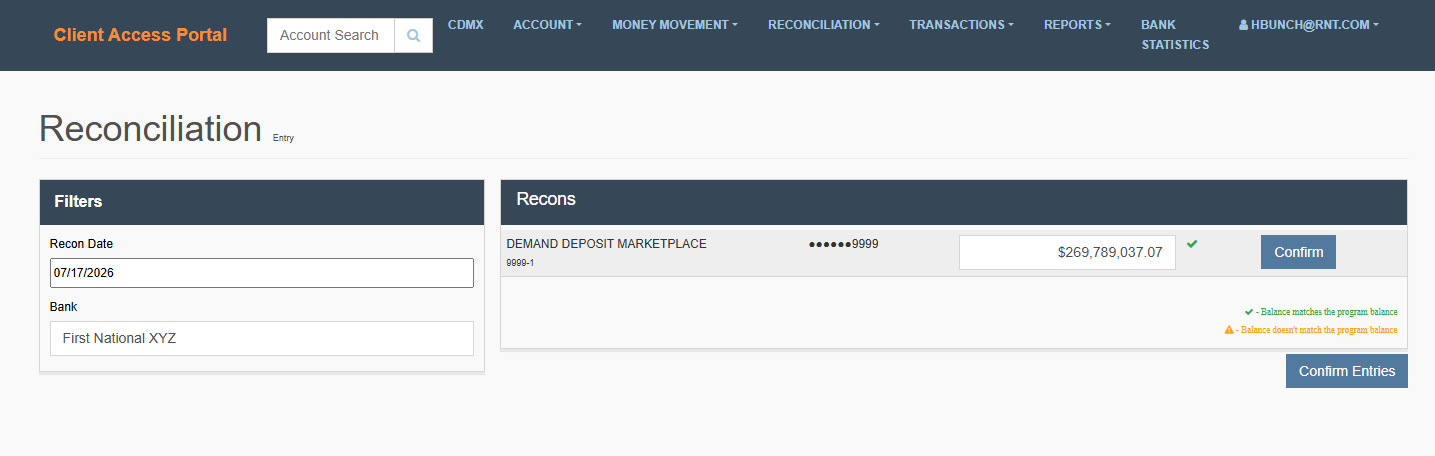
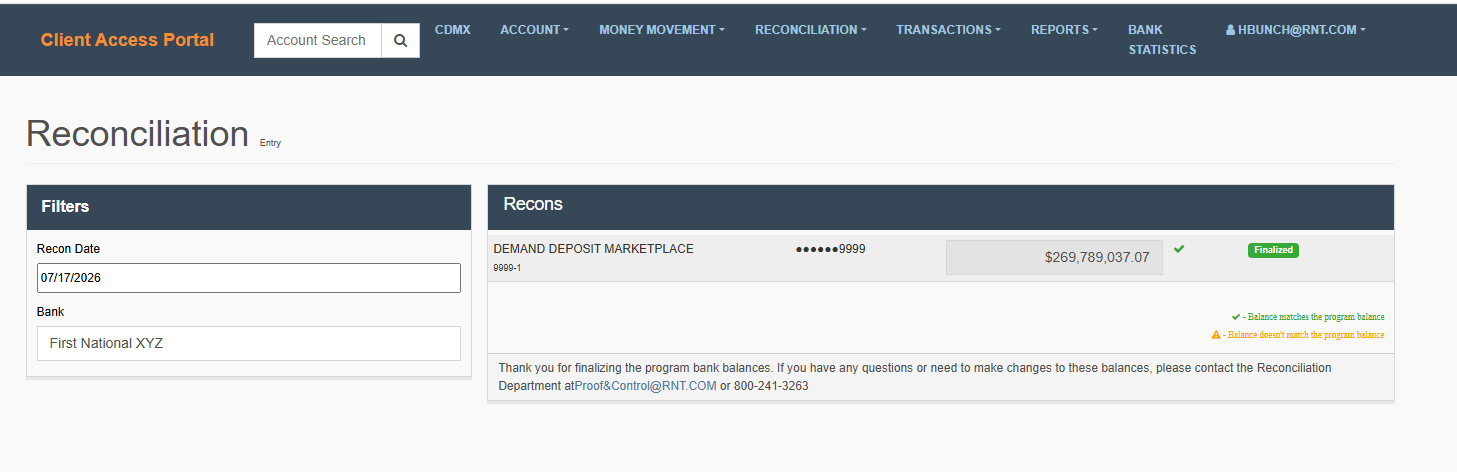
A green checkmark indicates the balance has been successfully reconciled.
Note: If the entered balance does not match the program balance, a yellow warning indicator is displayed.
-
-
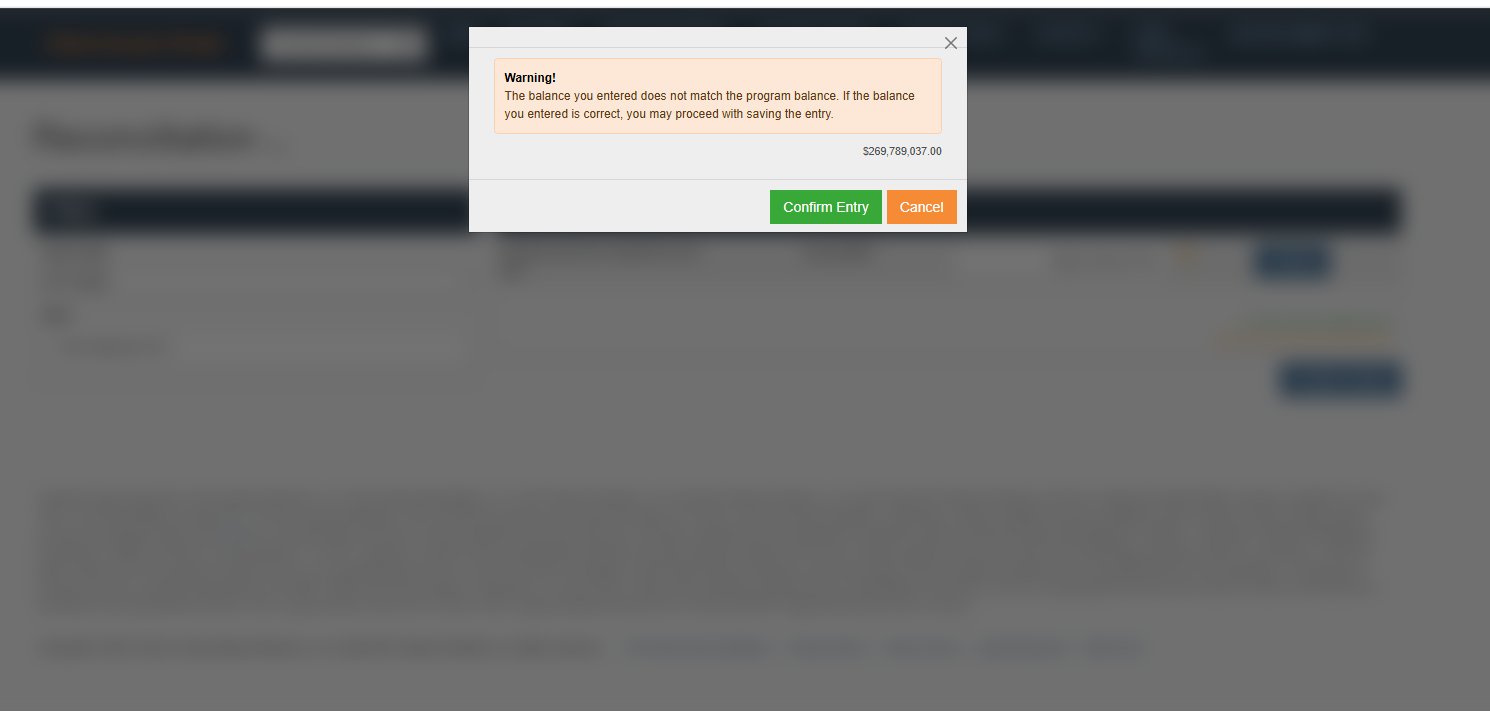
Select Confirm.
Warning: The balance you entered does not match the program balance. If the balance you entered is correct, you may proceed with saving the entry.
-
Select Confirm Entry to continue with the entered balance.
-
Select Cancel to return and review the balance before proceeding.
-
-
Select Finalize to complete the reconciliation.

Helpful Tips
- Reconciliation records are date specific.
- If no records are returned, try selecting a different reconciliation date.
- Available records may vary based on the selected Receiving Institution.
- Reconciliation records may not be available for every date. If no records are returned, select a different reconciliation date or verify that reconciliation activity exists for the selected Receiving Institution.
What Happens Next
- The reconciliation record is marked as Finalized.
- Additional changes cannot be made unless the record is reset through the appropriate reconciliation process.
- The reconciled balance becomes part of the official reconciliation record.
Previously Finalized Reconciliations
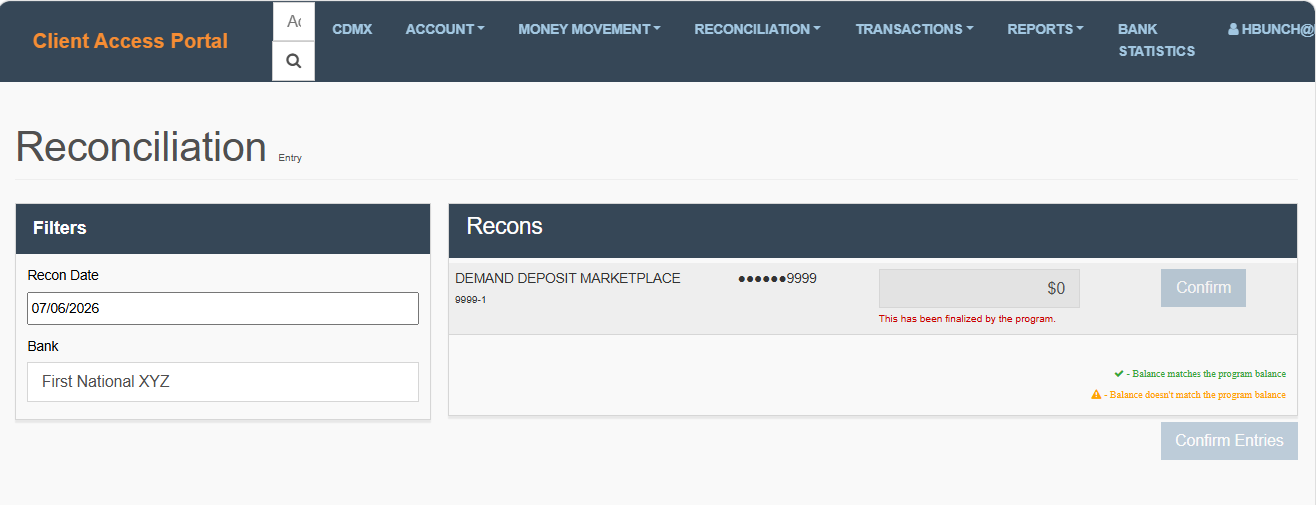
If a reconciliation has already been finalized, the entry cannot be modified. CAP displays a message indicating that the record has already been finalized.
What This Means
- The reconciliation has already been completed.
- The balance cannot be changed.
- The record is available for review only.
What You Can Do
- Review the finalized reconciliation details.
Updated 20 days ago