
Support
Overview
The Support section provides access to support case management features within R&T Direct℠.
Use Support to create support cases, review previously submitted requests, monitor case progress, and review case details.
Support helps you manage requests from submission through resolution from a centralized location.
Case History
The Case History page provides visibility into support requests associated with your account.
Case History allows you to review submitted cases, locate specific requests, monitor case progress, and access detailed case information.
My Cases
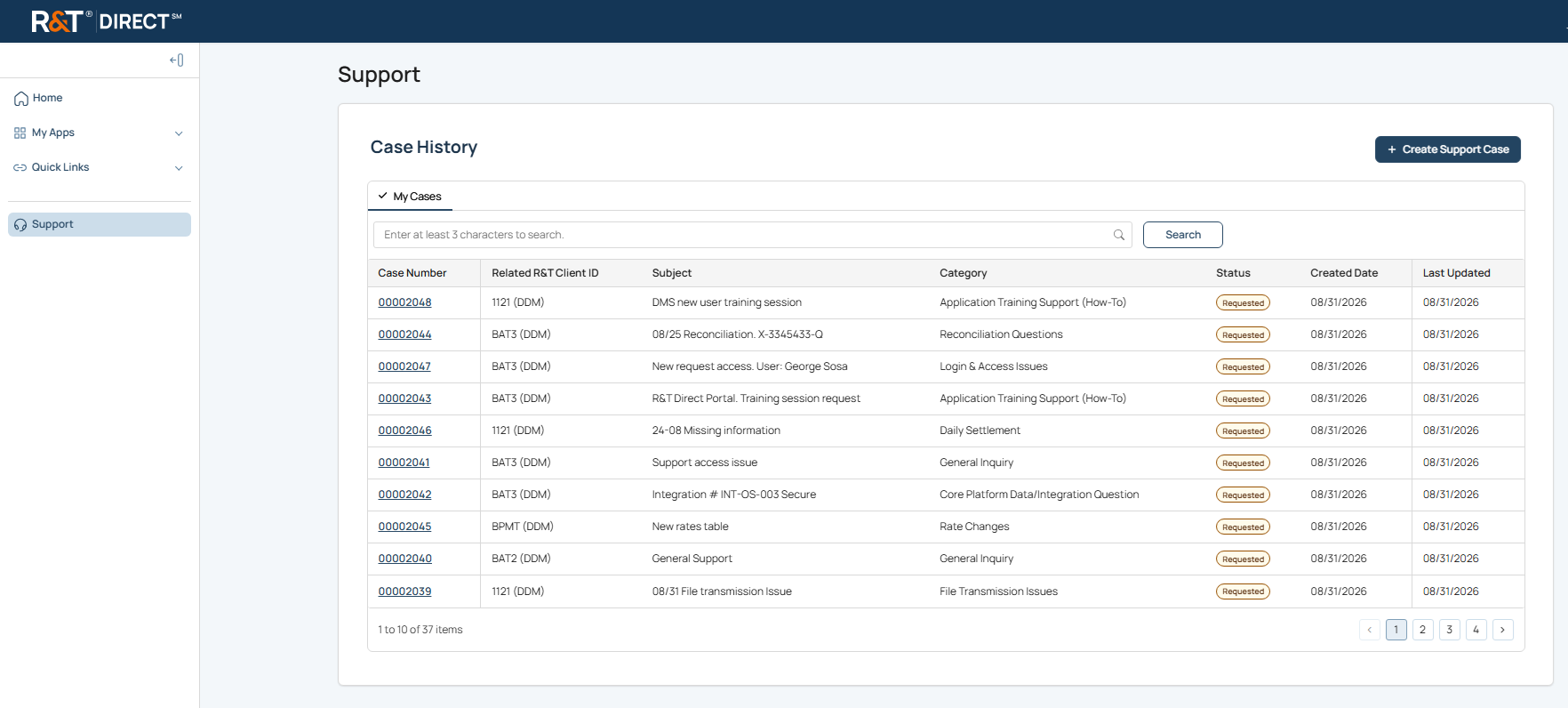
The My Cases tab displays support requests associated with your account. Use My Cases to review previously submitted requests and monitor their progress through completion.
Search
Use Search to locate specific support cases without manually reviewing the entire Case History list.
Sorting
Select a column heading to sort support cases and quickly locate relevant information.
Case Number
Each support case is assigned a unique Case Number. Select a Case Number to review detailed information about the request.
Status Indicators
Status indicators provide visibility into the current state of a support request, helping you quickly determine whether a case is awaiting review, actively being worked, on hold, or resolved.
Pagination
Use the pagination controls to navigate additional pages of case records when more cases exist than can be displayed on a single page.
Case Statuses
Status indicators provide visibility into the current progress of a support request.
What You Need to Know
The following statuses may be displayed:
- Requested indicates the support request has been submitted and is awaiting review.
- In Progress indicates work is actively being performed on the request.
- On Hold indicates additional information, action, or review is required before work can continue.
- Resolved indicates the request has been completed.
Reviewing case statuses can help you understand the current stage of a support request and whether additional action may be required.
Create Support Case
The Create Support Case feature allows you to submit a request for assistance directly from R&T Direct.
Providing accurate and complete information helps the support team review and respond to your request more efficiently.
What You Need to Know
-
The Related R&T Client ID dropdown menu identifies the client associated with the request. The available values represent the Client IDs associated with your institution and the access assigned to your account.
Select the Client ID that is most closely related to the request being submitted.
-
The Category dropdown menu identifies the type of assistance being requested and helps route the request to the appropriate support team.
Select the category that best matches your request to help ensure it is reviewed by the team best suited to assist you.
What You Need to Do
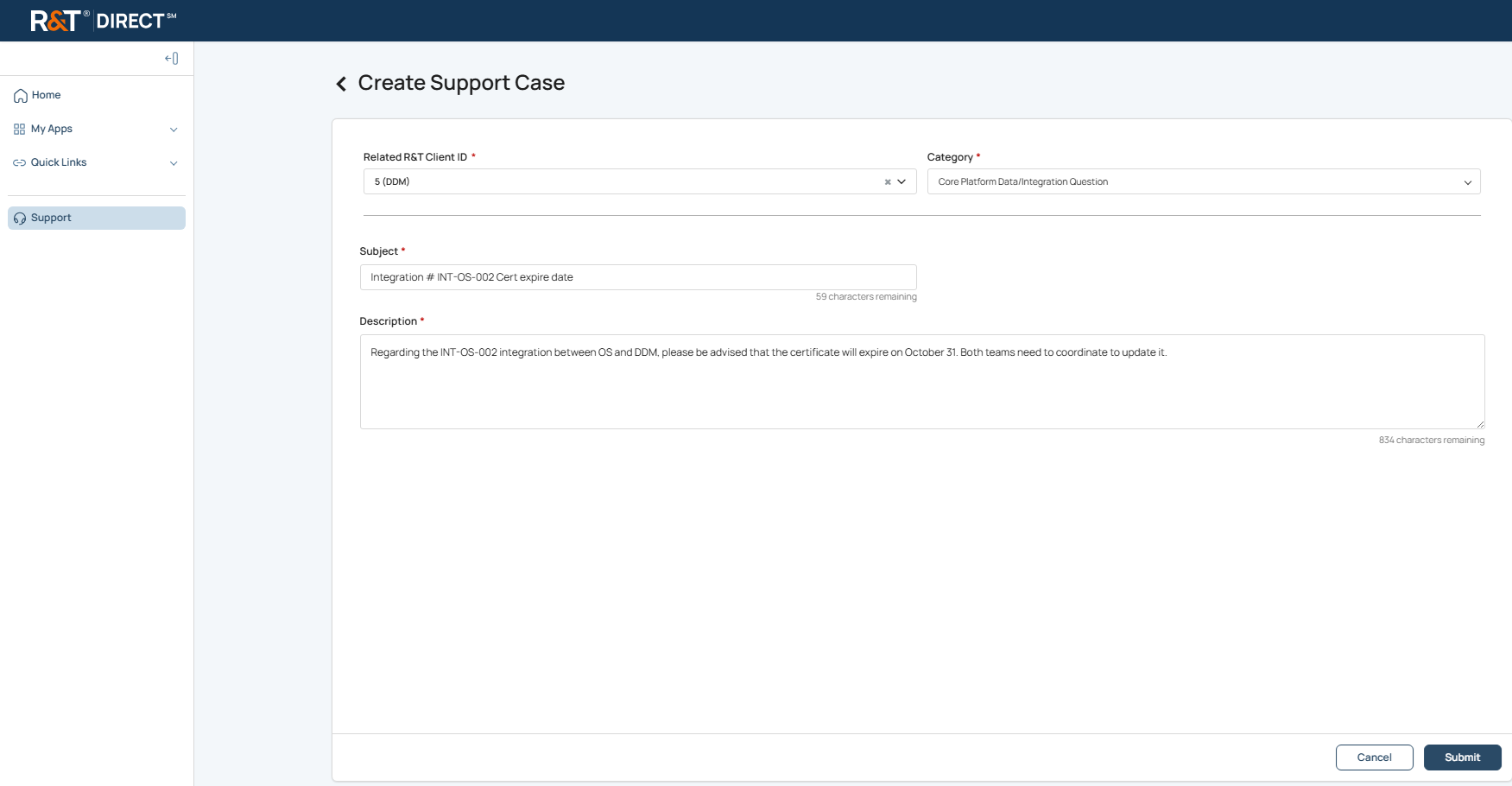
- Use the Left Side Navigation menu and select Support.
- From the Case History page, select Create Support Case.
- Select the Related R&T Client ID associated with your account.
- Select the Category that best describes the type of assistance you need.
- Enter a brief Subject that summarizes the request.
- Enter a detailed Description that explains the issue or request.
- Select Submit.
Result
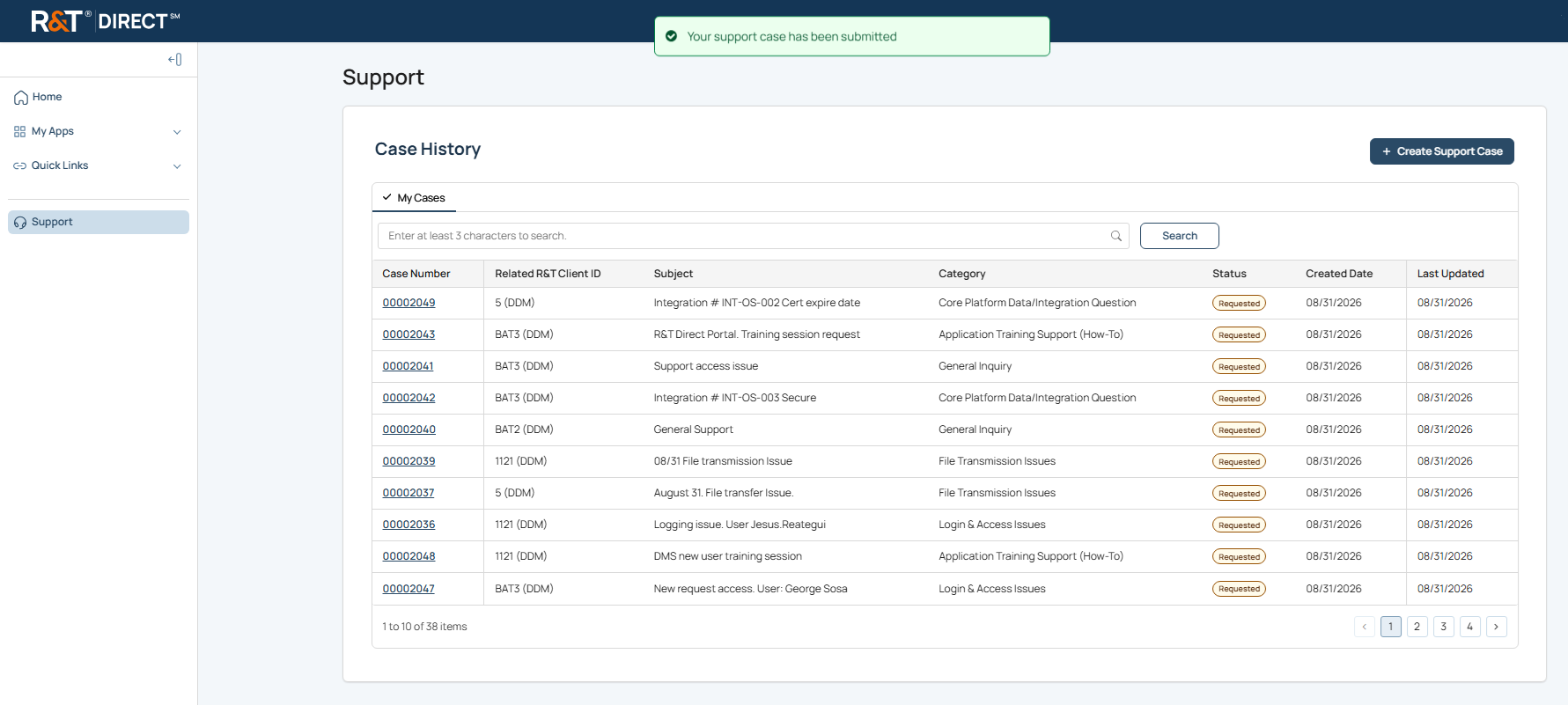
A support case is created and added to Case History, where you can monitor its status and review updates.
What's Next
You have now reviewed the core features available in R&T Direct.
For application-specific features and functionality, refer to the documentation for the applications available through My Apps.
Updated 20 days ago