
Multiple Transaction Entry
How to Access
-
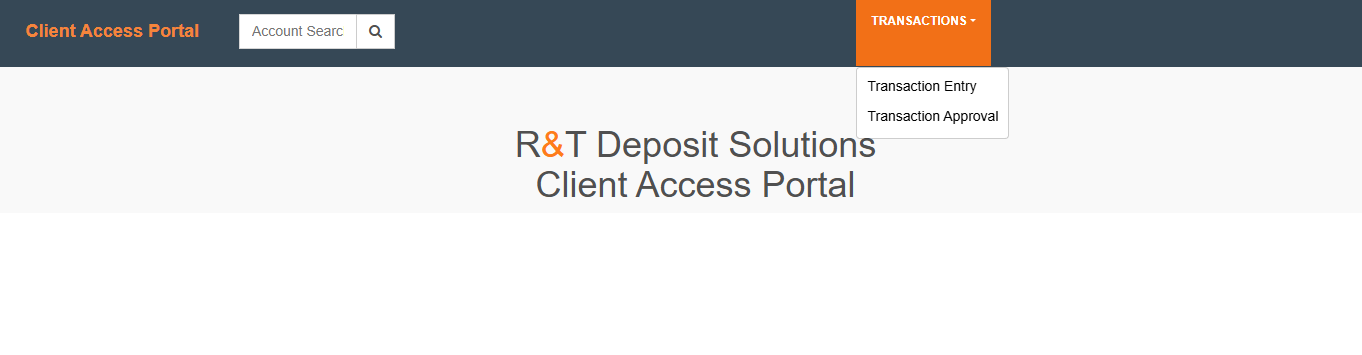
Navigate to the Client Access Portal.
-
Select Transaction Entry from the primary navigation.
-
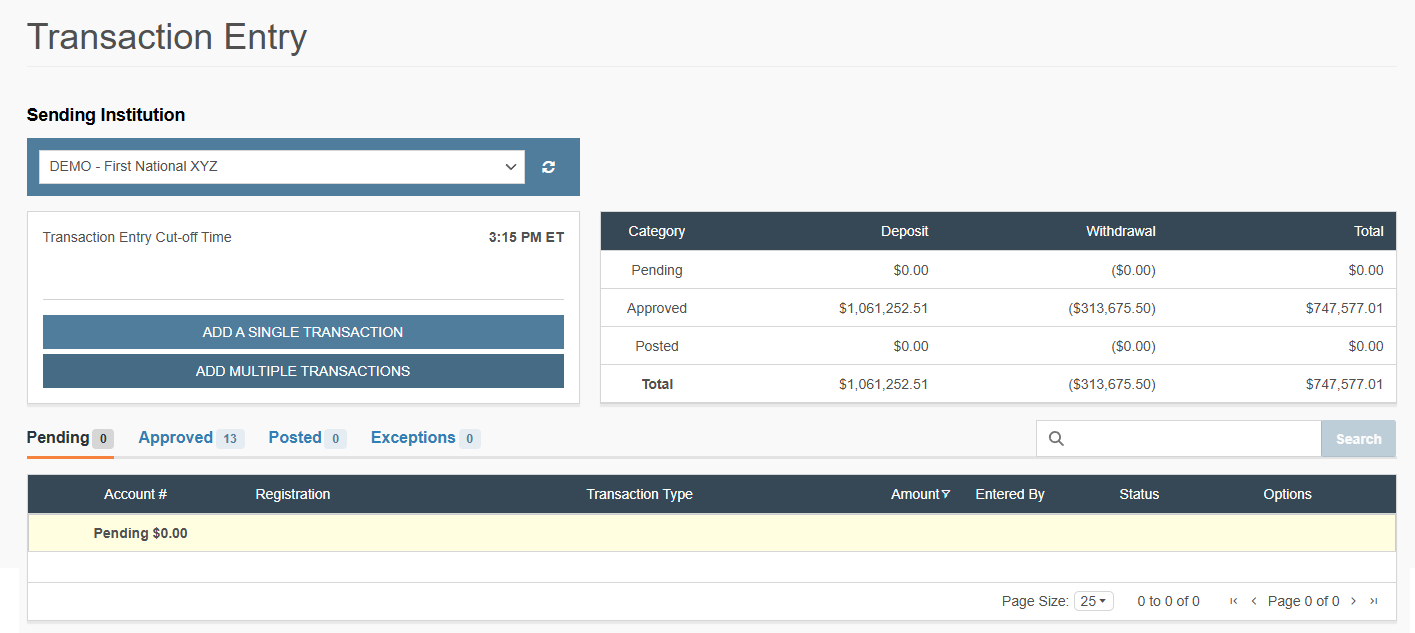
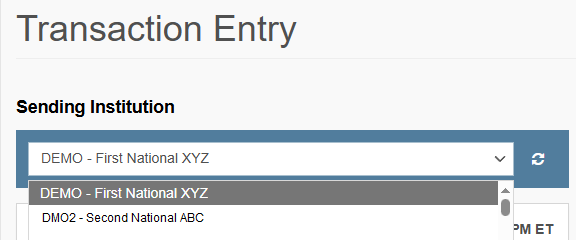
Select the appropriate Client Code from the dropdown menu.
Enter a Multiple Transaction Entry
-
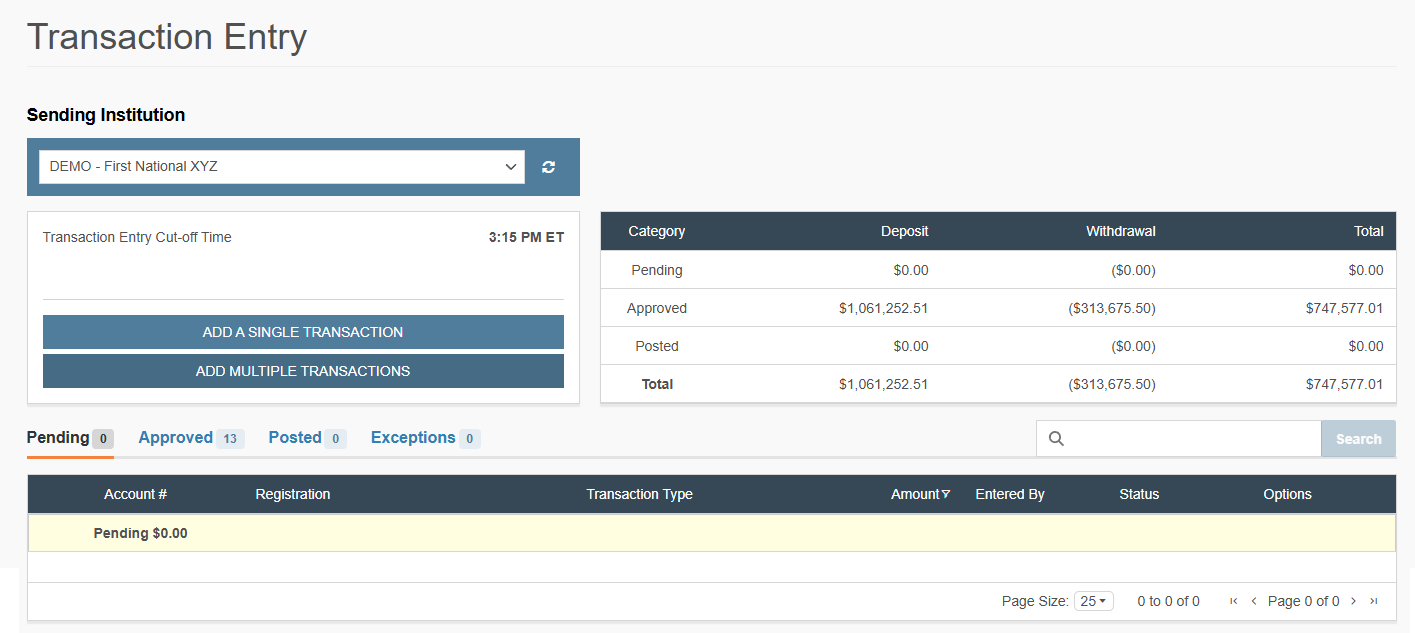
Click Add Multiple Transactions.
-
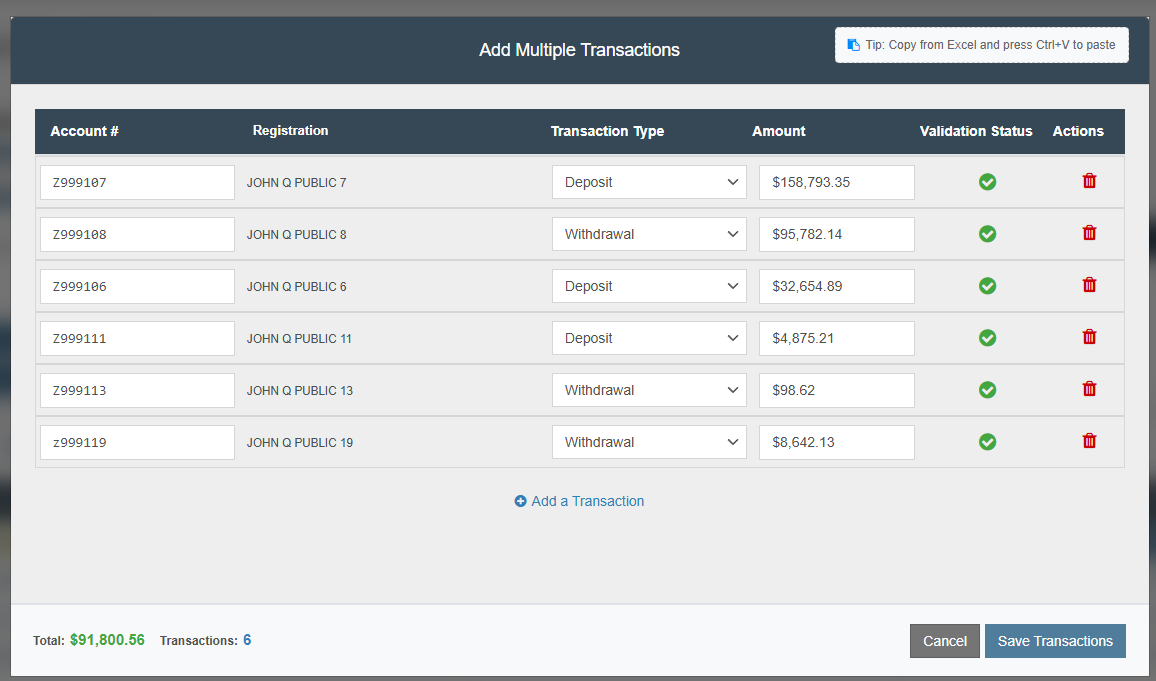
Enter your Account Number: Begin typing the account number in the field. The system will provide a predictive list of matching Customer Accounts within the selected Sending Institution.
-
Select Transaction Type from the dropdown menu for each entry.
-
Enter Transaction Amount: Input positive dollar figures even for withdrawals.
Note: When Withdrawal is selected, the system recognizes it as a negative value automatically. It takes the absolute amount entered and processes it as a reduction of principal.
You can populate the transaction list using two methods:
-
Manual Entry: Type the amounts directly.
-
Copy/Paste: Use
Ctrl+CandCtrl+Vto pull amounts from Excel or other source files.
CRITICAL: To ensure successful mapping, your source file (Excel/CSV) must be organized in this exact order:
-
Column A: Account Number
-
Column B: Transaction Type (Literal string: "Deposit" or "Withdrawal")
-
Column C: Amount (Maximum 2 decimal places)
-
-
Check Validation Status: Ensure the status has a green check next to each entry.
-
If a red exclamation mark appears, the transaction contains an error (e.g., exceeding available balance).
-
See Handling Validation Errors for correction steps.
-
-
Click Save Transaction.
-
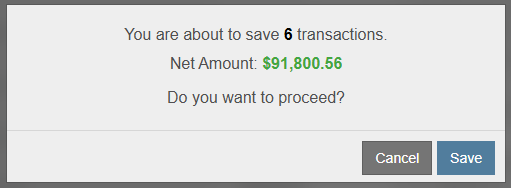
A confirmation dialog appears showing the total number of transactions and the net amount.
-
Review the summary and click Save to proceed.
-
Handle Validation Errors in a Multiple Transaction Entry
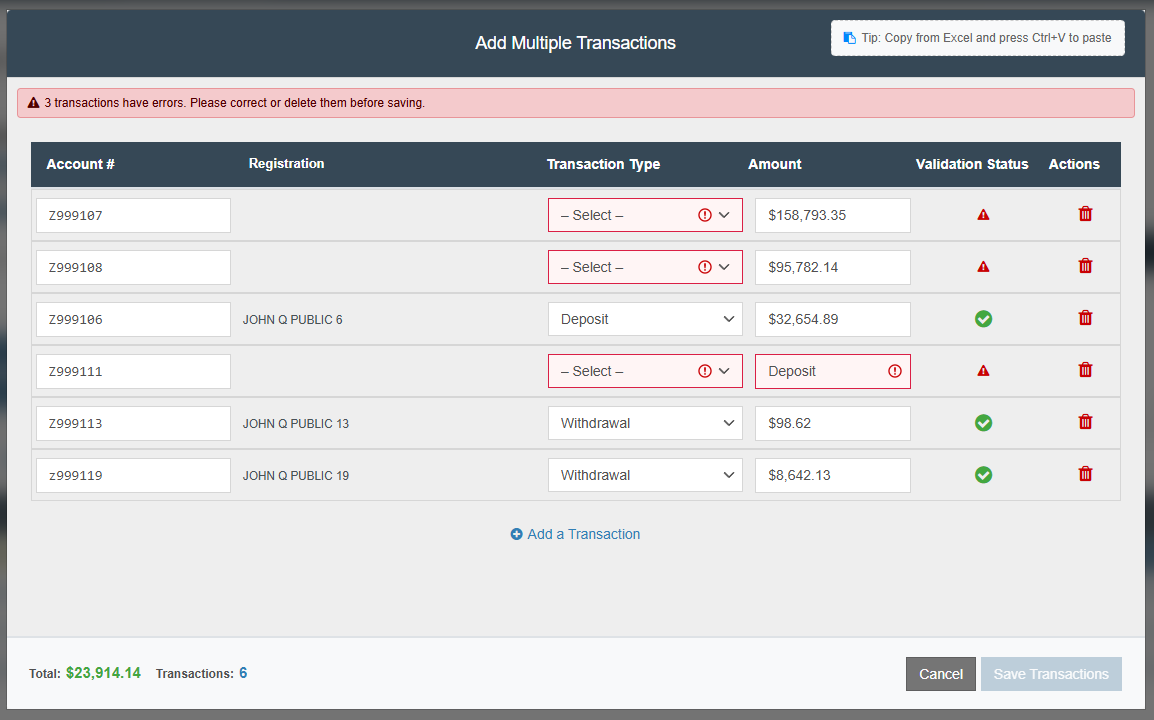
The system performs a validation check once you attempt to commit the batch. A red exclamation point in the Validation Status column indicates an entry that must be resolved before the system allows a save.
Account Number Does Not Exist
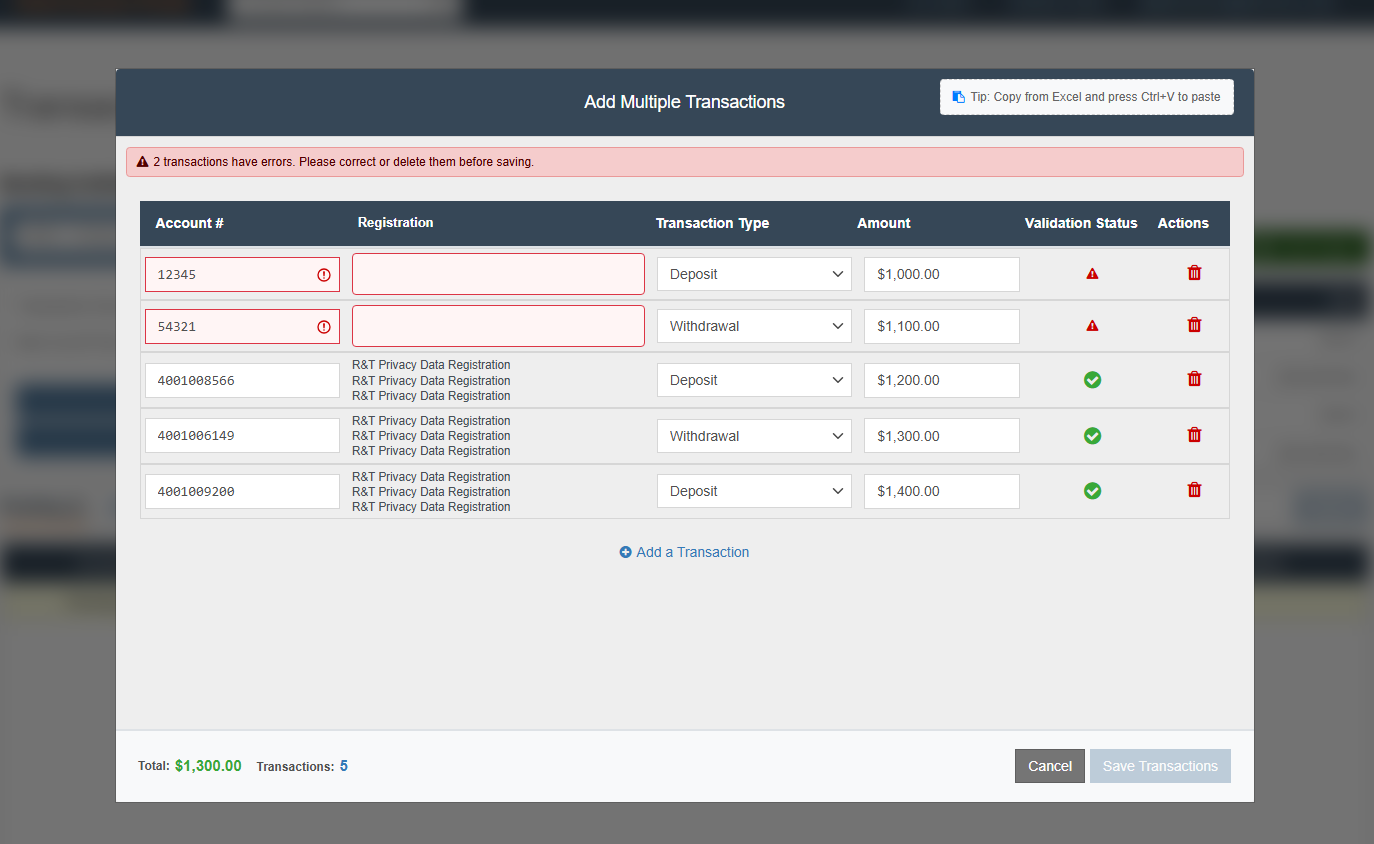
If a Customer Account number is entered that is not recognized within the selected Institution:
-
System Behavior: A red border appears around the Account # field, and the Validation Status displays a red exclamation point.
-
Resolution: Verify the account number against your records. You must either enter a valid account or click the Trash Can icon to remove the invalid row.
Amount Exceeds Principal Balance
The system performs a server-side check against the account's available principal only after an attempt is made to commit the data.
Validation Timing: No error is displayed while typing or pasting the data if the account number is valid. The validation triggers only after clicking Save.
System Feedback:
-
A notification appears in the top-right corner stating the amount exceeds the principal.
-
The failed row remains on the table, highlighted with a red exclamation point in the Validation Status column.
Partial Batch Processing: Unlike other system errors that might lock a batch, the other valid transactions in the list are successfully submitted and processed.
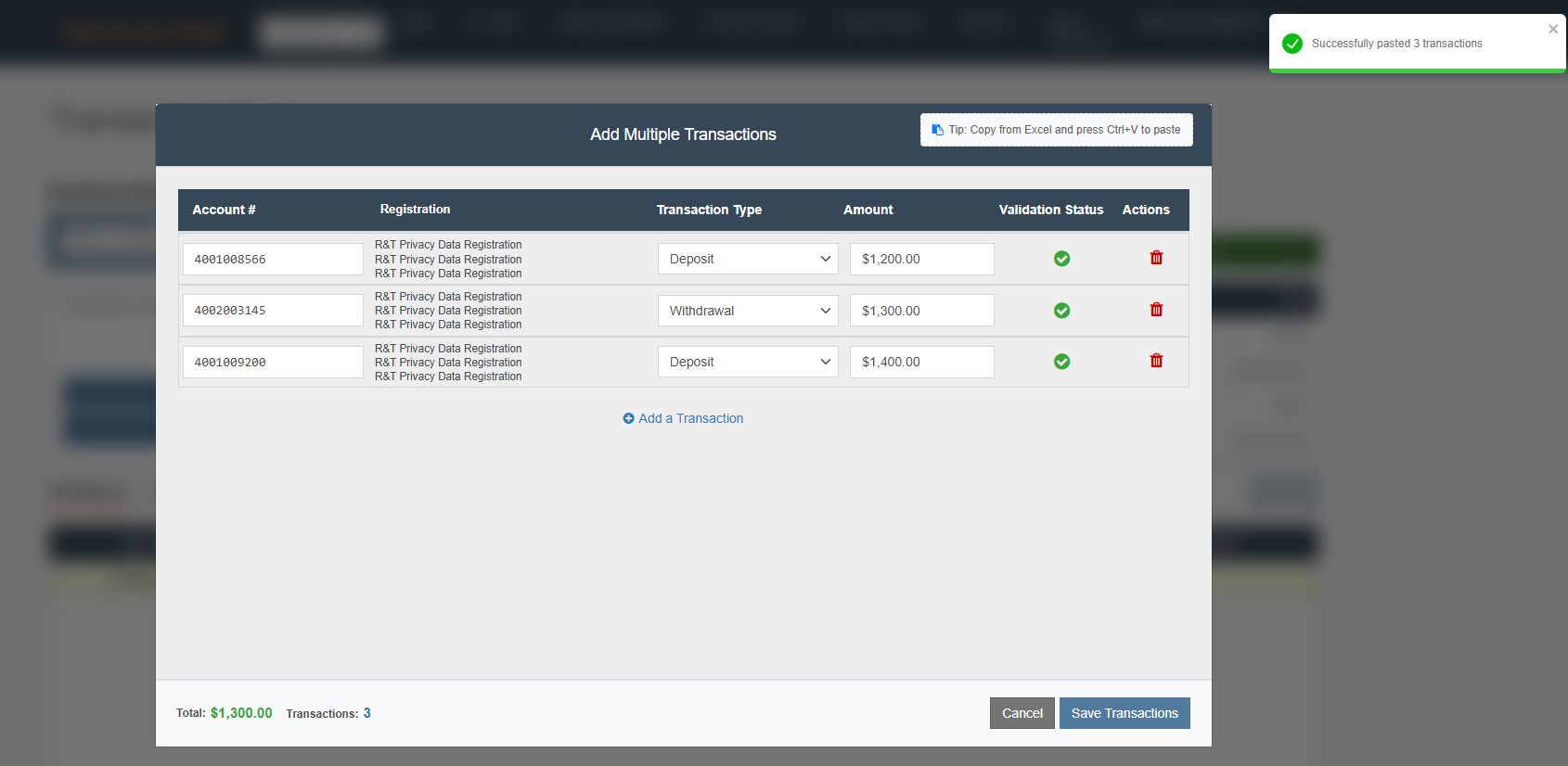
Resolution: You must either correct the amount in the remaining row to be within the allowed principal or click the Trash Can icon to delete the rejected entry.
Exceeding Transaction Limits
The system enforces a maximum transaction threshold to prevent catastrophic data entry errors.
-
Limit: The system will not allow any single transaction entry to exceed $999,999,999.99 (No more than One Billion Dollars).
-
Validation Timing: Similar to balance checks, this validation triggers when you click Save Transaction.
-
Resolution: You must reduce the transaction amount below the threshold or remove the row to proceed with the rest of the batch.
Note: If a batch upload (via pasting from Excel) contains a value exceeding this limit, the Save button will be disabled, and a validation error will highlight the specific row(s) causing the breach.
Transaction Status & Approval (QC)
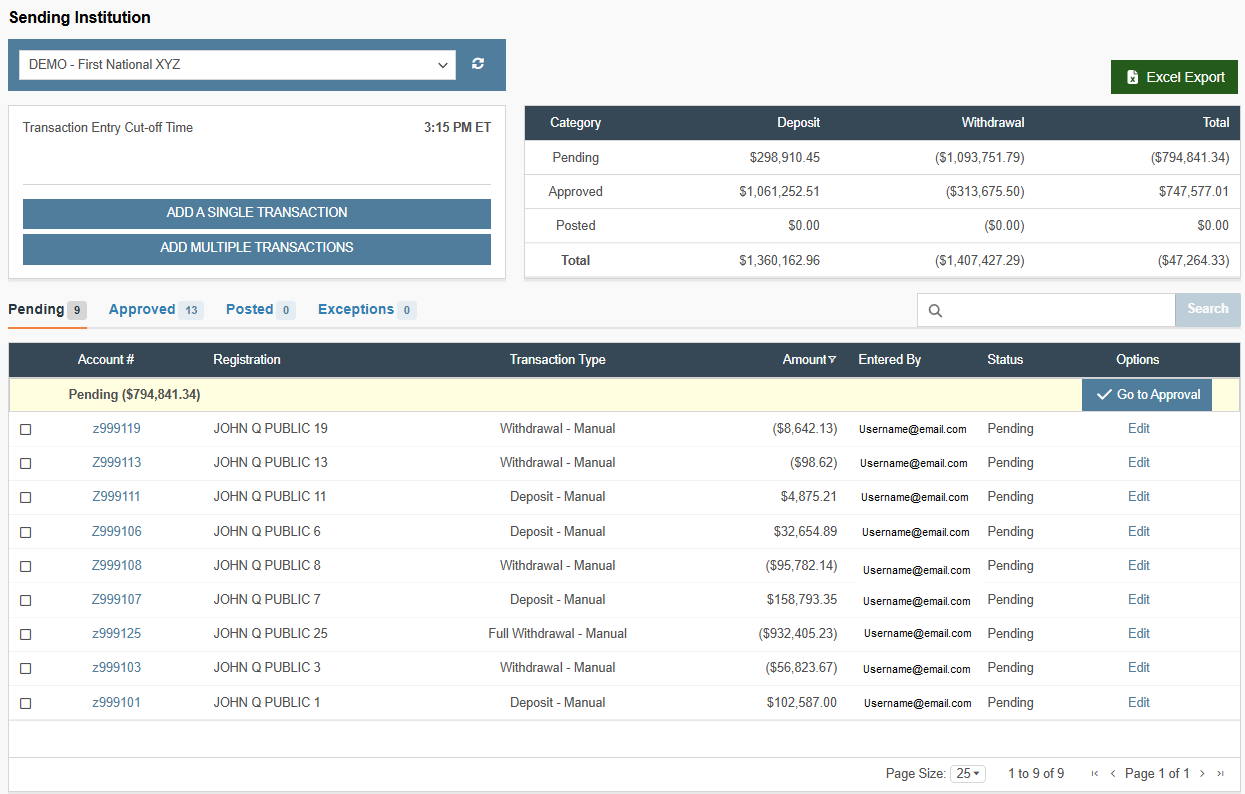
Once saved and passed through the initial validation checks, transactions appear in Pending status where they are processed in one of two ways:
-
Dual Control (Optional): Makers are systemically blocked from approving their own entries. A second individual from the institution must perform the QC/Approval.
-
Straight-Through Processing: If the client has opted to not require dual control, this configuration bypasses the manual QC step and transactions flow through the system automatically.
What's Next
Now that you have initiated a multiple transaction, the entry may need to be approved (if approval permissions were requested) and then the transaction must be settled to impact the account balance.
-
Approve the Entry: Move to the Transaction Approval Workflow to learn how to QC your transaction and advance it to the Approved status.
-
Verify System Status: Review the Transaction Status & Workflow Lifecycle to understand the transition from "Pending" to "Posted" status.
-
Review Individual Transactions: If you need to modify a specific transaction within your multiple transaction entry upload, refer to the Single Transaction Entry guide for instructions on editing individual line items.
-
Finalize for the Day: Once all entries are approved, follow the Net Settlement Report Generation procedure to finalize your daily batch and generate a net settlement report.
Updated 20 days ago