
Announcements
Overview
The Announcements section provides access to communications, updates, and information that may be relevant to your organization, products, and services.
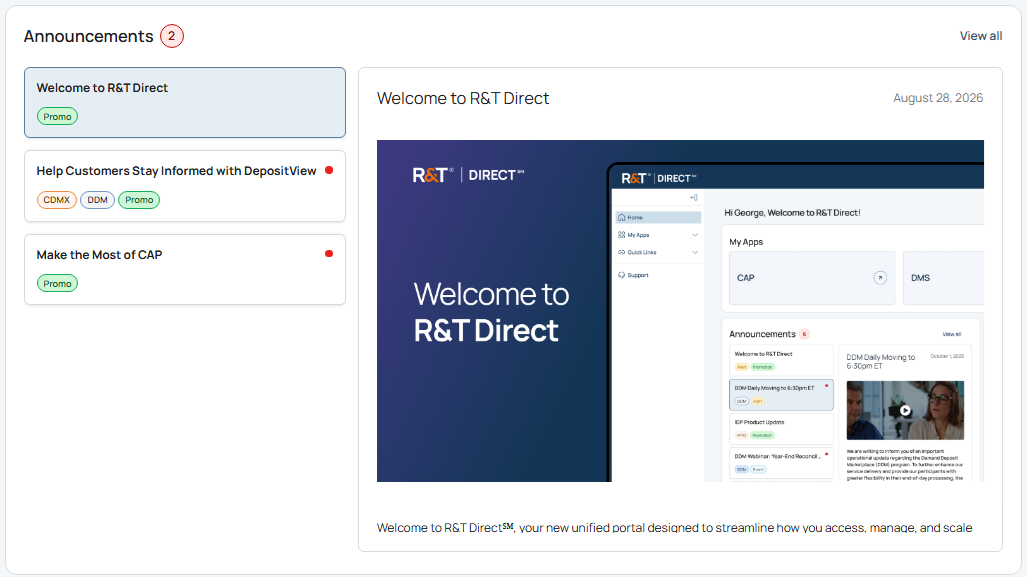
Announcements displayed on the Home page provide visibility into recent communications. Users can review announcement details directly from the Home page or select View all to access additional announcements.
Unread Announcements
The Announcements section includes visual indicators to help you quickly identify communications that have not yet been reviewed.
What You Need to Know
-
The announcement counter displays the number of unread announcements.
-
A red indicator displayed next to an announcement identifies the announcement as unread.
-
Unread indicators are removed after the announcement has been reviewed.
Understanding these indicators can help you quickly identify new communications that may require your attention.
Announcement Tags
Announcements include tags that provide additional context about the communication.
What You Need to Know
Announcement tags help you quickly determine:
- The type of communication being shared.
- The products, services, or programs to which the announcement applies.
- Whether the announcement is relevant to you.
For example, an announcement may include tags that identify it as an Alert, Promo, or Event, as well as tags that identify the associated product or service.
Using announcement tags can help you prioritize announcements that are most relevant to your responsibilities and authorized applications.
View All Announcements
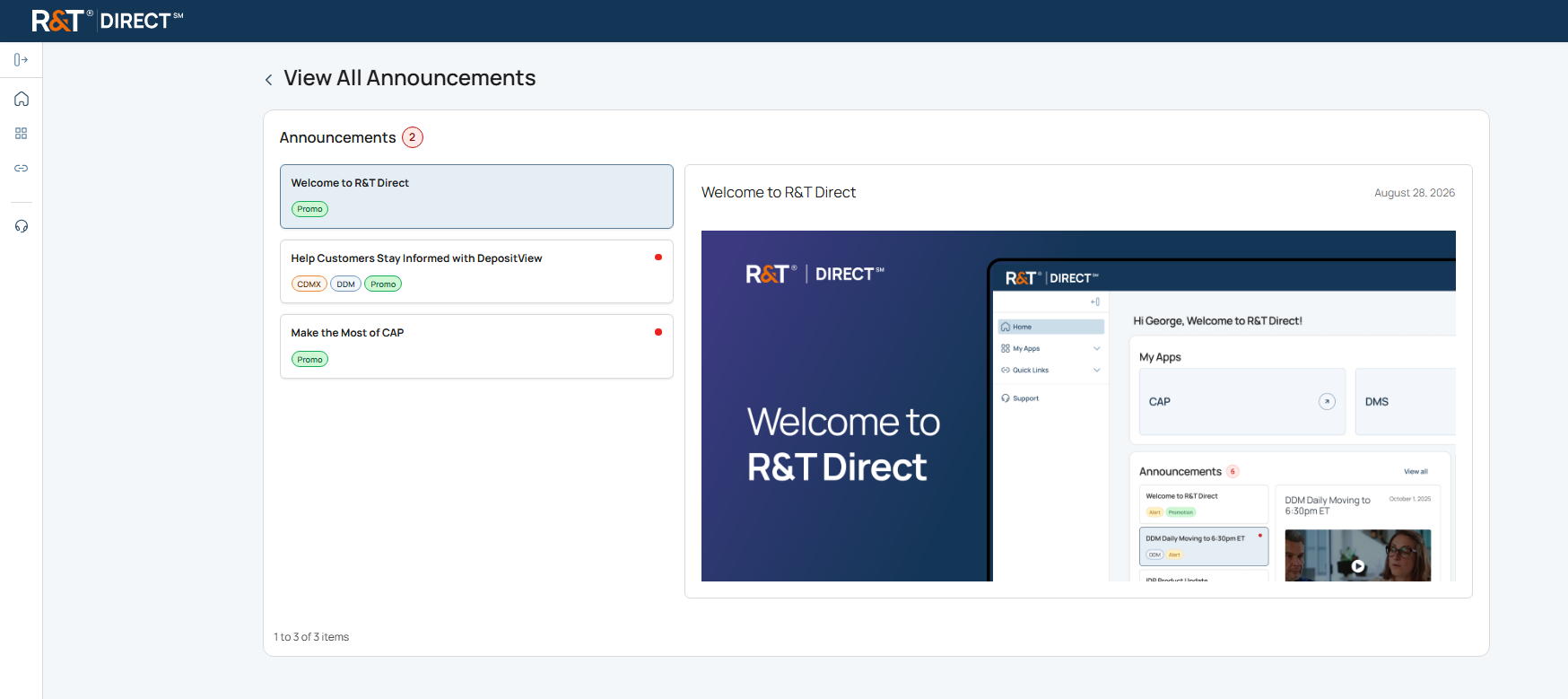
The View All Announcements page allows you to review a complete list of tailored announcements from a single location. Once an announcement has expired, you will no longer be able to view it.
What You Need to Know
The View All Announcements page includes:
- An unread announcement counter that displays the total number of unread announcements.
- An announcement list that displays available announcements.
- Unread announcement indicators that identify announcements that have not yet been reviewed.
- Announcement tags that provide additional context about the communication.
- An announcement details pane that displays the selected announcement.
- Pagination controls that allow you to navigate through additional announcements.
What You Need to Do
- From the Home page, select View all in the Announcements section.
- Review the announcement list.
- Use the announcement title, tags, and unread indicators to identify announcements that are relevant to you.
- Select an announcement.
Result
The selected announcement displays in the announcement details pane, where you can review the complete announcement.
Announcement Details
When you select an announcement, the announcement details pane displays additional information about the communication.
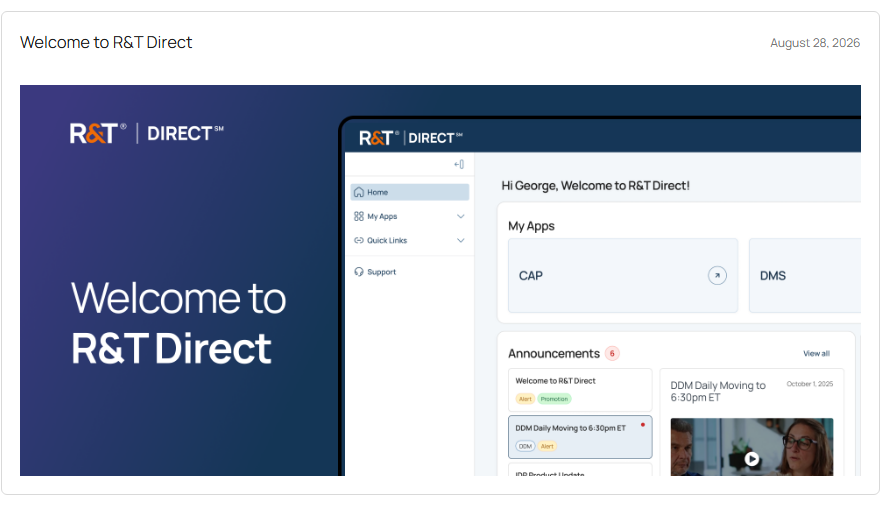
Depending on the announcement, the details pane may include:
- Announcement title
- Publication date
- Images
- Videos
- Links
- Detailed announcement content
This allows you to review the complete communication without leaving the View All Announcements page.
What's Next
Now that you understand how announcements are presented and managed in R&T Direct℠, continue to Support to learn how to create support cases, review case history, and monitor request status.
Updated 20 days ago